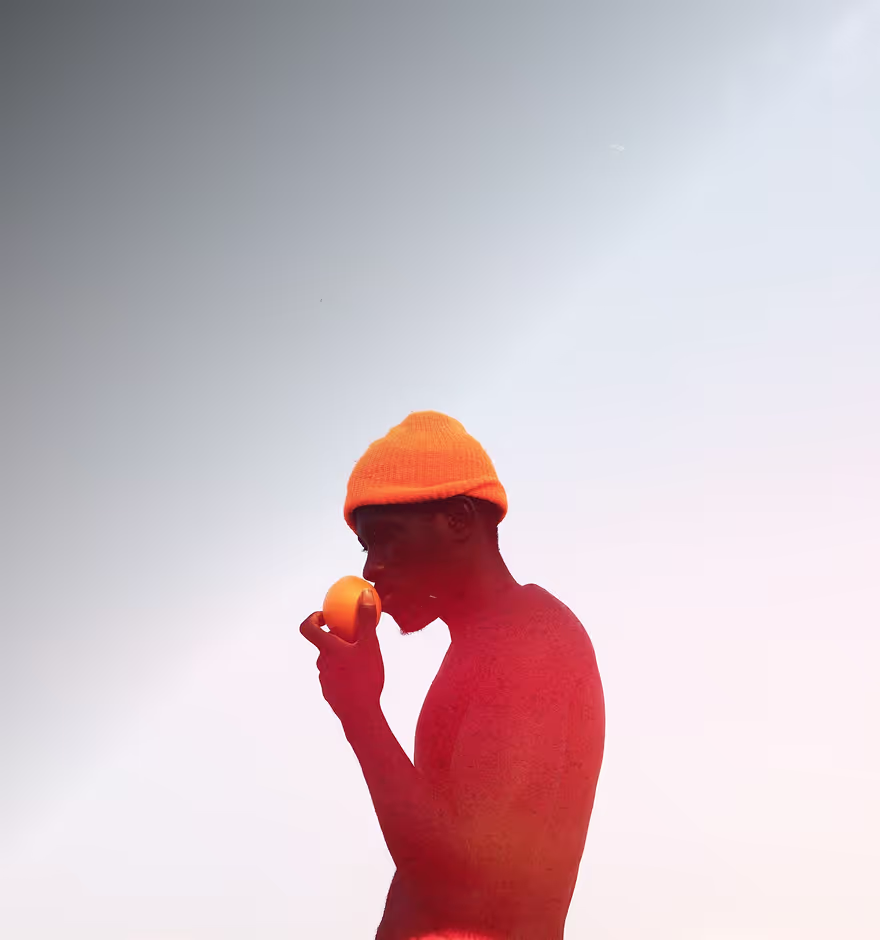
Blur Your Photo Background
Give your photos a clean, depth-filled background blur and make your subject stand out — all in just a few taps with VSCO.

Add a photo blur effect to your images
You can blur your photo background in seconds. Just follow three easy steps to achieve a polished, portrait-style look with customizable depth-of-field control:
Upload your photo
Blur your background and set focus
Adjust and save
When To Blur the Background of Your Photo
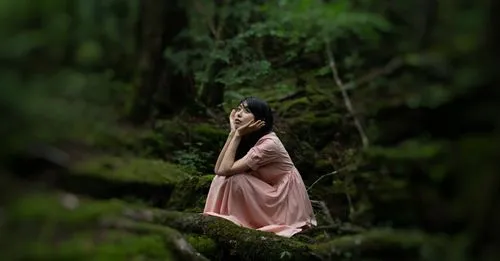
Blur the background of photos to draw attention to your subject and give your photos a clean, professional, and cinematic feel. Selective background blur helps create shallow depth-of-field effects similar to portrait mode, bokeh, or even tilt-shift styles, depending on how you apply it.
It’s perfect for portraits, product shots, street photography, or any moment where the background competes with your focal point. You can soften busy environments, isolate important details, or add mood and depth to otherwise flat scenes. It’s also a great way to create a cohesive look across your content, all from your mobile device.


How To BLUR PHOTO BACKGROUNDS
Open VSCO on your mobile device and select the photo you want to edit.
Choose the Blur tool to apply Circular or Linear blur to instantly separate your subject from the background.
Use strength and focus controls to dial in shallow depth-of-field, soft bokeh, or a subtle tilt-shift effect.
Export your photo and share it directly to social media or save it to your device.
BLURRED BACKGROUND AESTHETIC
A background blur effect works seamlessly for photos you plan to use anywhere — whether they’re posted on their own or included later in videos, reels, or stories. By controlling depth-of-field and focus falloff, you can remove distractions, guide the viewer’s eye, and create a consistent aesthetic across your visual content.
Pair the blur effect with VSCO’s color tools, Grain, and light effects to give your photos a polished, cohesive look before sharing. It’s ideal for creators who want their subjects to stand out clearly in any format that features still imagery.
Frequently asked questions
How do I blur the background of a photo?
Upload your photo to VSCO, open the Blur tool, and adjust strength and focus. This lets you apply selective focus while keeping your subject sharp and the background softly blurred.
What’s the best app for blurring photo backgrounds?
VSCO offers fine control and natural results, mimicking optical depth and cinematic softness. Other apps work, but VSCO gives professional-quality background blur.
Can I blur the background of a photo after taking it?
Yes. VSCO allows you to add background blur to any existing image using selective masking and intensity controls. No special lenses required.
What’s the difference between blur and portrait mode?
Portrait mode blurs the background during capture with lens depth. VSCO lets you add and customize depth-of-field afterward for full control and creative flexibility.
MORE PHOTO EDITING TOOLS
Enhance your photos by combining the Blur tool with other VSCO tools and effects. Erase distractions, add dreamy light, or introduce subtle light leaks for more striking images.
OBJECT REMOVER
Clean up unwanted background elements with the help of AI for sharper focus.
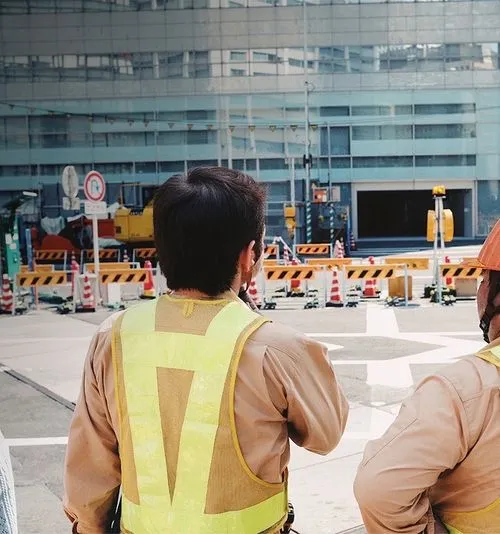
Bloom
Add soft, glowing light to enhance background blur.
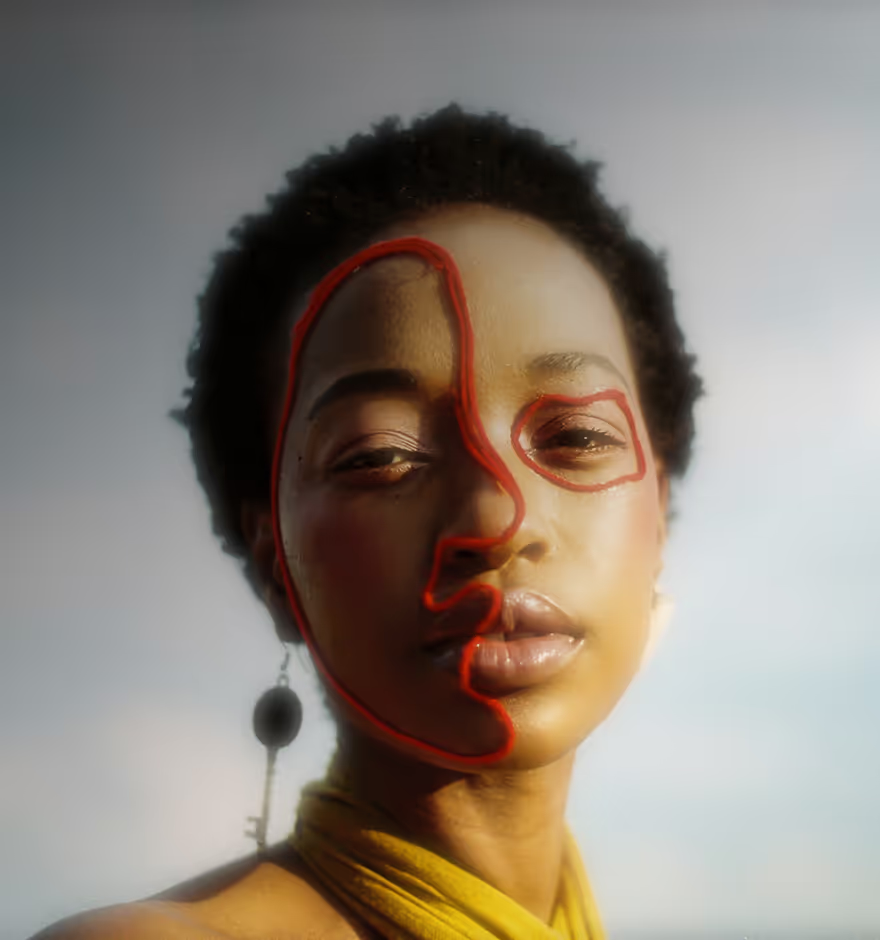
Light Leaks
Introduce film-style light and color effects.