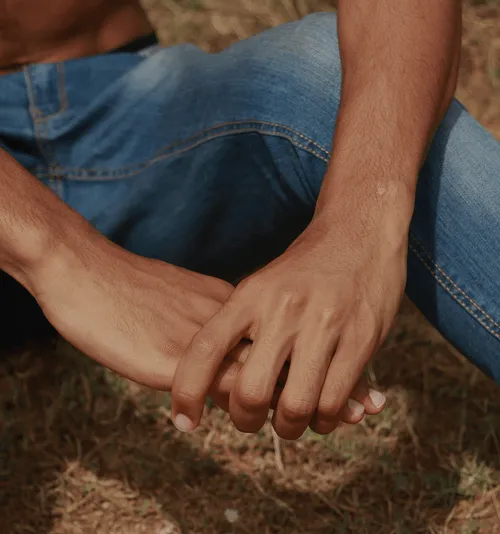
Tone Shadows & Highlights
Selectively edit and control image shadows and highlights with the Tone tool in the VSCO app.
Download the VSCO mobile app to try using the image Tone tool to mute overexposed highlights or to reveal details hidden in dark shadows.
VSCO is a community-driven platform that equips photographers to expand creatively and professionally. Join today to build authentic connections that foster professional growth and to edit photos and videos with our full suite of tools. Invest in your creativity with a VSCO Membership.
Control image shadows and highlights
Find the perfect balance between light and dark with photo Tone. Rescue harsh, afternoon sun shadows and highlights, or capture dynamic golden hour light with rich detail across your composition.
Selective tone editing
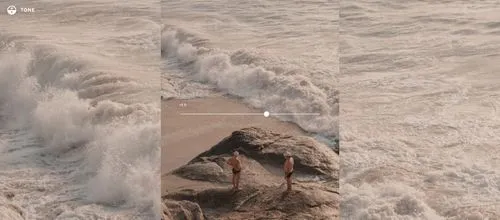
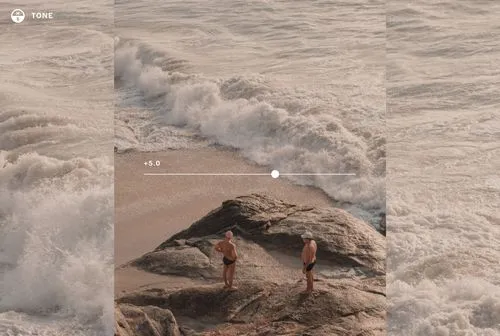
Use the image Tone editor to target your photo and video editing. The independent Highlights and Shadows sliders can be used to selectively change the bright and dark areas of your image.
Boost dynamic range
By adding tone to picture highlights while simultaneously boosting dark shadows, the Tone editor can be used to create a high dynamic range look with detail across the entire exposure.
Combine with Contrast
Combine and complement the Tone tool with Contrast. Use the extra highlight and shadow controls of image Tone to help bring balance to a high contrast edit or photo filter.
How to edit shadows & highlights with Tone
Capture or import photos or videos with the VSCO mobile app and use the photo editor to access the image Tone editor tool. Use the Shadows and Highlights sliders to control and preview changes. Try finishing your image or video edit with a Pro Preset.
Frequently asked questions
What does the tone editor do for photos?
How is tone different from exposure or contrast?
What other photo editing features pair with tone?
Pair the tone tool with other VSCO editing features like image contrast, HSL, and photo presets to help fine-tune your photo tone and style. Use them together to create a balanced image with clear shadows and highlights.
Can I edit tone in videos?
How does editing image tone work with filters?
You can use the tone tool to adjust highlights and shadows after applying a filter. It’s a great way to refine how a preset interacts with your image for more control and creative flexibility.
Fine-tune light and color
After you balance highlights and shadows with Tone, try layering your edit with tools like Split Tone, White Balance, and Skin Tone to control mood, correct color, and keep skin tones looking natural no matter what kind of light you shoot in.
Split tone
Tint highlights and shadows to create subtle color casts and pastel hues — great for vintage-inspired palettes.

Control White Balance
Adjust temperature and tint to balance and correct mixed light, or intentionally warm or cool a scene.

Skin Tone
Target a wide range of skin color hues to correct for unwanted color casts and create a more natural look.