Bloom effect
Add glowing highlights and soft, light blur to photos with the Bloom effect tool.

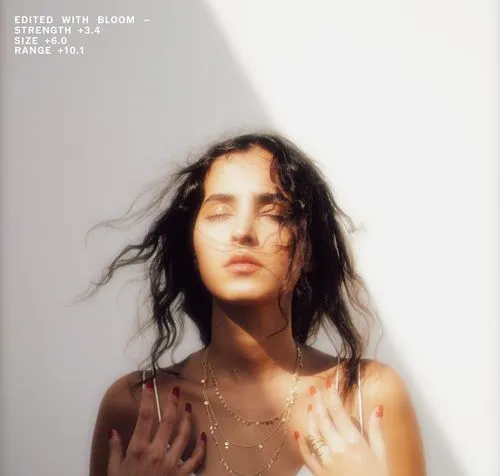
Create dreamy, blurred light photos with the Bloom glow effect. Enhance natural light and add a ethereal haze effect to your images.
VSCO is a community-driven platform that equips photographers to expand creatively and professionally. Join today to build authentic connections that foster professional growth and to edit photos and videos with our full suite of tools. Invest in your creativity with a VSCO Membership.
Glowing light blur effect
Bloom expands and softens light for a dreamlike haze effect. Apply the glow to add atmosphere to sunlit windows, golden hour portraits, or moody night scenes. Adjust Strength, Size, and Range sliders to control intensity and how it spills across your frame.
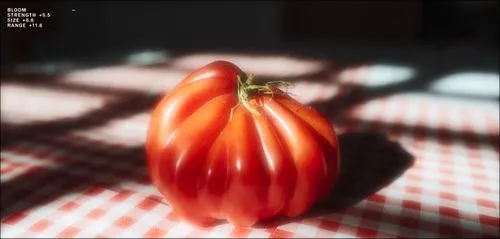
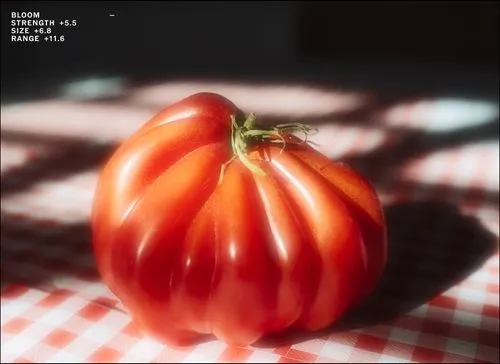

Control the glow effect
Adjust the Bloom glow effect with intuitive sliders. Strength controls overall brightness, Size expands the spread, and Range shifts which tones glow from highlights to shadows.

Glow up the night
Blur artificial light into a glowing mist with Bloom. Transform night scenes and turn streetlights, neon, and traffic signals into soft, cinematic highlights.

Create a vintage atmosphere
Mimic the soft diffusion of vintage lenses and haze filters, bringing warmth and atmosphere to images that might otherwise feel too sharp or overly digital.

Shoot with Bloom in real-time
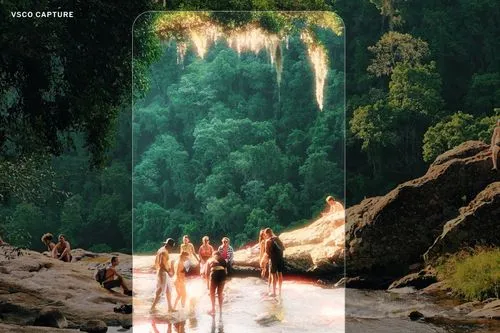
Create glowing highlights as you shoot. The VSCO Capture camera app lets you control the live Bloom effect, add cinematic Halation, and apply photo filters directly in-camera.

How to add the Bloom effect to photos
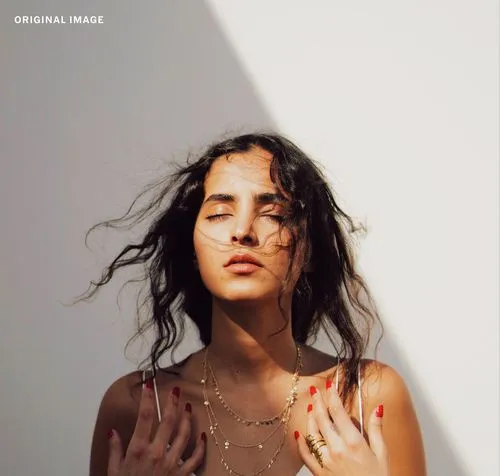
Capture or import a photo in the VSCO photo editor. Tap ‘Edit Image,’ then tap the slider icon in the bottom navigation to open the Bloom tool. Apply the glowing Bloom effect, then fine-tune the look using the Strength, Size, and Range sliders. For a unique finish, try layering Bloom with other film-inspired photo effects and film photo filters before exporting or sharing your final edit to your profile.

Frequently asked questions
What is the Bloom effect on VSCO?
The Bloom effect on VSCO is a creative photo editing tool that adds a soft, glowing light blur to highlights in your image, producing a dreamy, ethereal look. It expands and softens light to enhance atmosphere in portraits, sunsets, or night scenes.
How does the Bloom effect differ from Halation or lens flare?
Bloom softens bright areas with a neutral glow for a dreamy feel, while Halation introduces a warm, reddish glow around bright points—reminiscent of classic film and cinema. Lens flare creates streaks or orbs of light that mimic direct light hitting your lens. Learn more about the difference and compare VSCO light effects.
Can I use Bloom while capturing photos in real time?
Yes. With the VSCO Capture app, you can apply and control the Bloom effect live as you shoot, alongside other real-time film-style filters and manual controls.
What creative adjustments can I make with Bloom?
Within the Bloom tool, you can adjust sliders like Strength, Size, and Range to control how intense the glow is, how far it spreads, and which tones it affects.
What types of photos benefit most from the Bloom effect?
Bloom works especially well on images with strong light sources. Try adding the Bloom effect to golden hour portraits, sunlight through windows, neon night lights, reflective surfaces, or scenes needing soft atmospheric highlights.
Is Bloom available in both the VSCO photo editor and mobile Capture app?
Yes. Bloom can be applied both during editing in the mobile photo editor and live in the VSCO Capture camera app.
How do I add Bloom to a photo in VSCO?
Import or capture your image, open the photo editor, and select Bloom. Click Bloom again to access and adjust the Strength, Size, and Range sliders to achieve your desired glow before saving or sharing.
Can Bloom be combined with other VSCO effects?
Yes. Combining Bloom with other film effects like Halation, filters, or Blur can deepen atmosphere, mimic vintage lenses, and create unique creative styles. Save your favorite combinations of filters and effects as Recipes.
Will using Bloom affect image quality?
Bloom is a stylistic, non-destructive effect—it alters the appearance of light and highlights without fundamentally reducing photo resolution. You can always pinch to zoom as a way to preview edits before export to ensure the look matches your intent. If you need more resolution than your camera provided, try the Upscale tool in AI Lab.
EXPLORE MORE FILM EFFECTS
Pair Bloom with Halation for a cinematic glow, explore film effects to recreate classic analog moods, and use a photo blur effect to add soft focus and depth. Together, they bring texture, nostalgia, and atmosphere to your photography.
HALATION EFFECT
Give your photos a cinematic glow that mimics the soft red-orange halo seen in film.

FILM OVERLAYS
Make photos look like film by adding lens flares, grunge textures, frame overlays, distressed effects, and more.

PHOTO BLUR EFFECT
Pair Bloom with the lens blur editor to bring in soft focus and analog-style depth that elevates the whole frame.