WorkOS Docs Homepage
AuthKit
API referenceDashboardSign In
Getting StartedQuick StartQuick StartAI Installer & CLIAI Installer & CLIExample AppsExample AppsModeling Your AppIntroduction and conceptsIntroduction and conceptsApplicationsApplicationsSSO with contractorsSSO with contractorsInvite-only signupInvite-only signupIntegratingUsers and OrganizationsUsers and OrganizationsHosted UIHosted UISessionsSessionsBrandingBrandingMigrationsMigrationsWidgetsWidgetsActionsActionsMCPMCPEnvironmentsEnvironmentsOn-prem DeploymentOn-prem DeploymentAuthenticationSingle Sign-OnSingle Sign-OnEmail + PasswordEmail + PasswordPasskeysPasskeysSocial LoginSocial LoginMulti-Factor AuthMulti-Factor AuthMagic AuthMagic AuthCLI AuthCLI AuthFeaturesAPI KeysAPI KeysCustom EmailsCustom EmailsCustom Email ProvidersCustom Email ProvidersDirectory ProvisioningDirectory ProvisioningDomain VerificationDomain VerificationEmail VerificationEmail VerificationGroupsGroupsIdentity LinkingIdentity LinkingImpersonationImpersonationInvitationsInvitationsJIT ProvisioningJIT ProvisioningJWT TemplatesJWT TemplatesMetadata and External IDsMetadata and External IDsOrganization PoliciesOrganization PoliciesRadarRadarRoles and PermissionsRoles and PermissionsWorkOS ConnectGetting StartedGetting StartedOAuth ApplicationsOAuth ApplicationsM2M ApplicationsM2M ApplicationsStandaloneStandaloneAdd-onsGoogle AnalyticsGoogle AnalyticsSegmentSegmentStripeStripe
API Reference
API Reference
Events
Events
Integrations
Integrations
Migrate to WorkOS
Migrate to WorkOS
SDKs
SDKs

AuthKit

Easy to use authentication platform designed to provide a flexible, secure, and fast integration.

On this page

  • 1. Configure your project
    • Install dependencies
    • Configure a redirect URI
    • Configure sign-in endpoint
    • Set secrets
  • 2. Add AuthKit to your app
    • Set up the frontend
    • Add a sign-in endpoint
    • Add a callback endpoint
  • 3. Handle the user session
    • Create a session password
    • Save the encrypted session
    • Protected routes
    • Ending the session
  • Validate the authentication flow

Introduction

Integrating AuthKit into your app can be done in less than ten minutes. In this guide, we’ll walk you through adding a hosted authentication flow to your application using AuthKit.

In addition to this guide, there are a variety of example apps available to help with your integration.

Before getting started

To get the most out of this guide, you’ll need:

  • A WorkOS account
  • Your WorkOS API Key and Client ID

Want to skip the manual setup? The WorkOS AI Installer & CLI detects your framework, installs the SDK, configures your dashboard, and writes the integration code – all with a single command.

npx workos@latest

1. Configure your project

Let’s add the necessary dependencies and configuration in your WorkOS Dashboard.

Install dependencies

First, install the Python SDK.

Install Python SDK
pip install workos

For CSRF protection on state-changing routes like logout, also install Flask-WTF:

Install CSRF protection
pip install Flask-WTF

Configure a redirect URI

A redirect URI is a callback endpoint that WorkOS will redirect to after a user has authenticated. This endpoint will exchange the authorization code returned by WorkOS for an authenticated User object. We’ll create this endpoint in the next step.

You can set a redirect URI in the Redirects section of the WorkOS Dashboard. We recommend using http://localhost:3000/callback as the default here.

WorkOS supports using wildcard characters in Redirect URIs, but not for the default Redirect URI. More information about wildcard characters support can be found in the Redirect URIs guide.
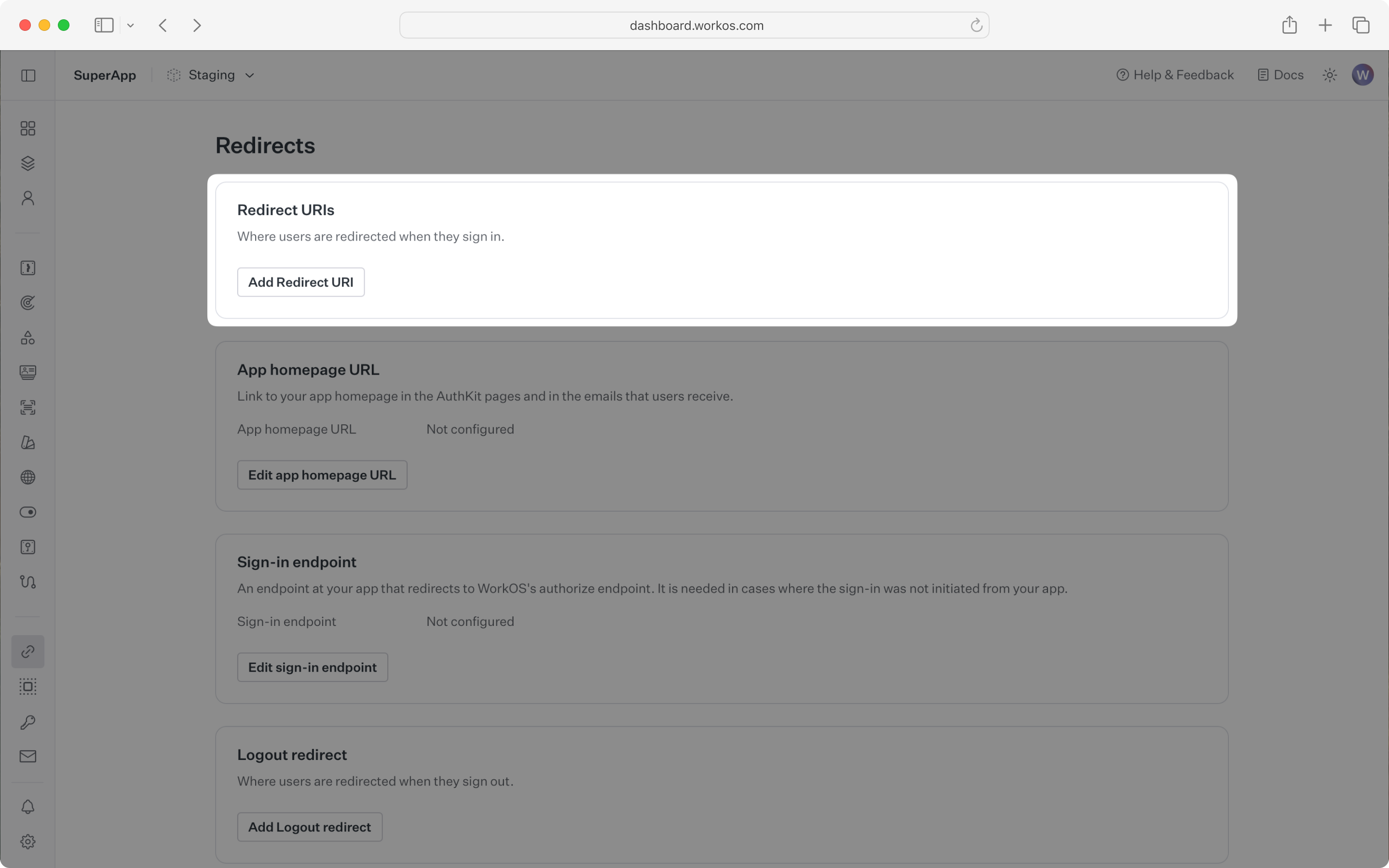
Dashboard redirect URI

When users sign out of their application, they will be redirected to your app’s Sign-out redirect location which is configured in the same dashboard area.

Configure sign-in endpoint

Sign-in requests should originate from your application. In some instances, requests may not begin at your app. For example, some users might bookmark the hosted sign-in page or they might be led directly to the hosted sign-in page when clicking on a password reset link in an email.

In these cases, AuthKit will detect when a sign-in request did not originate at your application and redirect to your application’s sign-in endpoint. This is an endpoint that you define at your application that redirects users to sign in using AuthKit. We’ll create this endpoint in the next step.

You can configure the sign-in endpoint from the Redirects section of the WorkOS dashboard.
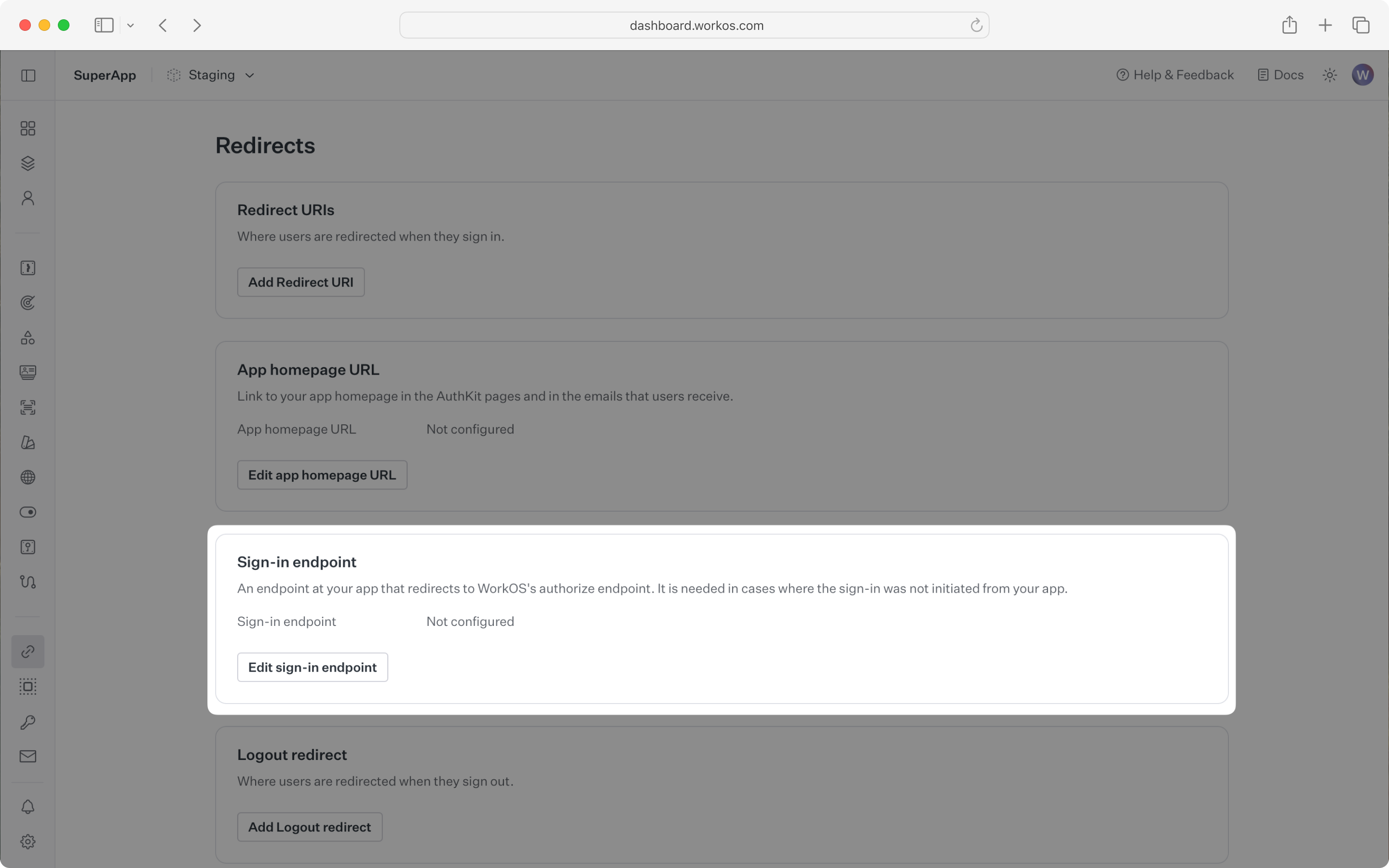
Sign-in endpoint

Set secrets

To make calls to WorkOS, provide the API key and the client ID. Store these values as managed secrets and pass them to the SDKs either as environment variables or directly in your app’s configuration depending on your preferences.

Environment variables
WORKOS_API_KEY='sk_example_123456789'
WORKOS_CLIENT_ID='client_123456789'
The code examples use your staging API keys when signed in

2. Add AuthKit to your app

Let’s integrate the hosted authentication flow into your app.

Set up the frontend

To demonstrate AuthKit, we only need a simple page with links to logging in and out.

index.html
HTML
<!doctype html>
<html lang="en">
<head>
<title>AuthKit example</title>
</head>
<body>
<h1>AuthKit example</h1>
<p>This is an example of how to use AuthKit with an HTML frontend.</p>
<p>
<a href="/login">Sign in</a>
</p>
<form action="/logout" method="POST" id="logout-form">
<input type="hidden" name="_csrf" id="csrf-token" />
<button type="submit">Sign out</button>
</form>
<script>
// Fetch CSRF token on page load
fetch('/csrf-token')
.then((r) => r.json())
.then((data) => {
document.getElementById('csrf-token').value = data.csrfToken;
});
</script>
</body>
</html>

Clicking the “Sign in” and “Sign out” links should invoke actions on our server, which we’ll set up next.

Add a sign-in endpoint

We’ll need a sign-in endpoint to direct users to sign in (or sign up) using AuthKit before redirecting them back to your application. This endpoint should generate an AuthKit authorization URL server side and redirect the user to it.

You can use the optional state parameter to encode arbitrary information to help restore application state between redirects.

For this guide we’ll be using the flask web server for Python. This guide won’t cover how to set up a Flask app, but you can find more information in the Flask documentation.

server.py
Python
import os
from dotenv import load_dotenv
from flask import Flask, redirect, send_file
from workos import WorkOSClient
load_dotenv()
app = Flask(__name__)
workos = WorkOSClient(
api_key=os.getenv("WORKOS_API_KEY"), client_id=os.getenv("WORKOS_CLIENT_ID")
)
@app.route("/")
def index():
return send_file("index.html")
@app.route("/login")
def login():
authorization_url = workos.user_management.get_authorization_url(
provider="authkit", redirect_uri="http://localhost:3000/callback"
)
return redirect(authorization_url)
if __name__ == "__main__":
app.run(debug=True, port=3000)
WorkOS will redirect to your Redirect URI if there is an issue generating an authorization URL. Read our API Reference for more details.

Add a callback endpoint

Next, let’s add the callback endpoint (referenced in Configure a redirect URI) which will exchange the authorization code (valid for 10 minutes) for an authenticated User object.

server.py
Python
import os
from dotenv import load_dotenv
from flask import Flask, make_response, redirect, request, url_for
from workos import WorkOSClient
load_dotenv()
app = Flask(__name__)
workos = WorkOSClient(
api_key=os.getenv("WORKOS_API_KEY"), client_id=os.getenv("WORKOS_CLIENT_ID")
)
cookie_password = os.getenv("WORKOS_COOKIE_PASSWORD")
@app.route("/login")
def login():
authorization_url = workos.user_management.get_authorization_url(
provider="authkit", redirect_uri="http://localhost:3000/callback"
)
return redirect(authorization_url)
@app.route("/callback")
def callback():
code = request.args.get("code")
try:
auth_response = workos.user_management.authenticate_with_code(
code=code,
)
# Use the information in auth_response for further business logic.
response = make_response(redirect("/"))
return response
except Exception as e:
print("Error authenticating with code", e)
return redirect(url_for("login"))
if __name__ == "__main__":
app.run(debug=True, port=3000)

3. Handle the user session

Session management helper methods are included in our SDKs to make integration easy. For security reasons, sessions are automatically “sealed”, meaning they are encrypted with a strong password.

Create a session password

The SDK requires you to set a strong password to encrypt cookies. This password must be 32 characters long. You can generate a secure password by using the 1Password generator or the openssl library via the command line:

Generate a strong password
openssl rand -base64 32

Then add it to the environment variables file.

.env
WORKOS_API_KEY='sk_example_123456789'
WORKOS_CLIENT_ID='client_123456789'
WORKOS_COOKIE_PASSWORD='<your password>'

Save the encrypted session

Next, use the SDK to authenticate the user and return a password protected session. The refresh token is considered sensitive as it can be used to re-authenticate, hence why the session is encrypted before storing it in a session cookie.

server.py
Python
import os
from dotenv import load_dotenv
from flask import Flask, make_response, redirect, request, url_for
from workos import WorkOSClient
load_dotenv()
app = Flask(__name__)
workos = WorkOSClient(
api_key=os.getenv("WORKOS_API_KEY"), client_id=os.getenv("WORKOS_CLIENT_ID")
)
cookie_password = os.getenv("WORKOS_COOKIE_PASSWORD")
@app.route("/login")
def login():
authorization_url = workos.user_management.get_authorization_url(
provider="authkit", redirect_uri="http://localhost:3000/callback"
)
return redirect(authorization_url)
@app.route("/callback")
def callback():
code = request.args.get("code")
try:
auth_response = workos.user_management.authenticate_with_code(
code=code,
session={"seal_session": True, "cookie_password": cookie_password},
)
response = make_response(redirect("/"))
# store the session in a cookie
response.set_cookie(
"wos_session",
auth_response.sealed_session,
secure=True,
httponly=True,
samesite="lax",
)
return response
except Exception as e:
print("Error authenticating with code", e)
return redirect(url_for("login"))
if __name__ == "__main__":
app.run(debug=True, port=3000)

We should also present some of the user information on our frontend. Let’s update the default route to read the session cookie and display user information:

server.py
Python
@app.route("/")
def index():
user_data = ""
sealed_session = request.cookies.get("wos_session")
if sealed_session:
try:
session = workos.user_management.load_sealed_session(
sealed_session=sealed_session,
cookie_password=cookie_password,
)
auth_response = session.authenticate()
if auth_response.authenticated and auth_response.user:
user = auth_response.user
user_data = f"Welcome, {user.first_name or ''} {user.last_name or ''}! ({user.email or ''})"
except Exception:
pass
with open("index.html") as f:
html = f.read()
return html.replace("{{USER_DATA}}", user_data)

And, we should make sure to update the index page to present this info.

index.html
HTML
<!doctype html>
<html lang="en">
<head>
<title>AuthKit example</title>
</head>
<body>
<h1>AuthKit example</h1>
{{USER_DATA}}
<p>This is an example of how to use AuthKit with an HTML frontend.</p>
<p>
<a href="/login">Sign in</a>
</p>
<form action="/logout" method="POST" id="logout-form">
<input type="hidden" name="_csrf" id="csrf-token" />
<button type="submit">Sign out</button>
</form>
<script>
// Fetch CSRF token on page load
fetch('/csrf-token')
.then((r) => r.json())
.then((data) => {
document.getElementById('csrf-token').value = data.csrfToken;
});
</script>
</body>
</html>

Protected routes

Then, use a decorator to specify which routes should be protected. If the session has expired, use the SDK to attempt to generate a new one.

server.py
Python
from dotenv import load_dotenv
import os
from functools import wraps
from flask import Flask, redirect, request, make_response, url_for
from workos import WorkOSClient
load_dotenv()
app = Flask(__name__)
workos = WorkOSClient(
api_key=os.getenv("WORKOS_API_KEY"), client_id=os.getenv("WORKOS_CLIENT_ID")
)
cookie_password = os.getenv("WORKOS_COOKIE_PASSWORD")
# Decorator to check if the user is authenticated. If not, redirect to login
def with_auth(f):
@wraps(f)
def decorated_function(*args, **kwargs):
session = workos.user_management.load_sealed_session(
sealed_session=request.cookies.get("wos_session"),
cookie_password=cookie_password,
)
auth_response = session.authenticate()
if auth_response.authenticated:
return f(*args, **kwargs)
if (
auth_response.authenticated is False
and auth_response.reason == "no_session_cookie_provided"
):
return make_response(redirect("/login"))
# If no session, attempt a refresh
try:
print("Refreshing session")
result = session.refresh()
if result.authenticated is False:
return make_response(redirect("/login"))
response = make_response(redirect(request.url))
response.set_cookie(
"wos_session",
result.sealed_session,
secure=True,
httponly=True,
samesite="lax",
)
return response
except Exception as e:
print("Error refreshing session", e)
response = make_response(redirect("/login"))
response.delete_cookie("wos_session")
return response
return decorated_function
@app.route("/login")
def login():
authorization_url = workos.user_management.get_authorization_url(
provider="authkit", redirect_uri="http://localhost:3000/callback"
)
return redirect(authorization_url)
@app.route("/callback")
def callback():
code = request.args.get("code")
try:
auth_response = workos.user_management.authenticate_with_code(
code=code,
session={"seal_session": True, "cookie_password": cookie_password},
)
response = make_response(redirect("/"))
# store the session in a cookie
response.set_cookie(
"wos_session",
auth_response.sealed_session,
secure=True,
httponly=True,
samesite="lax",
)
return response
except Exception as e:
print("Error authenticating with code", e)
return redirect(url_for("login"))
if __name__ == "__main__":
app.run(debug=True, port=3000)

Use the decorator in the route that should only be accessible to logged in users.

server.py
Python
@app.route("/dashboard")
@with_auth
def dashboard():
session = workos.user_management.load_sealed_session(
sealed_session=request.cookies.get("wos_session"),
cookie_password=cookie_password,
)
response = session.authenticate()
current_user = response.user if response.authenticated else None
print(f"User {current_user.first_name} is logged in")
# Render a dashboard view

Ending the session

Finally, ensure the user can end their session by redirecting them to the logout URL. After successfully signing out, the user will be redirected to your app’s Sign-out redirect location, which is configured in the WorkOS dashboard.

server.py
Python
from flask_wtf.csrf import CSRFProtect, generate_csrf
csrf = CSRFProtect(app)
# Configure secret key and CSRF field name for CSRF
app.config['SECRET_KEY'] = 'replace-me-with-a-real-secret'
app.config['WTF_CSRF_FIELD_NAME'] = '_csrf'
# Endpoint to get CSRF token for forms
@app.route("/csrf-token")
def csrf_token():
return jsonify({'csrfToken': generate_csrf()})
@app.route("/logout", methods=["POST"])
def logout():
session = workos.user_management.load_sealed_session(
sealed_session=request.cookies.get("wos_session"),
cookie_password=cookie_password,
)
url = session.get_logout_url()
# After log out has succeeded, the user will be redirected to your
# app homepage which is configured in the WorkOS dashboard
response = make_response(redirect(url))
response.delete_cookie("wos_session")
return response

CSRF Protection: The logout endpoint uses POST to prevent unintended logouts from browser prefetching. CSRF protection with Flask-WTF prevents cross-site request forgery attacks. Flask-WTF automatically validates CSRF tokens on POST requests when configured with CSRFProtect.

If you haven’t configured a Sign-out redirect in the WorkOS dashboard, users will see an error when logging out.

Validate the authentication flow

To test all of this out, start your server with python server.py, navigate to localhost:3000, and sign up for an account.

You can then sign in with the newly created credentials and see the user listed in the Users section of the WorkOS Dashboard.
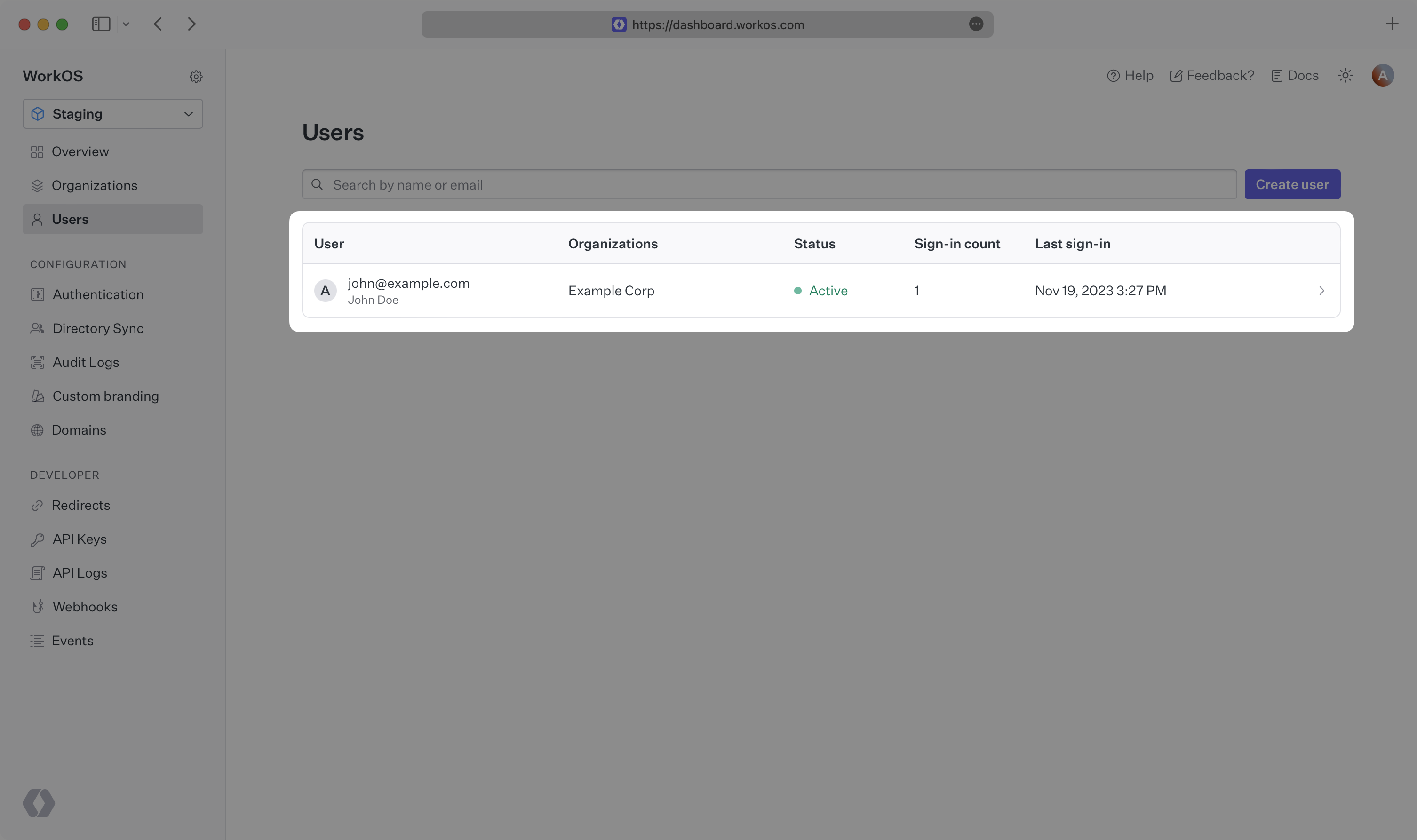
Dashboard showing newly created user
AI Installer & CLIIntegrate AuthKit with one command, manage resources, provision environments, and equip your coding agents — all from the WorkOS CLI
Up next
© WorkOS, Inc.
FeaturesAuthKitSingle Sign-OnDirectory SyncAdmin PortalFine-Grained Authorization
DevelopersDocumentationChangelogAPI Status
ResourcesBlogPodcastPricingSecuritySupport
CompanyAboutCustomersCareersLegalPrivacy
© WorkOS, Inc.