Sessions
Learn more about integrating sessions.
When a user signs in to your app, a user session is created. Along with the User object, a successful authentication response will include an access token and refresh token. Your application can use these tokens to ensure that the user’s session is still active.
Each user session can be viewed from within the WorkOS dashboard:
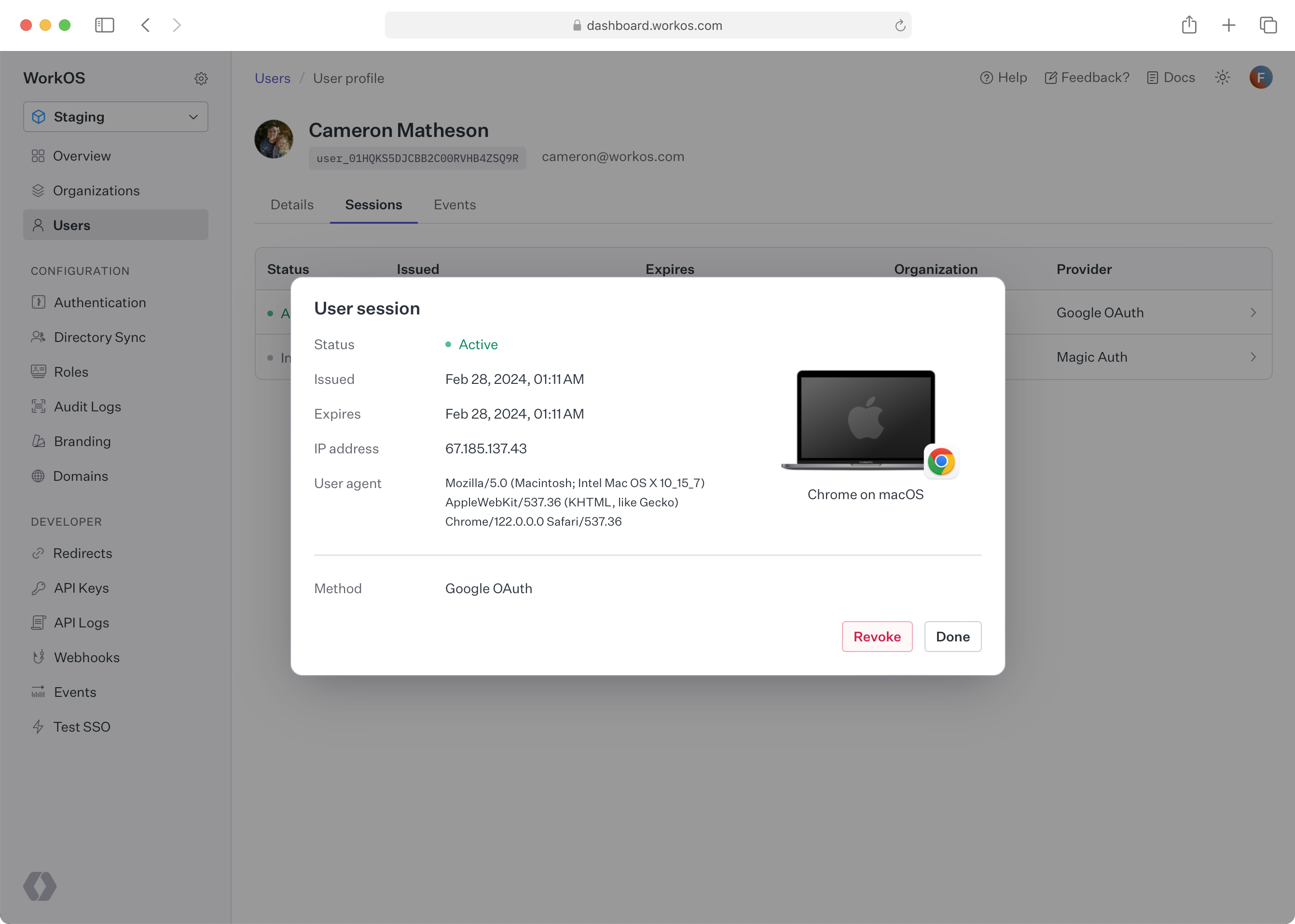
Navigate to Users and select a user. Then, switch to Sessions tab and click on a user session to get more information.
Successful authentication responses will include both an access token and a refresh token. The access token should be stored as a secure cookie in the user’s browser and should be validated by the backend on each request. The refresh token should either be stored in a secure cookie or persisted on your backend. Once the access token has expired, a new one can be obtained using the refresh token.
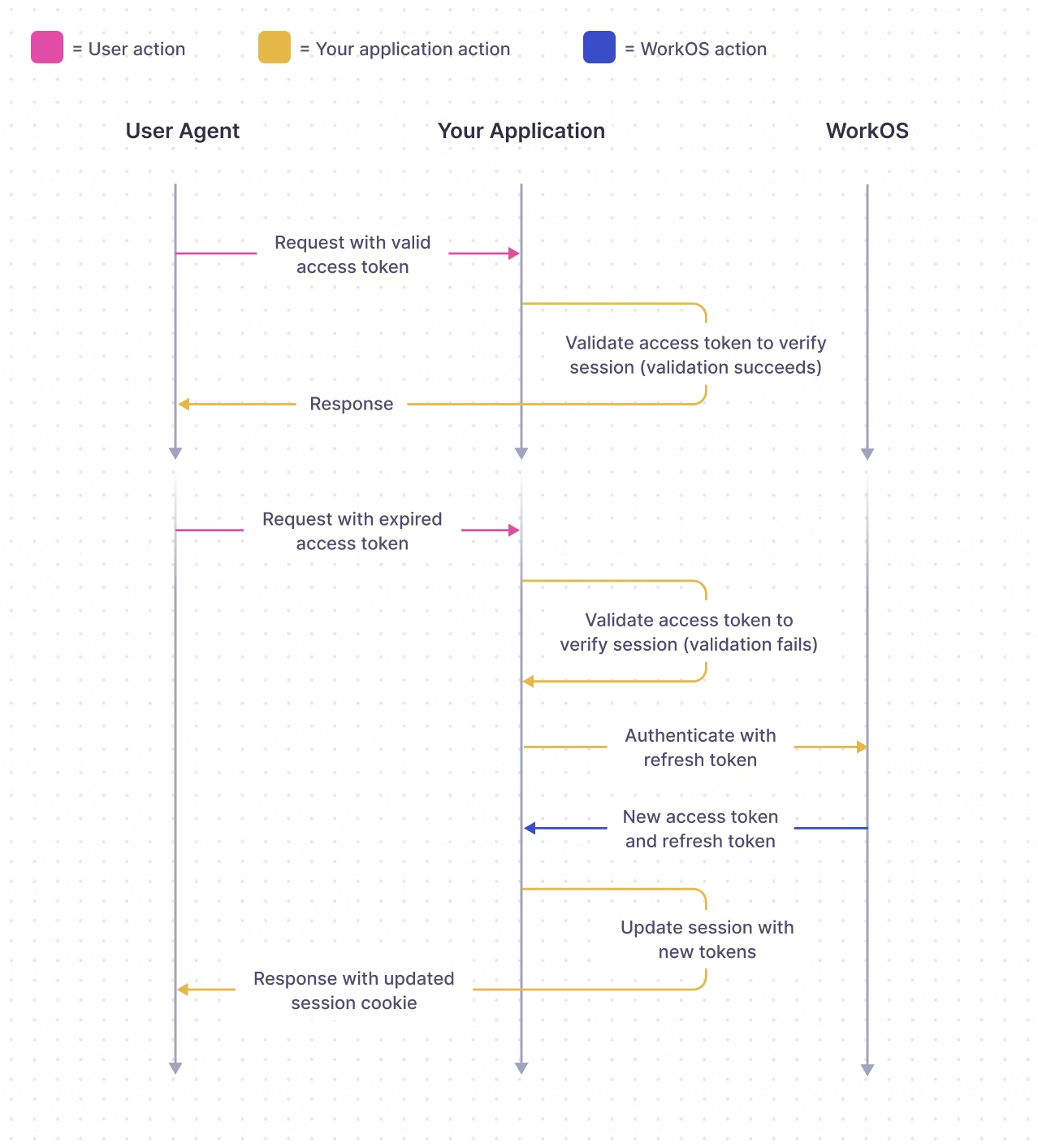
If you’re using our Next SDK or Remix SDK, all the work of validating access tokens and refreshing expired tokens is handled for you (more framework support coming soon). Read on for details about how token handling works.
The access token is a JSON Web Token (JWT), which should be validated on each request using a library like jose. The signing JWKS can be found at http://api.workos.com/sso/jwks/<clientId>. The JWT includes the following claims:
sub: the WorkOS user idsid: the session ID (used for signing out)iss:https://api.workos.com/(will be your custom auth domain if configured)org_id: the organization that was selected at sign-in time (if applicable)role: the role of the selected organization membership (only applicable if an organization is selected)permissions: the permissions assigned to the role (if applicable)exp: the standardexpires_atclaim (the token should not be trusted after this time)iat: the standardissued_atclaim
Refresh tokens should be persisted on the backend in, for instance, a database, cache, or secure http-only cookie. A new access token can be obtained by using the authenticate with refresh token endpoint. If the session is still active, a new access token and refresh token will be returned. Refresh tokens may be rotated after use, so be sure to replace the old refresh token with the newly returned one.
Refresh tokens can be used to obtain a new access token for a different organization by passing the organization_id parameter to the authenticate with refresh token endpoint. If the session for the refresh token is authorized to access the organization, then the org_id will be set to the given organization, along with the role and permissions claims matching the user’s membership in that organization.
If the user is not authorized for the organization, then an appropriate authentication error will be returned and the user will need to authenticate. Applications can use the Get Authorization URL and the organization_id parameter to initiate the authentication flow specifically for the organization.
When a user signs out of your app, the following steps should occur:
- Get the session id (
sidclaim) out of the access token. - Delete the user’s app session.
- Redirect the user’s browser to logout endpoint endpoint (this will ensure the user’s session ends at WorkOS).
- The user will be redirected back to the URL configured as your App homepage URL
Example
Using the WorkOS dashboard you can configure how Sessions work in your integration. You’ll find the settings in the Authentication section.
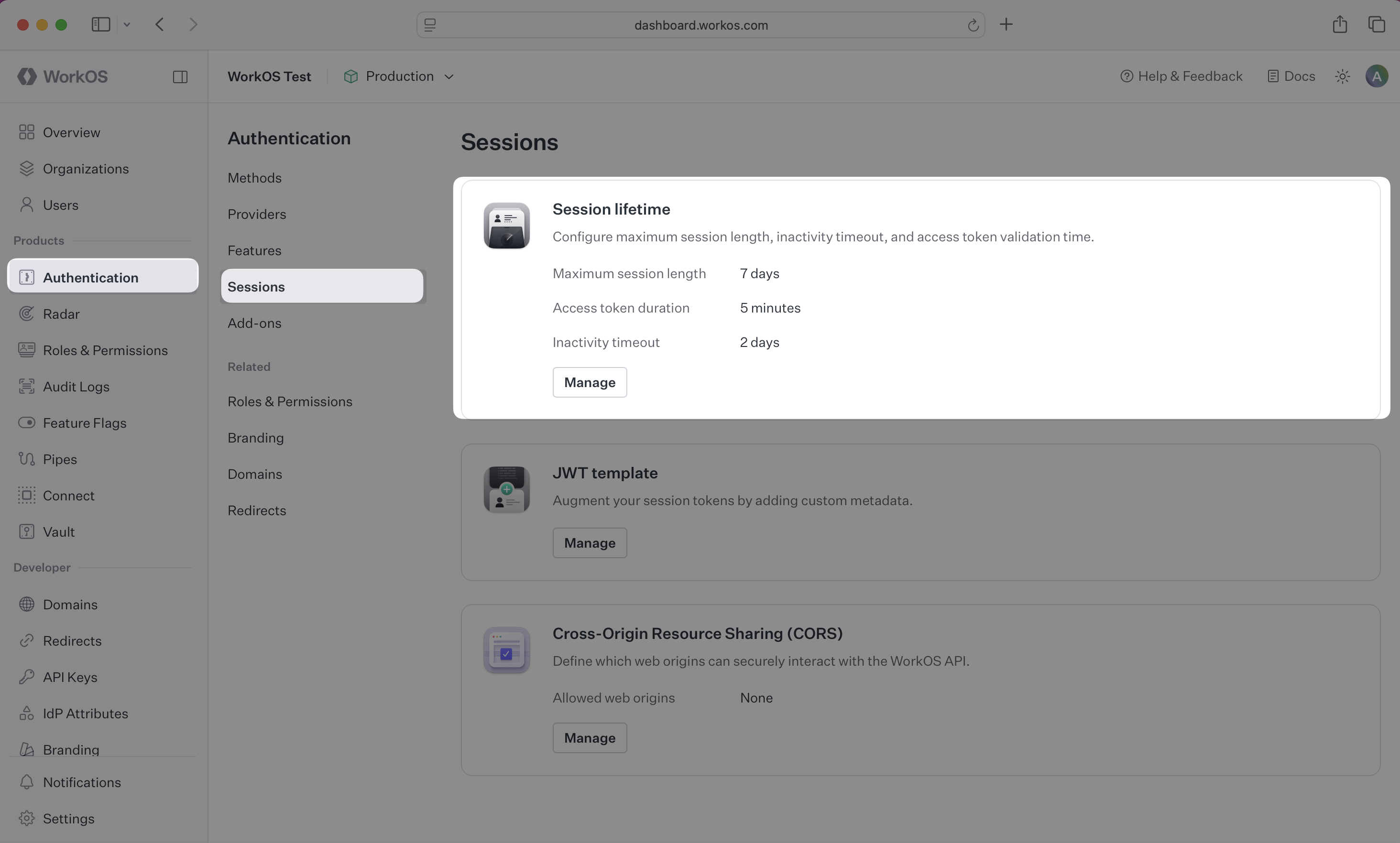
- Maximum session length: The session will expire after this length of time. Once expired the user will need to sign in again.
- Access token duration: Your backend can verify the access token on each request (see the Integrating Sessions section above). It’s recommended to keep the access token duration short so that changes in the session are quickly reflected in your app.
- Inactivity timeout: The session ends if a refresh has not occurred in this length of time. The user will need to sign in again.
Additionally, make sure to review your settings in the Redirect section:
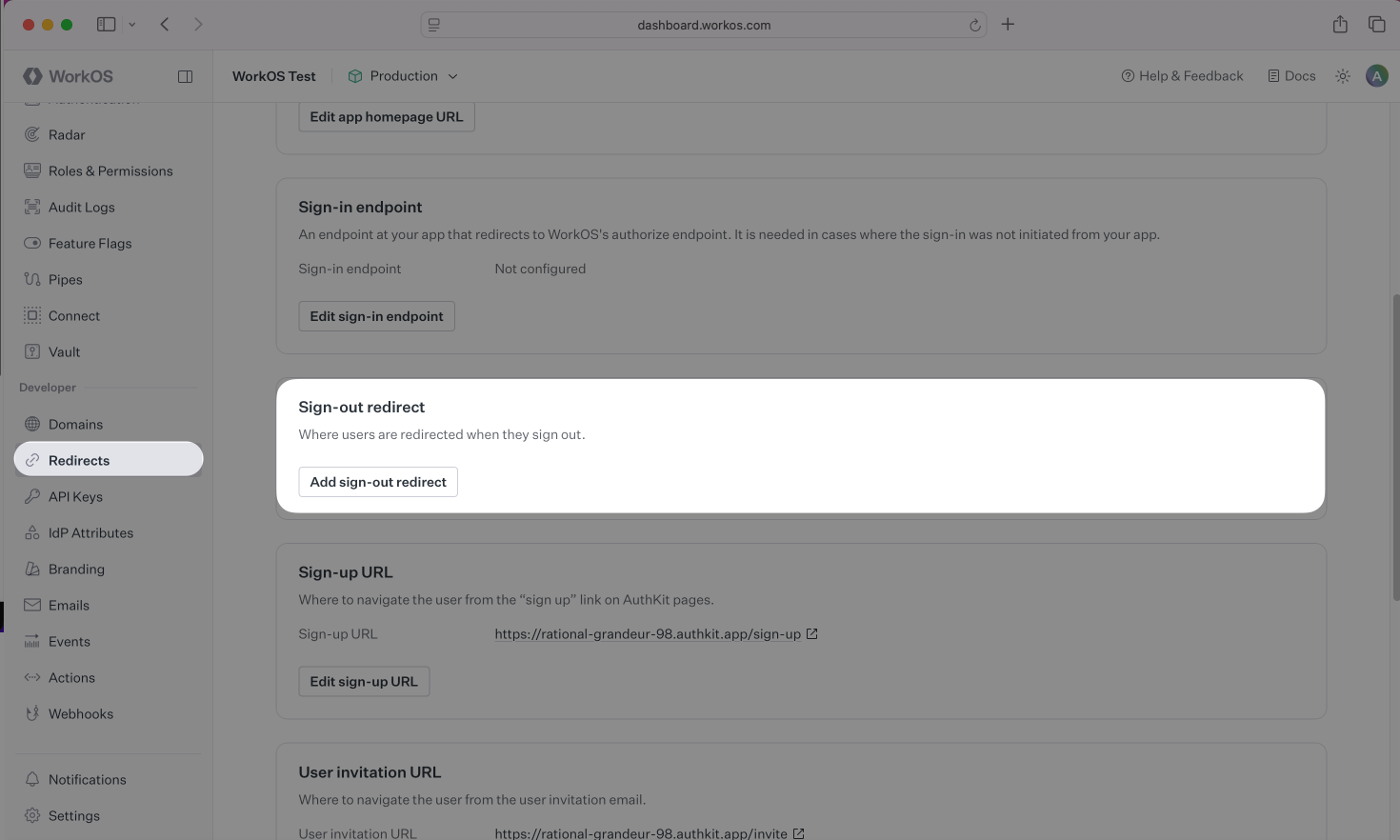
Make sure to set a default Sign-out redirect, which will be the location users will be redirected to after their session has been ended. Non-default Sign-out redirects can be used as values to the return_to parameter of the Logout API in order to dynamically choose the final logout redirect location.
Wildcards
WorkOS supports using wildcard characters (*) in sign-out redirects to handle dynamic subdomains or variable ports during development.
Subdomains
The * symbol can be used as a wildcard for subdomains; however, it must be used in accordance with the following rules:
- The protocol of the URL must not be
http:in production environments. - The wildcard must be located in the subdomain furthest from the root domain (e.g.,
https://*.sub.example.comwill work, buthttps://sub.*.example.comwill not). - The URL must not contain more than one wildcard.
- A wildcard character may be prefixed and/or suffixed (e.g.,
https://prefix-*-suffix.example.com). - A wildcard will not match across multiple subdomain levels (e.g.,
https://*.example.comwill not matchhttps://sub1.sub2.example.com). - Wildcards cannot be used with public suffix domains (e.g.,
https://*.ngrok-free.appwill not work). - The wildcard will match letters, digits, hyphens, and underscores.
- A URL with a wildcard cannot be set as the default sign-out redirect.
Ports
To support RFC 8252 (“OAuth 2.0 for Native Apps”) and local development, a wildcard may be used in place of the port number.
- This is strictly limited to
localhostand loopback IP addresses (e.g.,127.0.0.1). - Example:
http://localhost:*/signed-outis valid.