
Button
A button indicates a distinct action and executes a function. Text, icon, or a combination of the two express the action and are supported by the variant and occasionally a tooltip.
Examples
All variants and categories
<gl-button variant="default">primary default</gl-button>
<gl-button variant="confirm">primary confirm</gl-button>
<gl-button variant="danger">primary danger</gl-button>

<gl-button category="tertiary" variant="default" class="gl-mt-3">tertiary default</gl-button>
<gl-button category="tertiary" variant="confirm" class="gl-mt-3">tertiary confirm</gl-button>
<gl-button category="tertiary" variant="danger" class="gl-mt-3">tertiary danger</gl-button>
All sizes
<gl-button size="small">Small button</gl-button>
<gl-button>Default button</gl-button>

<gl-button size="small" block class="gl-mt-3">Full width small button</gl-button>

<gl-button block class="gl-mt-3">Full width button</gl-button>
Selected button
<gl-button selected>Selected button</gl-button>Loading button
<gl-button loading>Loading button</gl-button>Disabled button
<gl-button disabled>Disabled button</gl-button>Icon buttons
<gl-button
  variant="danger"
  icon="star-o"
  aria-label="Star icon button"
/>
<gl-button icon="star-o" aria-label="Star icon button" class="gl-mt-3" />
<gl-button size="small" icon="star-o" aria-label="Star icon small button" class="gl-mt-3" />
<gl-button icon="star-o" class="gl-mt-3">Icon text</gl-button>
<gl-button size="small" icon="star-o" class="gl-mt-3">Icon text</gl-button>
Emoji buttons
<gl-button selected>
  <template #emoji>
    <gl-emoji title="thumbs up sign" data-name="thumbsup" data-unicode-version="6.0">👍</gl-emoji>
  </template>
  1
</gl-button>
<gl-button>
  <template #emoji>
    <gl-emoji title="thumbs down sign" data-name="thumbsdown" data-unicode-version="6.0">👎</gl-emoji>
  </template>
  0
</gl-button>Structure

- Icon: Icon indicating or supporting the action.
- Label: Text clarifying the action.
- Dropdown: chevron-down icon indicating a dropdown menu.
- Emoji: Pictogram character.
- Count or Badge (optional): Display the number of items or provide a status related to the action.
Guidelines
When to use
- A button (
<button>) element is used to indicate an action.
When not to use
- If you are directing a user to a new location, consider using a link (
<a href="">) element or the link component, which can also be styled like a button when actions and destinations are present in the same set of controls.
Categories
Use categories to bring varying action hierarchy and emphasis that guide the user when performing tasks.
Choose a category based on the overall hierarchy on a given page, as well as the individual contexts found within. Defining context depends on the hierarchy of information displayed on the screen, the motivated user flow, and the available tasks. For example, a settings page may have multiple equally important contexts, each requiring its own primary button to complete a task.
Note that contexts may be temporary, such as a modal.
- Primary: Provide the strongest visual emphasis to an action with a solid background.
- Tertiary: Incorporate a borderless action into the flow that has a background during interaction for affordance.
Variants
Use the visual style (variant) in combination with an icon or label to identify the type of action performed and its importance compared to other actions in the same context.
Too many danger actions in a single view can flip the intended hierarchy. For example, a list of items where each has a danger button can be overwhelming and distracting, especially when that action is repetitive and understood. In cases like these it may be better to use the default variant in order to preserve the intended hierarchy.
- Default: Use for an action that doesn’t warrant prominence, typically when a primary variant is already used in the same context.
- Confirm: Indicate a positive or negative non-destructive action that is confirmation of what the user desires to take place.
- Danger: Highlight an action that is destructive and undoable or has potentially detrimental consequences. In a long list of items where each contains a destructive action, use the
defaultvariant to avoid having many danger buttons overwhelm the page. Any final confirmation that is destructive must use thedangervariant (unless a browser dialog is used). - Link: Visually style an action like an anchor link when using a link isn't possible.
Sizes
- Medium (default): The medium button size is sufficient in most cases and provides the largest possible click target size.
- Small: Decrease the size of a button to prevent it from competing with a primary button, or to decrease the overall size of a group or string of buttons. Although it's possible to use the small size for an icon-only button, using the default medium size is encouraged to provide a larger click target.
- Block: Expand the width of a button to fill the parent container which can help provide balance in mobile (
xsbreakpoint) layouts.
States
States change visually and/or programmatically depending on user interaction or a predetermined state. For example, programmatically moving focus to a button in a modal when it opens. This ensures they're accessible and feel reactive for different modalities.
Disabled
When an action isn't currently available, choose one of these in order of preference:
- Preferred: Avoid a disabled button. Use error messaging, inline validation, or a smart redirect to explain why the action isn't available.
- Default: Use
<gl-button disabled>. The button appears inactive but remains focusable and is announced by assistive technology. Explain why the button is disabled by linking it to existing on-page text witharia-describedby. If no such text exists, attach a tooltip or popover directly to the button. - Last resort: Use a native
<button disabled>. This removes the button from the accessibility tree and tab order entirely. Use this only when that removal is the intended behavior, and document the reason.
Loading
Place a button in the loading state with the loading property. The loading status is indicated by the use of a spinner, and the button is disabled while the state persists.
- For buttons containing text, the spinner is added to the left of the button, before the icon or label.
- For icon buttons, the spinner replaces the icon.
- The button appears disabled and in the loading state
loading, but remains focusable. In this state:- the Vue
clickevent is never fired. - the default behaviour of native
clickevents are prevented, and the events are stopped from bubbling. - the
aria-disabledattribute is set totrue, and thedisabledattribute is unset.
- the Vue
Selected
Acts like a toggle that indicate whether or not an option is in a selected state. To indicate to screen readers that the button functions as a toggle it should have aria-pressed="true" to align with the visually selected state, otherwise aria-pressed="false".
Content
Labels
- Use concise language that conveys what happens when the button is activated.
- Use sentence case.
- Try not to use text-only and icon-only buttons in the same context.
- For destructive actions, use clear text and always indicate what is being destroyed. For example, use Delete page instead of just Delete.
- For buttons that copy content to the clipboard, don't use to clipboard. For example, use Copy branch name instead of Copy branch name to clipboard.
- Append an ellipsis (
…) when any of these conditions are met:- The action requires additional user input before completion. For example, "Export…" requires format/location selection.
- It's not obvious from context that additional steps will follow. For example, "Commit changes…" in the single file editor when the surrounding context doesn't clearly indicate a dialog will appear.
Icons
Use either an icon or text in buttons, not both, as neither should require the other to be understood. While some buttons combine icon and text, this approach is generally not recommended. Icon-only buttons have additional considerations.
- Only use icons from GitLab's SVG library.
- Icons use the default size (16×16px).
Count
A button can display a numeric count next to the button label. Use the count-sr-text prop to provide screen reader context for the count value. For example "pending comments" or "unread notifications" and so on. Counts are intended for quantities and numeric values.
<!-- Basic count -->
<gl-button :count="5">Things</gl-button>

<!-- Count with accessibility context -->
<gl-button variant="confirm" :count="3" count-sr-text="pending comments">Your review</gl-button>
Badges
- A single badge can be added to the right of the button label to indicate status or provide additional context beyond simple counts.
- The badge variant should complement the button variant for visual harmony. Note: Not all button and badge combinations work together in all modes.
<gl-button buttonTextClasses="gl-flex gl-items-center">
  Find my bug
  <gl-badge variant="info" class="gl-ml-3">Zap</gl-badge>
</gl-button>
Alignment
Buttons can be aligned left, right, or center depending on the context. Multiple alignments can be combined within a single screen, but not within an individual context. For example, on a single screen the main content uses left alignment, while the sidebar with multiple settings uses right alignment.
- Left alignment: In page content and forms where the content is typically unconstrained other than by the grid layout. In these instances an F-pattern (top to bottom and left to right in a horizontal movement) is common for reading flow, and buttons align with other content on the page like headings, lists, input labels, and form labels. Left alignment is a benefit for accessibility in many ways, including reading flow, focus order, and page zoom where right-aligned buttons may be initially off screen.

Left-aligned buttons in a form 
Left-aligned buttons in a page flow - Right alignment: In constrained containers like modals and dialogs, flows that continue in a progressive direction, actions with a global impact, and toolbars. In these instances a Z-pattern (top to bottom and left to right with a diagonal, scanning movement) is common for reading flow. In these instances a user may be taking a progressive action, like affirming a modal, or an action upon a section, like formatting text in a comment.

Right-aligned buttons in a modal 
Right-aligned buttons in a sidebar with multiple settings 
Right-aligned buttons as global actions 
Right-aligned buttons in toolbars - Center alignment: Only used for empty states where content is promotional or the actions are the only ones available in context.

Center-aligned buttons in an empty state - Right to left languages: Reverse button alignment for right-to-left languages while maintaining the same order.
- Additional considerations:
Do
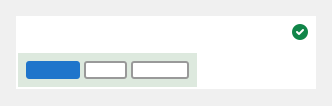
Keep buttons visually grouped Don’t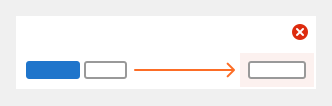
Separate buttons or mix alignment. Do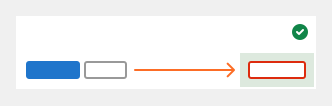
Keep destructive buttons separate Don’t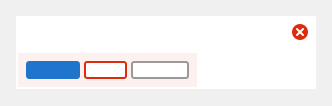
Group destructive buttons with confirmation buttons Do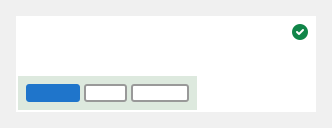
Keep buttons inline when space allows Don’t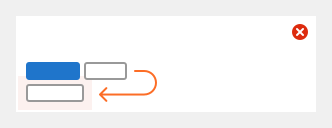
Stack buttons vertically if there is space to place them inline
Order
- Affirmative actions are positioned to the outer edge of a container. This means that on left-aligned buttons the affirmative action is the left-most action, and on right-aligned buttons, the affirmative action is the right-most action.
- An affirmative action is something that takes the users further in their journey (for example, Save or Delete), while a dismissive action takes a user back (for example, Cancel). Depending on the context, an affirmative action may be destructive.

Affirmative action on left edge for left alignment 
Affirmative action on right edge for right alignment - The visual hierarchy is primary buttons on the outer edge, followed by tertiary buttons. When there is more than one primary or tertiary button, confirm or danger variants are on the outer edge of their category.
- One exception to the visual hierarchy is a more actions dropdown. When using a more actions dropdown, place it on the outer edge.

Hierarchy from left to right for left alignment 
Hierarchy from right to left for right alignment
Combinations
Buttons can contain different content depending on the situation. For example, some buttons only have text, while others only have an icon. A combination may be used when space allows and more emphasis is required. Icons are always positioned to the left of text. Two icons should never be used in the same button, unless it is an icon dropdown.
- Label: A button may also be attached to a label, such as a commit SHA.
- Emoji: An emoji button allows a user to react to content with an emoji. The button uses the medium (default) size and is displayed with a count of how many times the reaction has been applied. A selected state visually indicates when the current user has added the reaction.
Dropdown buttons
- A dropdown button triggers a dropdown and uses the chevron-down icon to the right of the text label. The chevron is the only icon that should be present with a text label.
- A dropdown button is split when additional related actions are available. The left half displays the default action and the additional related actions are contained within the attached dropdown on the right half. The options available in the dropdown perform the action on click.
Icon-only buttons
- An icon can be used in place of text.
- Use a tooltip to provide context, unless the action may be universally understood, like a closing action using the close icon.
- An icon-only button shouldn't be used to toggle between two states. If the icon and action of the button change after clicking it, it can be difficult to determine if the icon represents the current or future state. For example, a button that uses the eye icon and changes to eye-slash when clicked doesn't make it clear on its own whether or not it represents that an object is confidential or will be as a result of clicking. Use a toggle or checkbox with a label to more clearly indicate alternating states. Note that this scenario is different than an icon-only button with a selected state, as there the icon doesn't change.
Ellipsis
An ellipsis button is a specific kind of icon-only button that allows for expanding content inline. It can be used when content is hidden for the purpose of not overloading the user or because of initial space constraints.
Group
See the button group component.
With three or more actions, show them in a disclosure dropdown if appropriate for your context. A button group can make it easier to notice and access the actions, but it can also take up unnecessary space in the UI.
Accessibility
- Maintain parity between focus order and visual order (don't use CSS to reorder buttons).
- A visible focus state must always be present, regardless of the mode of operation (mouse, keyboard, other). We currently rely on
:focusfor this state. In the future, we may explore the use of:focus-visible, but more research needs to happen first, specifically around browser heuristics. Many kinds of users benefit from visible focus indicators (like a focus ring), not just keyboard users. From Understanding SC 2.4.7 (for Focus Visible (Level AA)): "People with attention limitations, short term memory limitations, or limitations in executive processes benefit by being able to discover where the focus is located." Matsuko's Understanding Visible Focus Indicators lists additional examples of users that benefit from visible focus indicators:- Users using alternative input devices, such as keyboards and switches.
- Users with low vision.
- Users with cognitive disabilities, especially those that affect memory or attention such as dementia and ADHD (Attention-Deficit/Hyperactivity Disorder).
- Icon-only buttons must use
aria-labelto indicate the action. - When an icon is used with a text label, the icon should be hidden from screen readers with
aria-hidden="true". - Avoid disabled buttons when possible. Keep buttons enabled and use form validation with clear error messages to guide users.
- When a button must be inactive, the
disabledprop appliesaria-disabled="true"so keyboard and screen reader users can still reach it. Communicate why the action is unavailable:- Prefer
aria-describedbyto link the disabled button to on-page text (error message, validation hint, notification). This creates an explicit relationship and helps ensure screen reader users get the same context as visual users. - Use a tooltip or popover attached directly to the disabled button when no relevant on-page text exists to reference.
- Prefer
Reference
These variants have been deprecated, don‘t use in production:
- Secondary: Previously used as an intermediate emphasis. Use the primary category or the default button variant where less emphasis is needed.
- Info: Activation or informative processes, replaced by confirm variant.
- Success: Positive actions such as the creation or addition of items, replaced by confirm variant.
- Warning: Actions that can be undone or rectified but warrant caution, replaced by confirm or default variant depending on context.
Code reference
Buttons execute an action, either in the background or foreground of an experience. Different button categories help guide users through certain actions. Buttons express what action will occur when the user clicks or touches it either by text, icon, or both. Additional meaning can be derived from the button variant.
Button link
A button link is a link that is styled to look like a button, semantically speaking it's a <a> tag
with the necessary classes added to make it look like a button, it shares the same functionality as
target
attribute without a
href
attribute, will not create any side effects. Without the presence of a
href
attribute, this component will render a
<button>
.
Icon-only button
Icon-only buttons must have an accessible name.
You can provide one with the aria-label attribute, which is read out by screen readers.
<gl-button icon="close" aria-label="Close" />Type
You can specify the button's type by setting the prop type to button, submit or reset.
The default type is button.
Note the type prop has no effect when either href or to props are set.
Sizing
Specify small or medium via the size prop. Defaults to medium.
<gl-button size="small">Small Button</gl-button>
<gl-button>Default Button (medium)</gl-button>
<gl-button size="medium">Medium Button</gl-button>
Categories
Use the category prop to set the button category to primary or tertiary.
Defaults to primary.
Variants
Use the variant prop to set the button variant to default, confirm, danger, or link.
Defaults to default.
Block level buttons
Create block level buttons, those that span the full width of a parent, by setting the block
prop.
<gl-button block>Block Level Button</gl-button>Disabled state
Set the disabled prop to render the button in an inactive state. Internally this applies aria-disabled="true" rather than the native disabled attribute, so the button stays in the tab order, is announced by assistive technology, and can host a tooltip or popover directly. Click and keyboard activation are prevented in JavaScript. disabled also works with buttons rendered as <a> elements and <router-link> (i.e. with the href or to prop set).
<gl-button disabled>Disabled</gl-button>When the reason a button is disabled is already shown on the page (an error message, validation hint, or status notification), link the button to that text with aria-describedby. Screen readers will announce the linked text along with the button's inactive state, giving non-sighted users the same context sighted users already have.
<p id="publish-help">Save your draft before publishing.</p>
<gl-button disabled aria-describedby="publish-help">Publish</gl-button>
If you specifically need to remove a button from the accessibility tree and tab order, drop down to a native <button disabled> instead of <gl-button>. <gl-button> always uses aria-disabled internally and does not expose a way to render a native disabled attribute. This should be rare and warrants a clear reason.
Router link support
Refer to the Router support reference docs for
the various supported <router-link> related props.
Accessibility
When the href prop is set to '#', <gl-button> will render a link (<a>) element with attribute
role="button" set and appropriate keydown listeners (Enter and Space) so
that the link acts like a native HTML <button> for screen reader and keyboard-only users. When
disabled, the aria-disabled="true" attribute will be set on the <a> element.
When the href is set to any other value (or the to prop is used), role="button" will not be
added, nor will the keyboard event listeners be enabled.
Label button
A label button renders a non-interactive span styled as a button. This can be especially useful
when used in a button group to render text-only labels along with actionable buttons. To improve
accessibility, and when applicable, consider using aria-describedby to establish a
relationship between the label button and the associated button.
Security
This component implements a few security measures to make it as safe as possible by default. See SafeLinkDirective docs for more details.
Linking to an unsafe URL
If you're trying to link to a location considered unsafe by the SafeLink directive (when rendering
a download link with a Data URL for example), you'll need to bypass the href attribute's
sanitization. This component exposes the is-unsafe-link prop for that purpose.
<gl-button
  is-unsafe-link
  download="file.txt"
  href="data:text/plain;charset=utf-8,GitLab%20is%20awesome"
>
  Download
</gl-button>
vue-bootstrap component
This component uses BButton from vue-bootstrap
internally. So please take a look also there at their extensive documentation.
GlButton
Pajamas::ButtonComponent
Last updated at: