This section describes how to download and use the Material Theme UI plugin in your IDE.
Installation
Plugin Manager
The easiest way to install the Material Theme plugin is through IntelliJ’s plugin manager. The plugin manager usually contains stable releases that made it through testing and feedback.
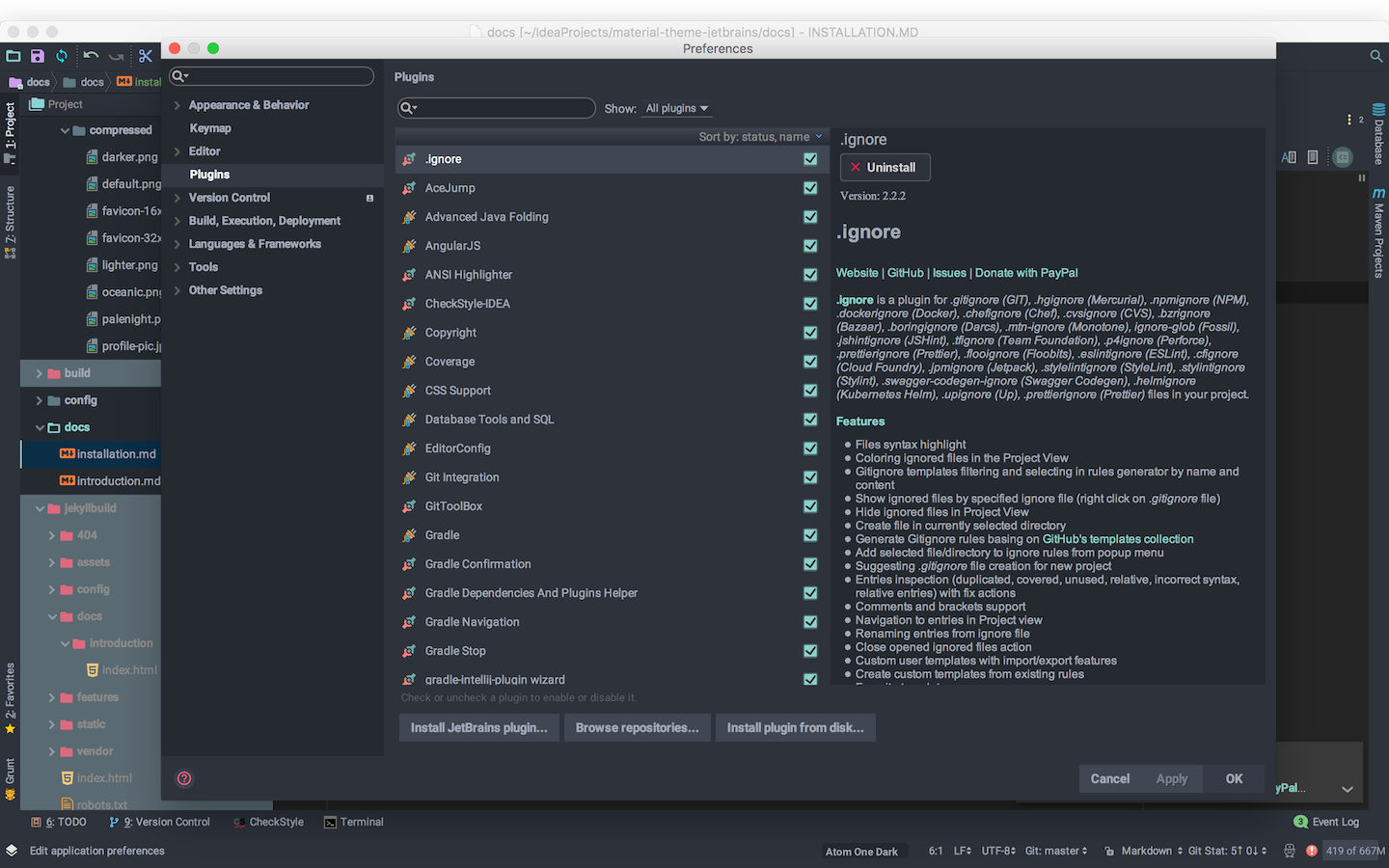
Steps:
- Open Settings/Preferences (Windows/Linux:
Ctrl-S, Mac:Cmd-,) - On the left, select or search for Plugins
- In the search field, type
Material Theme - Install the
Material Theme UIplugin - Click the
OKbutton and restart the IDE.
Manual installation
You can also install the plugin manually:
Steps:
- Go to the plugin page
- Go to the Download section and download the latest version of the plugin as a zip file.
- Open Plugins settings (
Preferences → Plugins) - Click on the “more” button and select Install plugin from disk and select the zip file.
- Click OK and restart the IDE.
Usage
Congratulations! You’ve just installed the Material Theme plugin.
If that’s your first time using the plugin, you’ll get greeted with a nice wizard to help you get started.

Setting the color scheme
The first thing to set is to change the color scheme to fit your current UI Theme. It’s usually done automatically when selecting a theme, but you can also decide to assign a different color scheme.
To do so, open the Quick Switch Panel by typing Ctrl + /Cmd + ~ and select Color Scheme.
Alongside the color schemes provided by the IDE, and your own custom color schemes, you should find the color schemes provided by the
plugin:
Material themes:
-
Oceanic
-
Darker
-
Lighter
-
Palenight
-
Deep Ocean
-
Forest
-
Sky Blue
-
Sandy Beach
-
Volcano
-
Space
Other themes:
-
Monokai Pro
-
Dracula
-
GitHub
-
GitHub Dark
-
Arc Dark
-
One Dark
-
One Light
-
Solarized Dark
-
Solarized Light
-
Night Owl
-
Light Owl
-
Moonlight
-
SynthWave ‘84
These schemes are adapted to the UI Theme of the same name.
You can see more in the Color Schemes section.
Configuring the plugin
The plugin also comes with a bunch of configurable settings to suit all flavors. There you can turn off certain features, change the sizes, appearance of the elements and colors, etc.
These settings are found inside Settings → Appearance and Behavior → Material Theme.
Check Settings for more info.
Material Theme quick panel
Last but not least, the plugin is also providing action groups to quickly customize the theme. These action groups are found in:
- The IDE menu, under
Tools → Material Theme - The main toolbar, at the end of the toolbar
- By invoking the
Quick Switch Panel

Check Actions for more info
Premium Support
From version 6.0.0 the plugin has become a freemium plugin.
Please refer here for more details and this blog post to better understand the reasons behind this choice.
Android Studio
The plugin should be compatible with Android Studio just fine, but since Android Studio Bumblebee you would need to install another plugin to be able to Activate your license.