
Table of Contents
Change PHP Version
Each website on Enhance can control its own PHP version. By default, PHP version 8.4 is applied to all new websites. Any additional domains mapped to the same website (add-on domains) automatically use the same PHP version as the primary domain.
Available PHP versions include
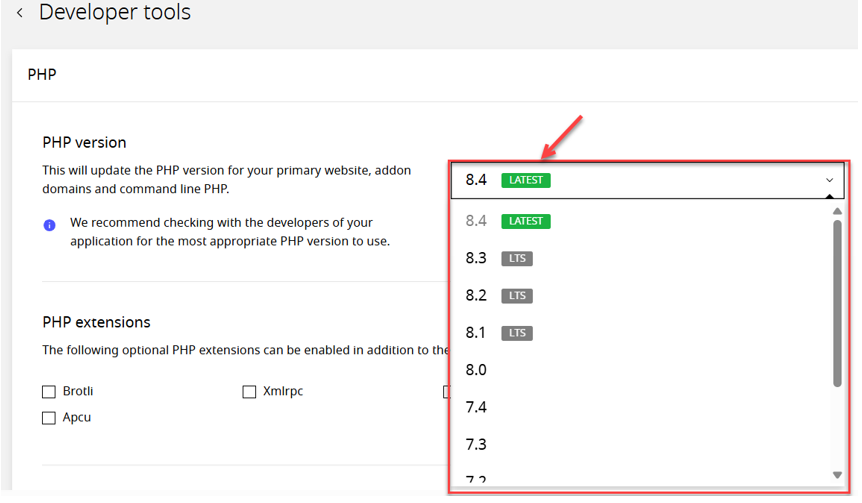
8.4 (Latest), 8.3 (LTS), 8.2 (LTS), 8.1 (LTS), 8.0, 7.4, 7.3, and 7.2.
Understanding PHP Version Tags
- Latest Version: The latest stable PHP version available.
- LTS: Long-term support versions that are stable and receive regular patches.
- Unlabelled: End-of-life versions that no longer receive bug fixes or security updates.
How to Change a Website’s PHP Version?
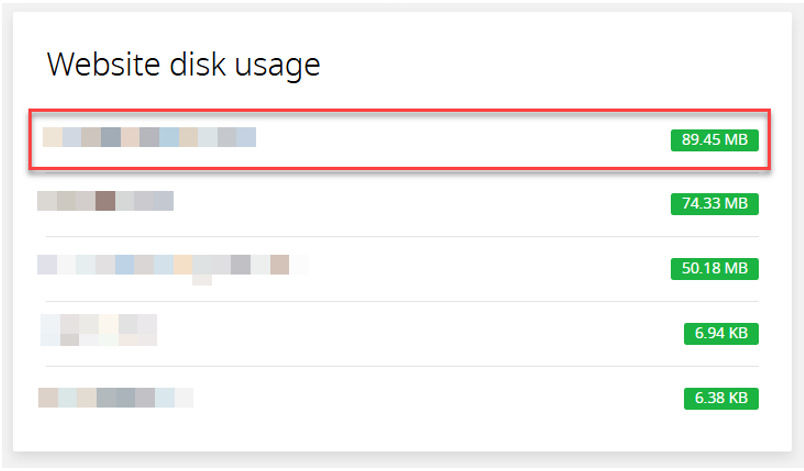
- Open Websites in the left sidebar.
- Select the website you would like to update the PHP version on.
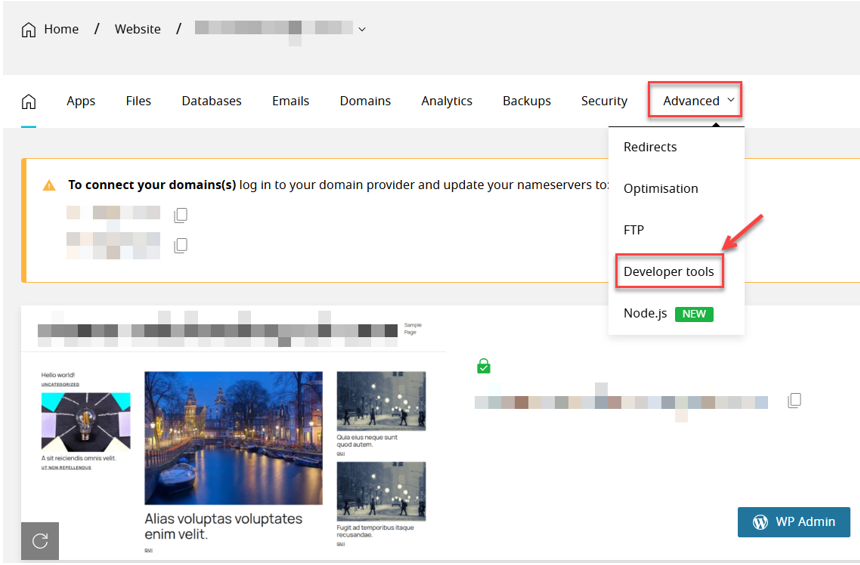
- When the website dashboard loads, select Advanced in the top navigation.
- Select Developer tools.
- Scroll to PHP Versions.
- Select your preferred PHP version from the dropdown.
- A confirmation modal will appear; select Update to finish.
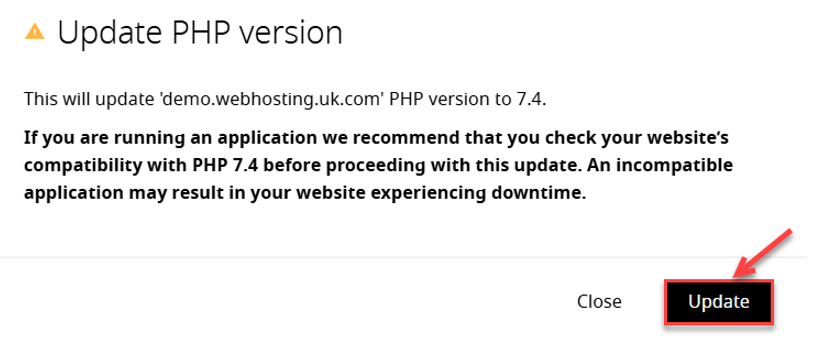
Warning: Before changing your site’s PHP version, please check compatibility with any PHP applications running on your site. Some PHP versions include breaking changes.
Restart PHP
Each primary website on Enhance has its own PHP container. It is possible to restart this container without impacting other websites in your account.
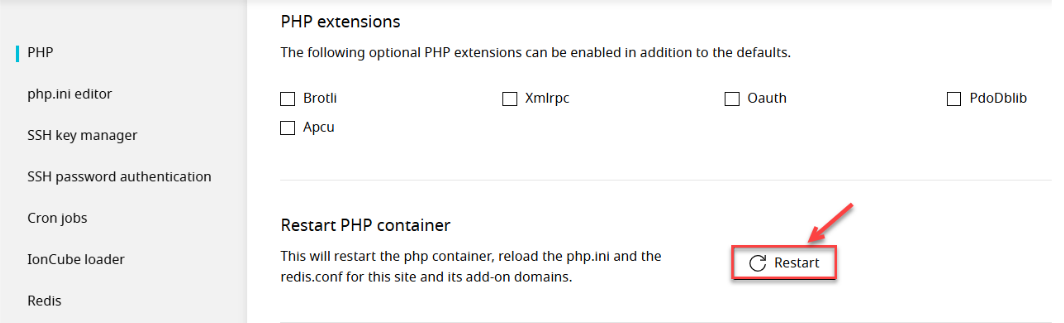
Restarting a website’s PHP container will reload the php.ini and the redis.conf for this site and its addon, aliases and subdomains domains. It will also terminate any stuck PHP workers and allow for new requests to be served.
To restart a website’s PHP container:
- Open Websites in the left sidebar.
- Select the website you want to restart PHP for.
- When the dashboard loads, click Advanced at the top.
- Select Developer tools.
- Scroll to PHP.
- Under Restart PHP container, click Restart.
- A confirmation modal will load. Select Restart.
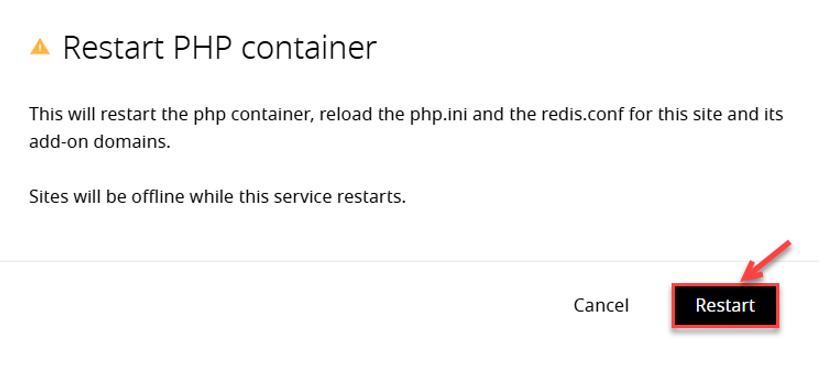
Warning:
Your website will go offline briefly while the PHP container restarts.
Ready for more? Discover How to Create Email Accounts, Manage DKIM, Catch-All Emails & Databases in Enhance