

Restrict access to deployments with Vercel Authentication
Vercel Authentication is available on all plans
Vercel Authentication lets you restrict access to your public and non-public deployments. It is the recommended approach to protecting your deployments, and available on all plans. When enabled, it allows only users with deployment access to view and comment on your site.
Users attempting to access the deployment will encounter a Vercel login redirect. If already logged into Vercel, Vercel will authenticate them automatically.
After login, Vercel redirects the user and sets a cookie in the browser if they have view access. If the user does not have access to view the deployment, Vercel redirects them to request access.
- Logged in team members with at least a viewer role (Viewer Pro or Viewer Enterprise)
- Logged in project members with at least the project Viewer role
- Logged in members of an access group that has access to the project the deployment belongs to
- Logged in Vercel users who have been granted access
- Anyone who has been given a Shareable Link to the deployment
- Tools using the protection bypass for automation header
Access requests are available on all plans
When a Vercel user visits your protected deployment, but they do not have permission to access it, they have the option to request access for their Vercel account. This request triggers an email and Vercel notification to the branch authors.
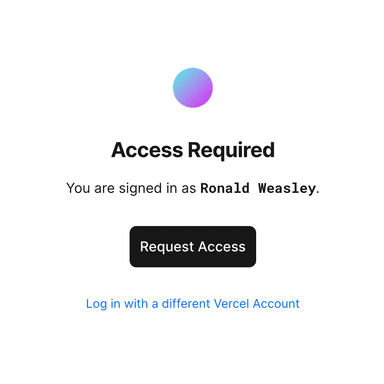

The access request can be approved or declined. Additionally, granted access can be revoked for a user at any time.
Users granted access can view the latest deployment from a specific branch when logged in with their Vercel account. They can also leave preview Comments if these are enabled on your team.
Those on the Hobby plan can only have one external user per account. If you need more, you can upgrade to a Pro plan.
You can manage access requests in the following way.
- From your dashboard, go to Deployment Protection in the sidebar
- Choose the Requests section in the sidebar to see pending requests
- Choose Access to manage existing access


You can also manage access requests using the share modal on the deployment page.


Disabling Vercel Authentication renders all existing deployments unprotected. When you re-enable it, previously authenticated users can maintain access without a new login, provided they already authenticated to the specific deployment and have a cookie set in their browser. The authentication token sent as a cookie is restricted to one URL and isn't transferable, even between URLs pointing to the same deployment.
| Consideration | Description |
|---|---|
| Environment configuration | Can be enabled for different environments. See Understanding Deployment Protection by environment |
| Compatibility | Works alongside Password Protection and Trusted IPs |
| Bypass methods | Can be bypassed using Shareable Links and Protection bypass for Automation, or by callers listed in Trusted Sources |
| Disabling | All existing deployments become unprotected when Vercel Authentication is disabled |
| Re-enabling | Users who have logged in previously will still have access without re-authenticating |
| Token scope | Tokens are valid for a single URL and are not reusable across different URLs |
Admins and members can enable or disable Vercel Authentication for their team. Hobby teams can also enable or disable for their own projects. Vercel Authentication is managed on a per-project basis.
You can manage Vercel Authentication through the dashboard, API, or Terraform:
From your Vercel dashboard:
- Select the project that you wish to enable Vercel Authentication for
- Go to Deployment Protection in the sidebar
From the Vercel Authentication section:
- Use the toggle to enable the feature
- Select the deployment environment you want to protect
- Finally, Select Save
Vercel Authentication now protects all your existing and future deployments for the project. Next time when you access a deployment, you will be asked to log in with Vercel if you aren't already logged in, you will be redirected to the deployment URL and a cookie will be set in your browser for that deployment URL.


Enabling Vercel Authentication.
You can manage Vercel Authentication using the Vercel API endpoint to update an existing project with the following body.
prod_deployment_urls_and_all_previews: Standard Protectionall: All Deploymentspreview: Only Preview Deployments
// enable / update Vercel Authentication
{
  "ssoProtection": {
    "deploymentType": "prod_deployment_urls_and_all_previews" | "all" | "preview"
  }
}

// disable Vercel Authentication
{
  "ssoProtection": null
}You can configure Vercel Authentication using vercel_authentication in the vercel_project data source in the Vercel Terraform Provider.
Was this helpful?