Input
InputListener
Section titled “InputListener”💡 Simple Explanation: Listens for keyboard/gamepad input. Triggers on key presses, holds, and releases.
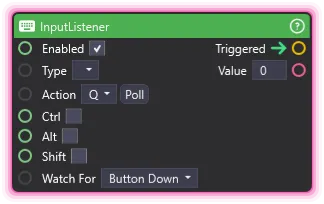
⚙️ Technical Description: UpdaterNode that monitors input system events and triggers outputs for specified actions with support for button states, axis changes, modifier keys, and target values.
🔍 Full Details & Examples
🔧 How It Works: Monitors input system for specified action with event type and optional modifiers.
✨ Perfect For:
- Hotkeys
- Keyboard shortcuts
- Gamepad controls
👉 Inputs:
Type(Dropdown) - Input type selectionAction(Dropdown) - Input action nameWatch For(Dropdown) - ButtonDown, Hold, Up, or AxisChangeCtrl(Boolean) - Require Ctrl modifierAlt(Boolean) - Require Alt modifierShift(Boolean) - Require Shift modifierValue(Float) - Target value for axis
👈 Outputs:
Value(Float) - 1 for button, axis value for analog
🎬 Streaming Example: “Press F5 to trigger scene reset, or Ctrl+F to cycle cameras.”
🎯 Tips: Requires input system configuration. Supports modifier keys. Great for testing and manual triggers.
MousePosition
Section titled “MousePosition”💡 Simple Explanation: Tracks where your mouse is hovering over the Output window. Use it for cursor-following effects or hover-triggered reactions.
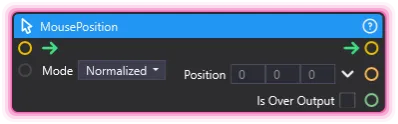
⚙️ Technical Description: UpdaterNode that converts the screen-space cursor into local coordinates over the Output preview each frame, outputting normalized (0-1) or pixel coordinates plus a flag indicating whether the cursor is inside the rect.
🔍 Full Details & Examples
🔧 How It Works: Finds the Output preview rect, converts the screen mouse position into local rect space, then emits either normalized 0-1 coordinates or pixel coordinates depending on Mode. The Is Over Output flag stays true only while the cursor is actually inside the preview.
✨ Perfect For:
- Cursor-following scene objects
- Hover-triggered effects
- Pointer-driven UI overlays
- Viewer interaction visualizations
👉 Inputs:
Mode(Dropdown) - Coordinate space (Normalized or Pixel)
👈 Outputs:
Position(Vector3) - Cursor coordinates in the chosen mode (Z is always 0)Is Over Output(Boolean) - True while the cursor is inside the Output rect
🎬 Streaming Example: “Spawn a sparkle at the cursor position whenever a viewer clicks during a giveaway segment - normalized mode keeps it aligned regardless of preview resolution.”
🎯 Tips: Pair with InputListener to react to clicks at the cursor location. Use Pixel mode when sampling a texture; use Normalized mode for resolution-independent placement.