



Our Network


Coming Soon


Coming Later

Online PNG Icon Maker

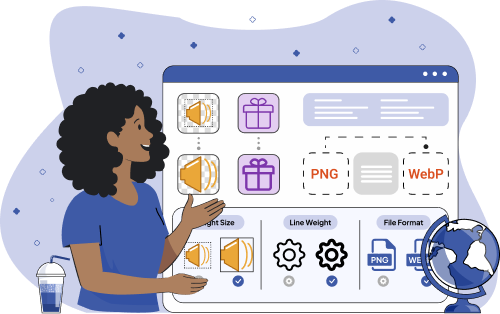
Try our free online PNG icon maker tools. You can change icon size, add and remove icon borders, create a transparent icon, add text to an icon, convert an icon to another format (such as Webp and Bitmap), and more!


How to use Icon Tools?
Step 1

Click on a tool below & upload your icon

Step 2

Adjust settings

Step 3

Download a revised icon


Popular Icon Tools

Change Icon Colors

Adjust hue, shade & opacity in a PNG icon. Replace specific colors in PNG icons with adjustable similarity threshold and smoothing radius, plus a live replacement mask preview.

Resize an Icon

Edit width or height of a PNG icon. Resize PNG icons by stretching or shrinking them with custom dimensions and optional aspect ratio preservation.

Create an Icon from Text

Generate a PNG icon from text. Create custom text-based PNG icons with adjustable text, position, size, font, and color settings.

Remove Icon Background

Delete background from a PNG icon. Remove selected colors from PNG icons with adjustable similarity, edge smoothing, external-area-only cleanup, and a live removal preview.

Create Round Icon

Transform a square PNG icon to a circle. Crop the image into a circular shape with configurable coordinates, optional border (including thickness, color, and style), and adjustable background fill color.

Transparent Icon Maker

Transform a PNG icon background from opaque to transparent. Remove a selected color with adjustable similarity, optional edge-only processing, smoothing, and live preview.


All Icon Tools

Add Icon Background

Color in a transparent PNG icon background. Replace transparency with a solid color or gradient fill (linear or radial) to restore or customize the background.
Add Space Around Icon

Enlarge a PNG icon background space. Add a customizable border around the image by expanding its canvas with adjustable thickness and color.

Center an Icon

Align an off-center PNG icon to the center of its background. Center horizontally or vertically with optional canvas reference, pixel offset, and preview.

Remove Icon Background

Delete background from a PNG icon. Remove selected colors from PNG icons with adjustable similarity, edge smoothing, external-area-only cleanup, and a live removal preview.

Remove a Border Around Icon

Narrow the margins around a PNG icon. Crop the image using rectangular or oval shapes with adjustable position and support for multiple successive crops.

Create Translucent Icon

Transform a PNG icon into a translucent watermark. Apply a uniform alpha level to the entire image by adjusting overall transparency.

Transparent Icon Maker

Transform a PNG icon background from opaque to transparent. Remove a selected color with adjustable similarity, optional edge-only processing, smoothing, and live preview.
Add a Border Around Icon

Choose a square or circle border for a PNG icon. Add a configurable border with adjustable thickness, inside or outside placement, and optional corner rounding for square or rounded styles.
Clean Icon Edges

Refine a PNG icon’s rough edges. Smooth and clean edge noise by removing color artifacts with adjustable depth and optional advanced cleanup algorithms.

Add Outline to Icon

Define a border around a PNG icon. Add an adjustable outline with customizable thickness, color, smoothing, and unevenness for more natural edge effects.

Convert Outlined Icon To Filled Icon

Fill in a PNG icon border with a solid color. Convert outlined icons into filled versions with automatic color detection and selectable fill modes for background and fill colors.

Remove a Border Around Icon

Narrow the margins around a PNG icon. Crop the image using rectangular or oval shapes with adjustable position and support for multiple successive crops.

Convert Filled Icon To Outlined Icon

Transform a solid PNG icon into an outlined version. Convert filled icons into outlines with automatic color detection and configurable contour modes.

Remove Space Around Icon

Remove unwanted space around a PNG icon. Trim the image by cutting a specified number of pixels from each edge to reduce or eliminate outer margins.

Add Icon Background

Color in a transparent PNG icon background. Replace transparency with a solid color or gradient fill (linear or radial) to restore or customize the background.
Change Icon Colors

Adjust hue, shade & opacity in a PNG icon. Replace specific colors in PNG icons with adjustable similarity threshold and smoothing radius, plus a live replacement mask preview.
Extract Icon Colors

Generate a visual and textual color palette of the PNG icon. Customize the number of extracted colors, tone accuracy, sorting order, and optional usage frequency display.

Separate Icon Colors

Extract individual color layers from a PNG icon. Split the image into separate color-based layers with automatic or manual color count detection and configurable layer arrangement in the output.
Pick Icon Color

Find the hex/RGB codes for any color in a PNG icon. Sample exact or averaged colors with adjustable radius and offset, and optionally label the image with color names or codes in different formats.

Convert Icon to Grayscale

Make a grayscale version of a color PNG icon. Convert colors to grayscale using preset or custom channel formulas, with optional limits on the number of gray shades.

Convert Icon to Single Color

Shift a multicolored PNG icon to one color. Replace all image colors with a single selected color and optionally set a custom background color.
Add Shadow to Icon

Add custom shadows to a PNG icon. Apply a configurable drop shadow with adjustable offset, color, and blur intensity.
Mirror an Icon

Generate a reversed image of a PNG icon. Flip the icon horizontally, vertically, or both axes to create a mirrored version.
Create a Symmetric Icon

Divide a PNG icon in half and rotate horizontal or vertical. Build a new image by mirroring selected regions of the original according to defined reflection rules and coordinates.

Make Icon Thicker

Broaden the line weight of a PNG icon. Increase stroke thickness by expanding detected lines with optional external outline, smoothing, and automatic or manual color detection.

Make Icon Thinner

Shrink the line weight in a PNG icon. Reduce stroke thickness by removing pixels from detected lines with optional outer outline removal and smoothing.
Convert ICO to PNG

Convert an ICO (icon file) to a transparent PNG icon. Extract selected icon frames from ICO files and export them as PNG by specifying icon index numbers.
Convert a JPG Icon to a PNG Icon

Convert an opaque JPG to a transparent PNG icon. Convert JPEG images to PNG format with optional transparency settings, including preservation of original fill areas inside the contour and a live preview.
Convert a PNG Icon to a JPG Icon

Convert a transparent PNG icon to a JPG icon. Export PNG images as JPEG with adjustable quality settings and configurable background color for transparent areas.
Convert a PNG Icon to a WebP Icon

Convert a PNG icon to a WebP icon. Export PNG images to WebP format with adjustable quality settings for balancing compression and visual fidelity.
Convert a WebP Icon to a PNG Icon

Convert a WebP icon to a PNG icon. Convert WebP images to PNG format with optional transparency handling by filling transparent areas with a configurable color.
Crop an Icon

Trim a PNG icon to the ideal dimensions. Crop images using rectangular or oval selection with adjustable position and support for multiple successive crops.
Resize an Icon

Edit width or height of a PNG icon. Resize PNG icons by stretching or shrinking them with custom dimensions and optional aspect ratio preservation.
Rotate an Icon

Spin a PNG icon clockwise or counterclockwise. Rotate the image around its center by a specified angle in degrees or radians.

Create Round Icon

Transform a square PNG icon to a circle. Crop the image into a circular shape with configurable coordinates, optional border (including thickness, color, and style), and adjustable background fill color.

Create Square Icon

Transform a circle PNG icon into a square. Crop the image to the specified size and optionally add a border with configurable thickness and color plus background fill settings.
Add Text to Icon

Overlay custom text on a PNG icon. Add a text label to the image with configurable position, font settings, and optional background styling for better readability.

Create Icon from Emoji

Convert a text emoji to a PNG icon. Render a specified emoji as an icon with configurable position, size, color, and font styling.
Create an Icon from Text

Generate a PNG icon from text. Create custom text-based PNG icons with adjustable text, position, size, font, and color settings.


Frequently Asked Questions

Online PNG Icon Tools make it possible to create the ideal PNG icon directly from the browser. Upload an icon and crop it, make it transparent, convert it to one color and more. Then, download or copy to the clipboard for great looking websites and design.

Icons are used to communicate important information at a glance. A house on the search bar means homepage. Play or stop buttons control video. A thumbs-up is good and a thumbs-down is bad. Online Digital Icon Maker offers a selection of tools to make your icon the best it can be.

Web and app developers, designers and anyone who wants to make a good looking icon. Online Digital Icon Maker Tools are intuitive, do not require a software download and provide professional results. Give them a try!

  • Bell: notifications
  • Downward Arrow: download
  • House: homepage
  • Magnifying Glass: search
  • Person: user account
  • Shopping Cart: view or checkout
  • Three Lines: menu
  • Thumbs up/heart: approval
  • Wrench: settings

Your icon is never saved to our servers. Icon changes occur in your browser and can be stored on your computer or mobile device. Users enjoy total privacy.

A solid or gradient background can add depth or dimension to a PNG icon, making it more visible. This technique can be used to direct reader attention and to produce high-contrast, dynamic design.

One example is when multiple icons are placed close together, say on a menu bar. If each icon had a colored background, the bar would look cluttered and not at all user-friendly. Transparent icons look uniform so users can quickly and easily identify their desired tool. Remove your icon background here.

Some applications, like social media, require a smaller icon size. Other applications require more resolution and a bigger size. Use the Crop Icon tool to make your icon the right size.

Simply upload your PNG icon to the Center Icon tool, choose horizontal or vertical orientation and your icon will automatically be centered in its background. Then, download or copy your new, balanced image.

Sometimes an icon needs room to breathe! Extra space, also referred to as white space, eliminates visual clutter and improves recognition. Enlarge your icon with the Add Space to Icon tool.

It depends on the overall design. Solid PNG icons are more bold. Outlined PNG icons are more minimalist. Both can attract attention but the correct icon design is the one that matches the brand and usage. Here’s the Outline to Solid Icon tool and the Solid to Outline Icon tool so you can see which style is best.

An icon with pixelated edges may not look professional, which can pull focus away from its meaning. Icons should also be immediately recognizable. Repair it using the Clean Icon Edges tool to make the edges distinct and smooth.

In a word, definition. Outlining the shape of the icon provides dimension and increases visibility. Outlining can be especially effective if your icon is monochromatic and no color can be used for emphasis. Try the Outline Icon tool now.

Does the border make your icon look busy? Does it make reader comprehension more difficult? If so, it should be removed. Use the Remove Icon Border tool to clean up your image.

Starbucks, BMW, KFC, Dell, Volkswagen and more.

The best color depends on the purpose and overall design. Adjoining icons are often neutral colored, like gray, white or beige to help the reader’s eye travel freely. Brightly-colored icons are more informal and may be used on retail, entertainment and lifestyle websites and apps.

Want red instead of blue? Done! Using the Change Icon Colors, upload a PNG icon, pick a color and replace it. Users are also able to select the degree of opacity or to substitute a gradient for a solid color.

Find out with the Extract Palette Icon tool. The tool instantly detects and extracts the PNG icon palette colors. Then it orders them according to the percentage used. Simply copy the hex or RGB code to ensure overall design consistency.

Grayscale PNG icons are excellent for focusing attention on content and user interaction. Grayscale is professional, minimalist and utilitarian. Colored icons are better at conveying emotion and standing out. Try a shaded look using the Grayscale Icon tool.

The Color Layers for Icons tool divides the individual color layers of your image to make editing easier. Each layer of color can be adjusted for hue, contrast and more. Then, combine all the layers to form a visually harmonious design.

A mirror image filter makes an inverted duplicate, or reflection, of the original. A symmetric PNG icon is made by dividing an icon in half and reorienting one of the sides.

Drop shadows are primarily used to add depth to an image. They can be shallow and lifelike or dramatic and three-dimensional, but go easy so your PNG icon doesn’t look dated. Experiment using the Drop Shadows for Icons tool.

In a document, a bold headline makes it stand out and the same principle applies to a PNG icon. Increasing the line weight will result in a wider and more intense icon. Use the Thicker Icon tool for the right amount of impact

Where icons direct readers is more important than the icons themselves. If your PNG icon is too bold,decrease the line weight for a slimmer, less-noticeable look.

Perhaps, try a symmetrical icon. Symmetry is pleasing to the eye and the brain, making it more easily understood. Symmetry can also convey balance and stability which provides a good first impression for a professional organization.

Each file format, such as an opaque JPG or a transparent PNG, is best for one application, like faster loading or printing. Online Digital Icon Maker Tools make it easy to transfer files from one format to another for use in various projects. Find the tool to reformat a JPG to PNG Iconhere.

PNG is always lossless, meaning it preserves all image details without losing quality. This makes it ideal for graphics, logos and other transparent images. Experiment with converting an ICO icon to a PNG icon here.

The WebP format provides excellent image quality compressed into a smaller file size. To convert a PNG icon, simply upload it to the PNG to WebP Icon tool and download your new WebP icon.

PNGs are usually transparent and are used to blend in with the background. JPGs are solid and sit on top. To create an icon on a solid background, change file formats by using the PNG to JPG Icon tool.

PNGs are an industry standard and are widely supported by web browsers, image viewers and editing software. Transform a JPG to PNG Icon in a few clicks.

With the Resize Icon tool, you can change the width and height of a PNG icon, maintain the aspect ratio or stretch and squeeze the dimensions into a new size and shape.

One reason is so that a PNG icon fits in its assigned space! Another is that file size affects performance and SEO rankings. Use the Resize Icon tool to select the best size for your application.

Square icons are the workhorses of the digital world. They look professional and work well in a grid layout. Round icons are more commonly used for avatars and profile pictures to create a more approachable aesthetic. Make a round PNG icon here and a square PNG icon here.

An angled PNG icon attracts attention. On e-tailing websites, it can be effectively used to call attention to a short-term event, like a sale. Angled icons may also be used to point out a new feature on a website or app. Use the Rotate Icon tool to find the ideal angle.

Icons are most commonly used in the top navigation bar, or header. However, social media icons are usually found in the footer or sidebar. The search icon is often in the top right corner of the page. Usage drives placement.

Sometimes an icon alone isn’t enough to convey a message effectively. Use the Add Text to Icon tool to overlay a label or caption to ensure that there are no misunderstandings and your message is clear.

The most common location is below the icon, especially if the text is a label. Depending on the size of the icon, placing short text inside of it could increase comprehension. Text placed to the right of a label is often found in navigation menus.

Not only does the Add Text to Icon tool overlay text onto your PNG icon, you can select the ideal font size, weight, color and positioning options for maximum clarity.

How about generating an icon from a few words of text? That’s pretty fast and easy. Use the Icon from Text tool, iterate until you’re happy with your new PNG icon and then download or save to the clipboard.

Absolutely. Emojis make great icons because they are intuitive and recognizable. Find your favorite emoji, upload it to theIcon from Emoji tool and convert it into an image file.


Use cases

Mobile App Designers

Graphic designers develop icons used for mobile apps and every pixel is important because phone screens are so small. Icons must be immediately recognizable, visually appealing and intuitive, despite their petite size.

Designers may generate icons that are the right size, line weight and file format. Right now. Online Digital Icon Maker Tools don’t require downloads to supply results that pop.

Instagram Entrepreneur

Let’s say that a content creator plans to run a sale on Instagram. She needs to move product so how should she design a post to announce the sale? What is the best way to ensure that her followers see it?

Using a shopping cart or percentage symbol icon in an eye-catching color communicates the idea quickly and in an appealing way. Use the Change Icon Colors to find the best shade.

User Interface/User Experience

UI/UX designers interact with icons every day because they are responsible for site and app functionality. Users must be crystal clear on how to navigate and how to accomplish their goals.

One tool in the UI/UX toolbox is pairing icons with labels to reinforce a message. The Add Text to Icon tool makes it easy to overlay a custom label onto an icon.

Retail Marketing

In marketing, icons are designed to complement brand identity and are utilized to convey information in an engaging and visually appealing way.

Icons are used to emphasize important data, break up text-heavy content and function as a call-to-action. Online Digital Icon Maker Tools give marketing pros many ways to make their icons memorable. They can add or remove an icon border; make an iconsolid or outlined; or create a square or round shape, among other tools.

Social Media

Emoji are excellent as icons because they are universally recognized and effectively communicate emotion. For example, an angry face emoji on top of a post indicates upsetting content, which followers understand without reading a word.

Unfortunately, emoji are text characters but the Icon from Emoji tool transforms them into image files ready for the posting.


Our Users and Customers

Browserling and our online tools are used by millions of users every month, and our customers include governments, states, cities, banks, stock exchanges, universities, newspapers, Forbes 100, Forbes 500 companies, and private multi-billion dollar companies.


If you like our tools, please consider getting a premium plan.

Premium Plan

  • Commercial use allowed
  • No ads (ad-free!)
  • Unlimited uses per day
  • Combine multiple tools together
  • Instant download
  • Single user license

Subscribe!

Subscribe to our updates. We'll let you know when we release new tools and features, and when we organize online workshops.

Enter your email here


Feedback. We'd love to hear from you! 👋

Created with love by

We're Browserling — a friendly and fun cross-browser testing company powered by alien technology. At Browserling we love to make people's lives easier, so we created this collection of online PNG tools. We created the simplest possible user interface for our tools and they are now used by millions of users every month. Behind the scenes, our online PNG tools are actually powered by our web developer tools that we created over the last couple of years. Check them out!

49K
@browserling

All Tools