



Tasks
Tasks are notes with structured task properties. They stay in the Notes space, use the same markdown editor as regular notes, and can still be organized with folders, tags, favorites, internal links, and navigation history.
Use tasks when a note needs a clear next action, due date, or completion state without moving it into a separate task manager.
Creating a Task
- Press Cmd+T on macOS or Ctrl+T on Windows or Linux.
- Select "File" > "New Task" from the menu bar.
- Open the create options menu next to the + button in the Notes list header, choose "New Task", then click +.
The + button creates the currently selected item type. Use the create options menu to switch it back to "New Note" when you want the quick action to create regular notes again.
Converting Notes
Right-click a note in the Notes list and choose "Convert to Task" to add task properties to it.
To turn a task back into a regular note, right-click it and choose "Convert to Note". massCode asks for confirmation because this removes task-specific properties such as status, priority, and due date.
Task Properties
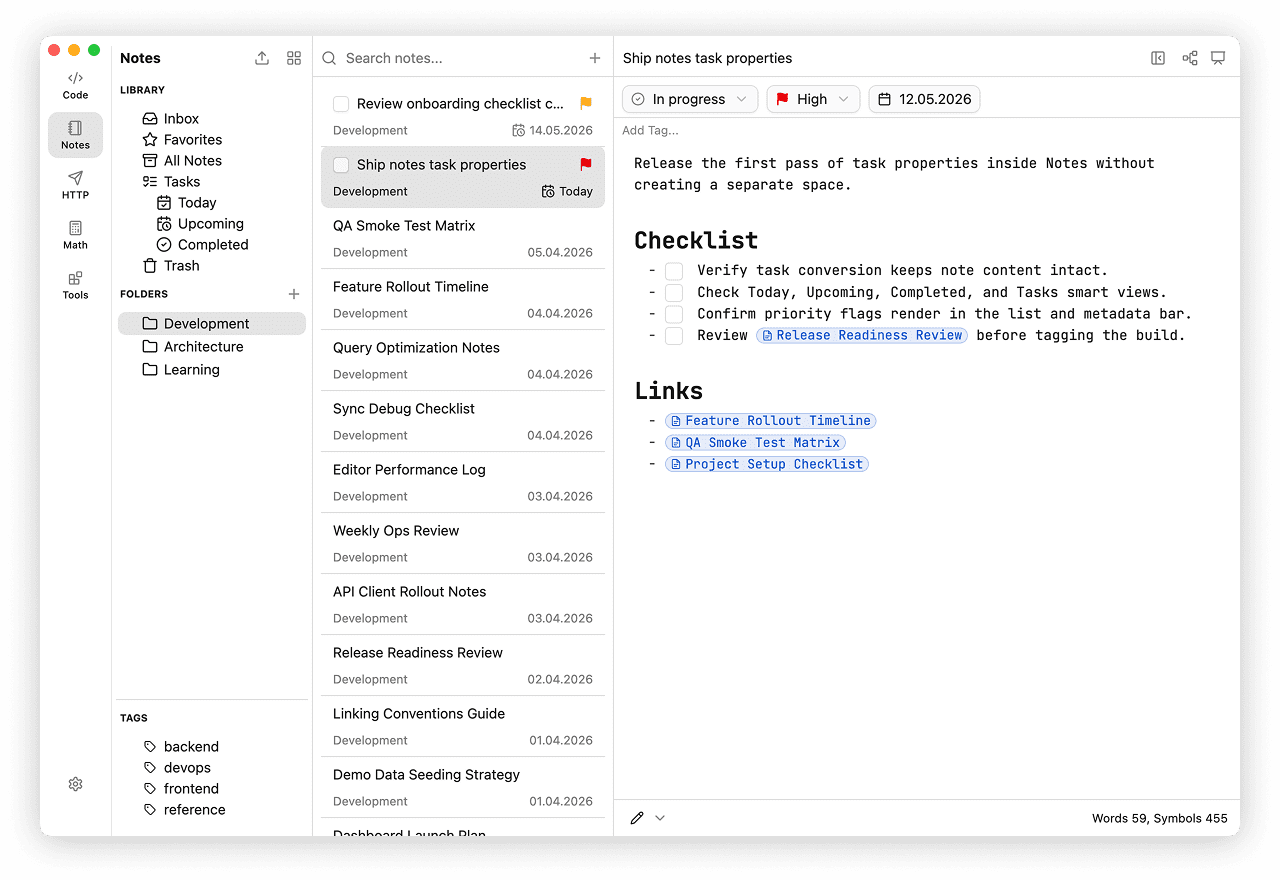
Task properties appear above the markdown editor:
- Status - Todo, In Progress, Done, or Blocked.
- Priority - None, Low, Medium, or High.
- Due - a due date selected from the calendar.
The note title and body work the same way as regular Notes. Use the title input for the task name and the markdown editor for context, checklists, links, snippets, meeting notes, or implementation details.
Task List
Task notes show task-specific metadata in the Notes list:
- a checkbox for quickly marking the task done
- a priority flag next to the title when priority is set
- a due date with a calendar icon
- "No due" when no due date is set
- overdue due dates highlighted in the regular list state
Completed tasks are shown with a checked checkbox and struck-through title.
Task Views
The Notes Library includes a Tasks section with task-focused views:
- Tasks - all task notes.
- Today - incomplete tasks due today.
- Upcoming - incomplete tasks due after today.
- Completed - tasks with Done status.
Tasks can still appear in Inbox, Favorites, All Notes, folders, tags, and search results because they are still notes.
Hiding Completed Tasks
When you are reviewing folders, select View > Hide Completed Tasks to hide tasks with Done status from folder lists. This does not delete or change the tasks; it only keeps completed items out of folder views while the option is enabled.
Cleaning Up Completed Tasks
Use cleanup when completed tasks should leave active task views but remain recoverable.
- Right-click the Notes Library and choose "Clean up completed tasks".
- Confirm the dialog to move all completed tasks to Trash.
- Restore moved tasks from Trash if needed, or empty Trash to remove them permanently.
You can also open Preferences > Notes Editor and use the Tasks section:
- Auto-clean completed - move completed tasks to Trash every day, every 7 days, every 30 days, or never.
- Clean up now - start the same cleanup flow from Preferences.