

That's the plan :)
Aerosys
Creator of
Recent community posts
Okay, let's go through this step by step:
- First of all, can you confirm that you press the action key when you are in the game's main menu (where you see the commands "item", "skill", etc.) ?
- Have you tested it with all other plugins switched off?
- Does your game crash, or does it run and you see the "could not read config.json" in the dev console? This error message isn't necessarily a bad thing. The config file contains the settings you choose in the toolbox, so when you start it for the first time, it simply doesn't exist yet. Although the error message looks a bit strange, I, as the programmer, cannot prevent it from being written to the console due to JavaScript and Node.js.
Thanks for your message!
Can you maybe share a screenshot with me? I cannot reproduce this problem yet.
You can also send me your config file (your game/uicustom/config.json) via mail (mail@aerosys.blog), that would help me a lot! (Don't worry about any custom pictures that are referred in the config file, I can still inspect it)
I don't think GIFs are supported in this context, and even if they were, I'm more concerned about performance issues.
However, what is actually possible are tiny animations such as blinking (including parameters such as intensity, pulse speed, ...), moving (like map parallaxes, probably very similar to your suggestion), or splitting a PNG file into X frames and cycling them through (basically the same as animated characters or battlers work)
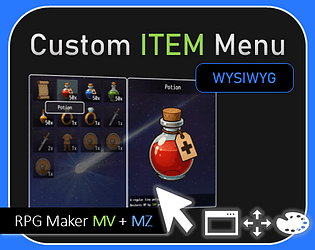
The notetags are explained in the respective tabs (Item List Window & Item Detail Window (Image). Basically, when your image file has the name "Potion.png" and is located in img/pictures/items, then the notetags are
<Menu Grid Image: items/Potion> <Menu Image: items/Potion>
The second one is used for the item inspection window on the right.
A sample game is not planned for this project as making some and keeping it up to date is a lot of additional work.
Templates are managed in the plugin manager, and no, they don't need to be downloaded somewhere. Read more: https://aerosys.blog/templates
The error sometimes appears because the "useSnippets?" settings is incorrectly set. Make sure that in the command to generate a dungeon, the setting "useSnippets" is either on or off. This setting is also explained here: https://aerosys.blog/eventing-rpg-maker-mz
I quickly checked the code, and while one could indeed disable some mouse-click actions for windows, it would take some work to disable ALL actions (e.g., mouse wheel should be disabled, too? What about clicking on enemies for target selection?), and it would also raise the risks of interfering with other plugins
Visustella is really proactive here, and their modifications on gauges precede mine. Again, you have 2 plugins that do similar things, so in the end, one plugin (in this case, VS) will "win" over the other. By the way, in this case, it doesn't matter which plugin is loaded "more on the bottom" in the plugin manager.
In my opinion, VS should add more toggles to let the game devs decide whether they want VS to modify the gauges, or not. I'm a bit reluctant to implement a procedure into my plugin that actively force-reverts a feature of another plugin. By the way, that has nothing to do with their code obfuscation (the debugger already exposes how to revert VS functions), but it's more of a psychological question.
Fortunately, VS shows some mercy and lets the game devs actually revert their gauge modifications via some hidden way:
- Go into the Plugin Manager -> VS SkillAndStatesCore -> Skill Cost Types
- Repeat the following for HP, MP, TP:
- Open the setting "JS: draw Gauge", clear everything, and paste:
// Declare Variables const sprite = this; // Draw Gauge sprite.drawGauge() // Draw Label sprite.drawLabel() // Draw Value sprite.drawValue()
From a technical point of view, this is the cleanest way to drop VS modifications for gauges, and let my plugin take over control again.
Get the latest versions of all my customizer plugins, then open the toolbox in the main menu. In "Gauge Settings", you find a new option "enable further modifications" that gives you more control over gauges.
In the end, both VS and my plugins modify the gauges. I think you understand that I'm a bit reluctant to make my plugin deliberately revert another plugin creator's features.
Yeah, this is actually an impression that I receive a lot!
It takes some time to learn, but at some point, it clicks to the devs and then they are super happy with all the options they have!
By the way, to finally reduce this coonfusion, I'm looking for alternative terms for this "layout settings"; I'm thinking about terms like
- Floor arrangement
- Level arrangement
- Map arrangement
- ...
Without too much thinking, what would be a term where you think that sounds intuitive?
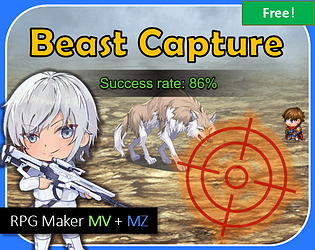
I just uploaded a new version 1.0.2 (I was working on that anyway).
With this update, please follow this procedure:
- In the Plugin Manager -> MK_Capture, set "On Capture Action" to "just disappear"
- right below, assign "Actor -> Variable" to a fresh new Variable
- then, assign "Run Common Event" to a new Common Event
This Common Event is now run each time you capture an enemy. The Variable holds their ID. So, inside this Common Event, you can do anything you need, e.g. flipping a Switch "Werewolf captured" to ON.
This sounds like some slight missunderstanding about how Random Maps understands "layouts" and "exits".
Layouts manage how all the maps are connected to each other, see: https://aerosys.blog/room-layouts It does not affect how the small "rooms" on one generated map look like. Instead, 5x5 means that Random Maps will pre-generate 25 maps in total that are connected in a 5x5 grid. Meaning, that there ARE horizontal exits in each map.
To only enable vertical exits, the simplest way is to use a "tower" room layout.
Well, usually I would have asked you to ask the Rosedale dev for support, since I don't own this plugin. Unfortunately, he passed away while ago.
I quickly made this fix: https://downloads.aerosys.blog/plugins/MK_BackgroundSpriteFiltersFix.js (right-click, save as...)
Please tell me whether it's working for you, then I can integrate it to plugin for everyone.
The changelog is now available :)
https://aerosys.itch.io/custom-ui/devlog/1523126/version-200
Don't worry asking questions, I really appreciate them! They tell me that you guys like my stuff :)
My plugin does not add a "new" layer, that would be too complicated. Instead, I designed it to follow RPG Maker's 6 layers world (i.e. A lower, A upper, B lower, B upper, shadows, region tiles).
I briefly tested this pattern, and it worked for me. I was able to first build the window (line 6), and then the flowers (line 7) on top.
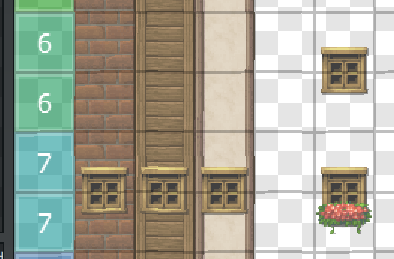
Tell me whether this fits your needs!


