Mesheeto - 3D To Sprite
A downloadable tool for Windows
Mesheeto - 3D To Sprite
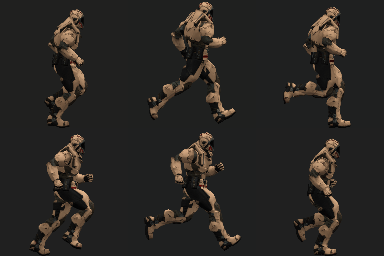
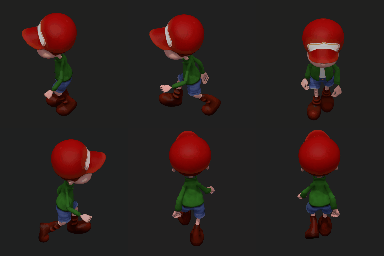
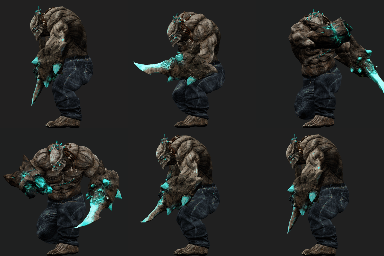
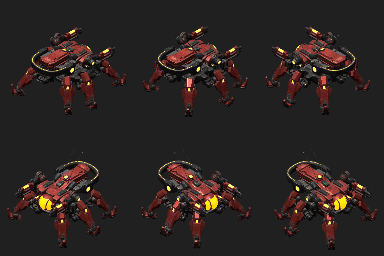
Turn animated 3D models into clean 2D spritesheets with speed, control, and polish.
Load a model, choose an animation, adjust the camera and render settings, capture your frames, preview the result, and export spritesheets or individual frames for your game project.
It is simple enough for quick sprite creation, but includes deeper controls for users who want more precise animation framing, rendering, materials, posing, camera setup, and export options.

Free Version Available!
The free version is a full basic Mesheeto app, with fewer settings.
A non-intrusive freebie! No watermarks and No usage limits.
Perfect for: students, hobbyists, indie devs, game jams, or anyone that needs a basic, free 3D To Sprite solution.
Look below for the demo download button.
If you like Mesheeto and the demo helps you out, consider buying the full app.
Thanks either way!
══════════════════ ★ ══════════════════
Why Use Mesheeto?
Mesheeto is built for a practical production workflow: load, adjust, capture, preview, and export.
It keeps the basic process quick while still offering advanced controls when a model needs extra cleanup. Whether you need a simple idle animation or a carefully tuned multi-directional spritesheet, Mesheeto gives you the tools to get clean 2D output from animated 3D assets.
══════════════════ ★ ══════════════════

Key Features
- Compatible with Mixamo models and animations
- Load a single animated model or additional animated models to add more animations to an existing model in the scene.
- Preview animations directly in the viewport.
- Capture sprites from the current view or automatic directional views Top-Down / Isometric).
- Export combined spritesheets, separate animation sheets, or individual frames.
- Preview captured sprites before saving.
- Adjust camera, lighting, materials, shadows, background, alpha, and capture resolution.
- Fine-tune animations with trimming, frame skipping, per-animation transforms, bone locks, and pose offsets.
- Built-in warnings help explain common texture filename issues.
- Dark, focused interface designed for longer editing sessions.
- A detailed 13 page user's guide to help with any questions you may have and get you started.
- The free version includes the following setting groups:
- Model & animations
- Camera & Capture Frame
- Lighting
- Viewport
- Sprite Output
- The full version includes the above setting groups AND the following groups:
- Rig View
- Bone Locks
- Posing
- Model Transform
- Rendering
- Materials
Quick Workflow
- Load the model with its texture files.
- Choose an animation.
- Adjust the camera, model transform, lighting, materials, and output settings.
- Click Create Spritesheet.
- Preview the captured animation.
- Save the spritesheet, separate animation sheets, individual frames, or datasheet JSON.
For many models, that is all you need. For more advanced use, Mesheeto gives you detailed control over the final sprite output.
File Loading
- FBX files can have embedded textures or external texture files.
- Load external texture files alongside the FBX.
- Append additional FBX animation files to the current model (must use the same rig/skeleton).
- One-frame pose-only animations are automatically skipped to avoid accidental T-pose frames.
- Texture filename matching helps assign external maps to the correct material slots.
- Note: Due to the way FBX files can vary from different sources across the internet and from different software, some files may not load successfully. There is no guarantee that any specific file or source of files will work in Mesheeto. Although, I did make this app around using Mixamo models/animations. However, I have not tested every model/animation on their site, so again, no guarantees.
Supported texture formats:
- PNG
- JPG / JPEG
- WebP
- BMP
Animation Controls
Use the animation controls to preview and prepare the motion before capturing.
Settings include:
- Animation selection
- Play / pause
- Stop
- Frame stepping
- Timeline scrubbing
- FPS control
- Playback speed
- Animation rename menu (right click an animation name in the list to change it)
- Animation reorder controls
- Animation removal
- Trim start / trim end range
- Frame count display
Example use: trim a long attack animation down to only the useful wind-up, strike, and recovery frames before exporting the spritesheet.
Viewport Settings
The viewport controls what you see while setting up the sprite.
Settings include:
- Grid visibility
- Background color
- Capture guide visibility
- Capture guide size
- Capture guide overlay type
- Viewport control visibility
The capture guide helps show the square area that will become the final sprite frame.
Camera Settings
Camera controls are used to frame the model before capture.
Settings include:
- Projection mode
- Camera presets
- Camera position
- Camera orbit angles
- Camera roll
- Camera pan buttons
- Camera reset
- Automatic capture view selection
The app supports both manual camera setup and automatic capture directions, making it useful for front-facing sprites, isometric sprites, top-down sprites, and multi-directional character sheets.
Model Transform
Model transform settings adjust the model itself while keeping the camera setup intact.
Settings include:
- Position X / Y / Z
- Rotation X / Y / Z
- Scale
- Facing buttons
- Rotate -45°
- Rotate +45°
Model transforms are saved per animation. This is useful when one animation needs a different offset than another.
Example: if a jump idle floats too high, lower only that animation’s Y position without pushing a walk cycle below the floor.
Lighting
Lighting controls affect how the model is shaded before capture.
Settings include:
- Ambient light color
- Ambient light intensity
- Ambient ground color
- Directional light color
- Directional light intensity
- Directional light position
- Directional light marker visibility
- Directional light marker size
- Reset lighting
The directional light marker can be shown in the viewport to make light positioning easier. It is automatically hidden during capture.
Rendering Settings
Rendering settings control the final look of the model.
Settings include:
- Tone mapping
- Exposure
- Material mode
- Double-sided rendering
- Enable shadows
- Floor shadow
- Shadow quality
- HDRI lighting
- 10 HDRI presets
- HDRI intensity
- HDRI rotation
- Custom HDRI loading
- Render color
- Alpha mode
- Alpha opacity
- Alpha cutoff
- Reset rendering
Material modes include options such as original materials, unlit texture, clay, wireframe, solid color, silhouette, and normals.
Shadow quality options include:
- Low
- Medium
- High
- Ultra
Higher shadow quality can produce cleaner shadows, but may be slower depending on the model and GPU.
HDRI Environment Lighting
HDRI lighting can be used to add more natural environment lighting to the model.
Settings include:
- Enable HDRI
- HDRI preset
- Custom HDRI
- HDRI intensity
- HDRI rotation
HDRI lighting affects the model through environment lighting. It does not need to appear as the visible background.
Materials
The Materials section lets you enable, disable, and tune texture maps detected on the model.
Controls include:
- Enable all materials
- Disable all materials
- Individual material/texture toggles
- Per-texture strength sliders
- Texture thumbnails
- Material map labels
Supported material map types include:
- Base color / diffuse / albedo
- Normal
- Bump / height
- Roughness
- Metalness / metallic
- Ambient occlusion
- Alpha / opacity / mask
- Emissive / emission / glow
- Specular
- Other supported PBR-related maps when available
External texture matching works best when the material type appears in the filename.
If the FBX references a texture by name, the texture may still load even if it does not include a material keyword. If a texture does not load or is not assigned correctly, rename it with a clear material keyword and load the files again.
Bone Locks
Bone locks let you hold specific bone position or rotation channels in place during an animation.
Settings include:
- Bone selection
- Lock position X / Y / Z
- Lock rotation X / Y / Z
- Capture current bone values
- Clear selected bone lock
- Clear all bone locks
This is useful for stabilizing unwanted motion, reducing root drift, or locking a problem bone during capture.
Posing
Pose offsets allow animation-specific rotation adjustments for bones.
Settings include:
- Pose bone selection
- Rotation X / Y / Z number inputs
- Rotation X / Y / Z sliders
- Apply pose offset
- Reset selected pose offset
- Clear pose offsets
- Rig view support
Example: slightly rotate an arm, head, weapon, wing, or tail for one animation without editing the original FBX file.
Camera Follow
Camera follow can keep the camera aligned to a selected bone channel during animation preview and capture.
Settings include:
- Follow bone
- Position channel selection
- Rotation channel selection
- Set follow reference
- Clear follow reference
This can help keep a moving character centered when the animation shifts away from the original position.
Rig View
Rig view helps visualize bones and animation adjustments.
Settings include:
- Show rig view
- Rig view mode
- Marker size
- Marker shape
- Highlight locked bones
- Highlight camera follow bone
- Highlight posed bones
Rig view is useful when setting up bone locks, pose offsets, and camera follow.
Sprite Output
Sprite Output controls the size, layout, and format of captured frames.
Settings include:
- Sprite frame size
- Custom square sprite size
- Capture frame step
- Skip duplicate loop frame
- Capture resolution
- Output format
- Transparent or color background
- Export mode
- Create spritesheet
Export options include:
- Combined spritesheet
- Separate animation spritesheets
- Individual frames
- Datasheet JSON
The app can warn when a spritesheet is very large, but large sheets are still allowed. This is helpful for long animations or high-resolution sprite frames.
Sprite Preview and Export
After capture, the sprite preview window lets you review and organize the captured frames before saving.
Preview features include:
- Frame grid
- Animation groups
- Remove individual frames
- Remove captured animation groups
- Reorder captured animation groups
- Test animation player
- Sprite player FPS
- Sprite player scale mode
- Add more frames
- Save spritesheet
- Save datasheet JSON
This makes it possible to capture, review, adjust, append more frames, and then export when the result looks right.
Output Uses
Mesheeto can be used for:
- 2D game character sprites
- Enemy sprites
- Item or prop sprites
- Isometric sprites
- Top-down sprites
- Multi-directional animation sheets
- Turntable-style sprite renders
- UI-ready character previews
- Animation reference sheets
Requirements
Windows 10/11
Note:
If you have trouble running the app after unzipping the files, try right clicking on the zip and open its properties and look for "This file came from another computer and might be blocked to protect this computer" and tick the "Unblock" checkbox, otherwise some dll files can be blocked after extracting the zip.
══════════════════ ★ ══════════════════
UPDATES:
- Updated to 1.2 - Fixed a bug that was preventing the top down and isometric view buttons from holding their view during capture when using the "Current camera view only" option under the Auto view capture dropdown. The buttons should now keep the model direction correctly during captures. Any other bugs, please let me know. Thanks!
══════════════════ ★ ══════════════════
Thanks for looking!
Purchase
In order to download this tool you must purchase it at or above the minimum price of $9.99 USD. You will get access to the following files:
Download demo
Development log
- Mesheeto - 3D To Sprite - Small Bug Fix30 days ago


Comments
Log in with itch.io to leave a comment.
Any feedback or bug reports are welcome. Thanks!