
QR Code - POS Integration
For customers to scan a QR code on your device to confirm payment
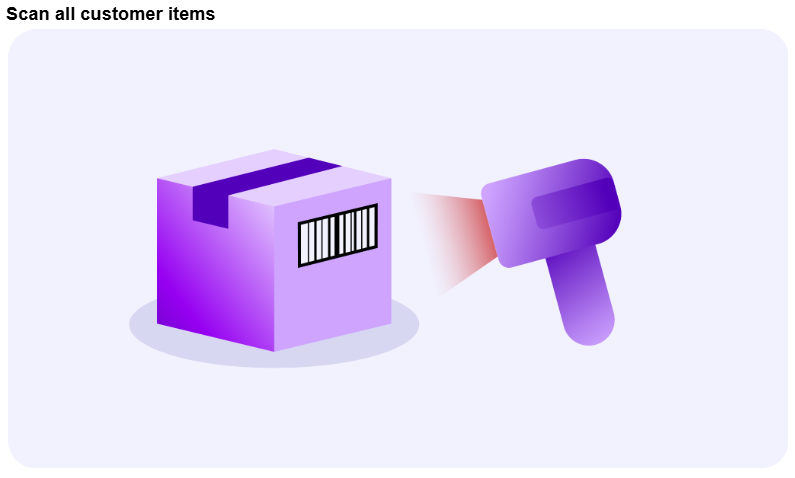
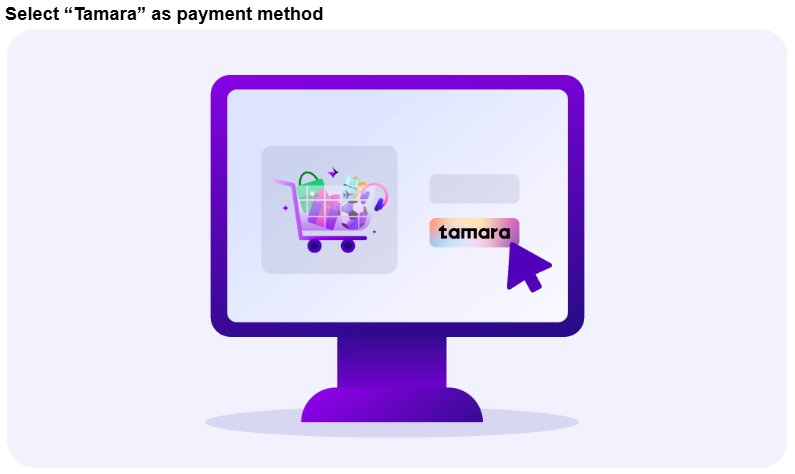
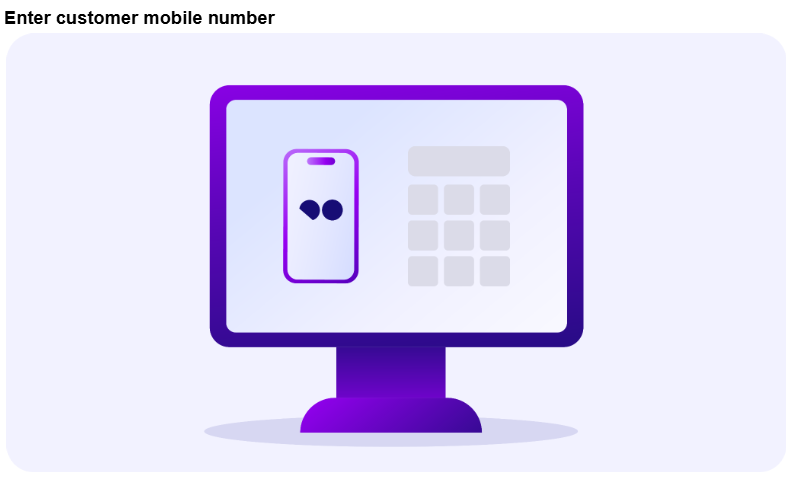
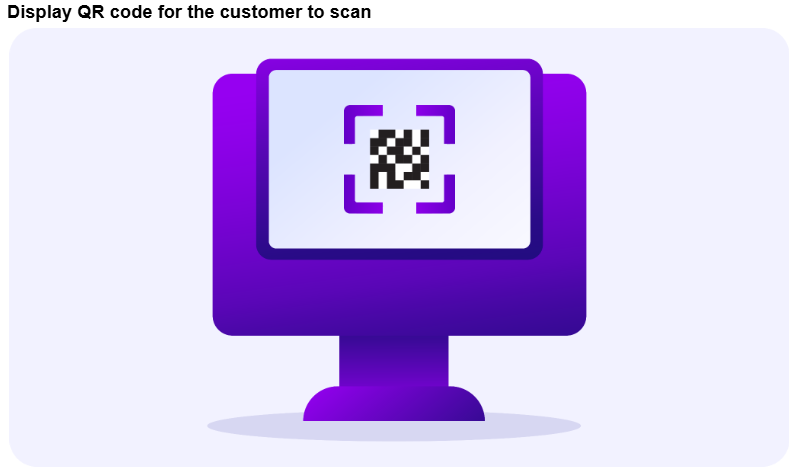
Your POS/ERP software should be updated to add Tamara as a payment option for your customers.
This page is a high-level explanation only.Consult the API References for further details on how to use our APIs properly.
Step 1: Create In-store QR Code Checkout Session
When a customer decides to pay through Tamara, your server would need to create an in-store checkout session by using the Create In-store QR Code Checkout Session API that creates an In-Store checkout link and you will need to convert it to a QR code, enabling customer payments via Tamara customer app using the Scan to Pay function.
The response of this API returns a unique order_id and a checkout_id for completing the transaction. Please store them as they are required for the subsequent steps.
Endpoint
Sample Request and Response
Step 2: Customer scans the QR code on their phone
)
Order is now in the new state at Tamara, this checkout session expires in 15 mins by default or can be manually voided using our Void Checkout Session API, if needed.
Step 3: Check status of the order via Push or Pull methods
To identify and confirm that the customer has paid their first installment successfully, you will need to use any of the following methods to check:
You will need to call Tamara via our Get order details API to check the status of the order if it has moved from new to fully_captured.
Check the order status via the API every 5-10 seconds until you getfully_captured
Endpoint
by replacing {order_Id} with the Tamara order_id you got from response of the **
**
Sample Request and Response
In order to receive real-time updates from Tamara for every status change that happens on your orders, you are encouraged to register a notification webhook URL with Tamara either using our **Register Webhook URL API or via ourPartners Portal Webhooks management ** section.
Step 4. Customer wants to return items or requested a refund
Based on your store policy, if the customer requests for return, you can fully/partially refund the order using the **Refund API **
Endpoint
Replace the {order_id} with the unique Tamara order_id from the response of the creation of the in-store checkout session and the amount that needs to be refunded as well as a comment for future reference.
Sample Request and Response
❗️Refund transactions are processed in realtime on Tamara's end but,Refunds might take several hours to several days to reflect on the customer's bank account depending on the customer's bank's processing time.
Once the
fully_refundedorpartially_refundedstate is reached, you can consider the amount to have been refunded by Tamara to the customer's card right away, and the refunded amount will be deducted from your next settlement.You may have multiple
refund_idif you perform multiple partial refunds for the sameorder_id, please try to store them all in your DBs.
Optional Steps
Optional: Check customer ID verification/onboarding status
To further optimise the checkout time, you can the implement **Customer's ID Verification Status API ** , to determine whether or not the customer has completed the onboarding previously
Endpoint
While sending phone_number and country_code as query parameters.
Sample Request and Response
https://docs.tamara.co/reference/customersidverificationstatus
Optional: Update order_reference_id
If you have the need to update your order's order_reference_id that is stored at our side since the creation of checkout session you can do so by using our API for updating such info.
Endpoint
by replacing {order_Id} with the Tamara order_id you got from response of the Create In-store Checkout Session API and sending the new order_reference_id in the request body.