

Codex Security is a security-review plugin for Codex that scans your code for vulnerabilities, validates plausible findings, and presents evidence and remediation guidance in a reviewable workspace. Use it to find security issues in code you own or have authorization to assess before they reach production.
This quickstart takes you through one recommended first run: an ordinary, read-only scan of a local repository in Codex.
This page covers the plugin that runs in a local Codex chat. To scan a connected GitHub repository in Codex cloud, see Codex Security cloud setup.
Install the plugin
-
Open the repository you want to assess in Codex in the ChatGPT desktop app.
-
Go to Plugins and search for Codex Security, or select the button below:
-
Start a new chat in Codex for that repository (don’t continue in a chat that was already open).
-
In your terminal, go to the repository you want to assess and start Codex:
codex -
Enter
/plugins, search for Codex Security, and select Install plugin. -
Enter
/newto start a new chat for the repository.
To install Codex Security for a local repository, use the ChatGPT desktop app or Codex CLI.
Run your first scan
For the best scan quality, use gpt-5.6
with high or xhigh reasoning effort.
-
Ask for an ordinary scan
Send this prompt in the new chat:
Run a Codex Security scan on this repository. -
Confirm the setup
Codex opens a setup workspace before it starts. For your first run, use these settings:
- Scan type:
Codebase - Deep scan: Off
- Scan area:
Entire codebase - Threat model scoping guidance: Leave blank unless you already know a specific attack vector or application area that deserves priority.
Confirm that Codebase, Current branch, and Last commit identify the repository you intended to scan. Then select Start scan.
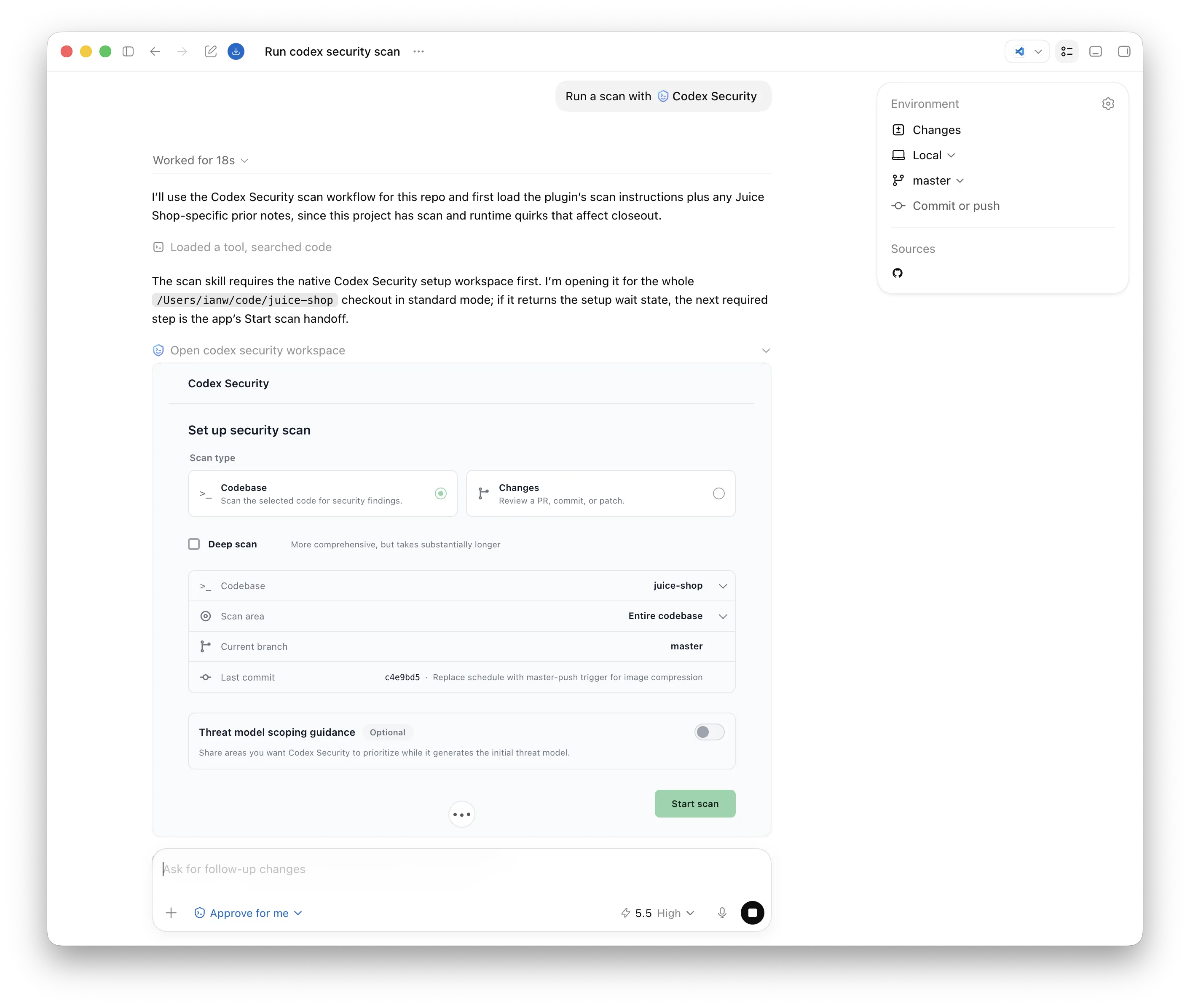
Configure the scan target, scan area, branch, and optional threat model guidance before starting the scan.
- Scan type:
-
Let the scan finish
The scan can take time. Keep the scan running until the workspace reports completion. If Codex identifies a configuration limitation, review the exact limitation and proposed change before allowing it to update your configuration.
-
Review the result
Use the UI to browse findings, or open
report.mdas the entry point to the complete scan directory.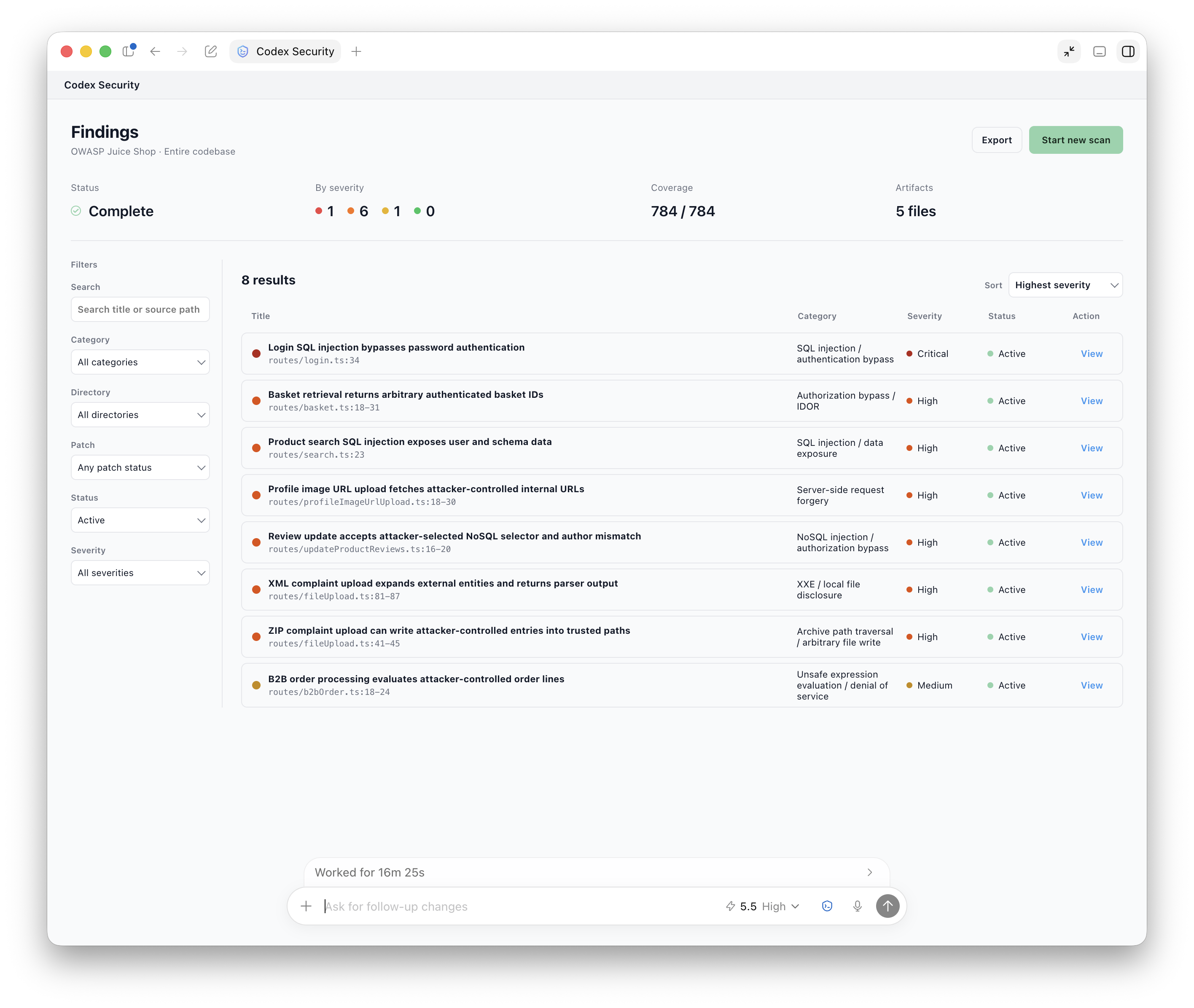
Browse findings by severity, category, directory, patch status, and review status.
-
Ask for an ordinary scan
Send this prompt in the new chat:
Run a Codex Security scan on this repository. -
Let the scan finish
Codex runs the scan in the terminal without opening a setup workspace. Keep the task running until Codex reports completion. If Codex identifies a configuration limitation, review the exact limitation and proposed change before allowing it to update your configuration.
-
Review the result
Review the summary in the terminal, then open the generated
report.mdfor the complete result.
Run this local plugin workflow in the ChatGPT desktop app or Codex CLI.
What the scan creates
Every completed scan opens a findings workspace. Use it to review findings and coverage without inspecting raw artifacts. The scan also creates the files below.
Every completed scan reports a summary in the terminal and creates the files below.
Run this local plugin workflow in the ChatGPT desktop app or Codex CLI.
report.md, the primary readable entry point to the scan results.findings/<slug>/, with one detailed vulnerability report per reportable finding and supporting proof-of-concept files when available.hardening/, with a structural hardening portfolio and supporting proposals or diagrams when the scan has reportable findings.- Structured scan data in
scan-manifest.json,findings.json, andcoverage.jsonfor automation and integrations. You normally don’t need to open these files yourself.
Keep the full scan directory together when sharing or archiving results so the
links from report.md continue to work.
Choose your next workflow
- Run a standard or scoped scan when you want to scan a repository or one folder with the default workflow.
- Run a deep scan when you need a more comprehensive scan and can wait longer for it to finish.
- Review code changes when the target is a pull request, commit, branch range, or working-tree patch.
- Triage a backlog when you have existing security findings to review.
- Fix and verify a finding after you accept one finding for remediation.
- Export or track findings when you need JSON, CSV, SARIF, an approval-gated Linear, GitHub, or Jira issue, or a private draft GitHub Security Advisory.
- Write vulnerability reports when you want to turn supplied findings, disclosure notes, source, and PoCs into polished, self-contained reports.
- Propose security hardening when you want structural or architectural options based on scan results or other security evidence.