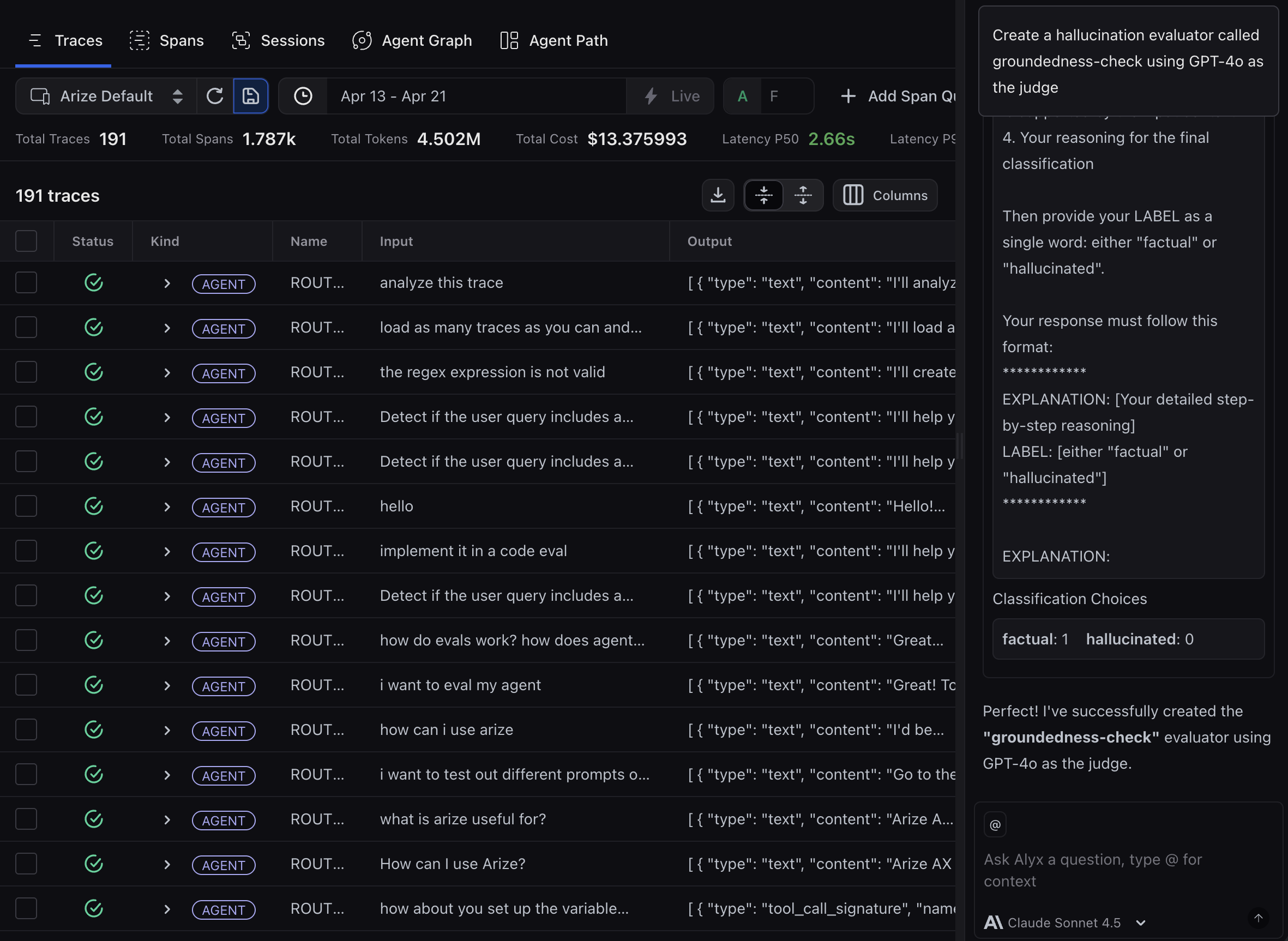
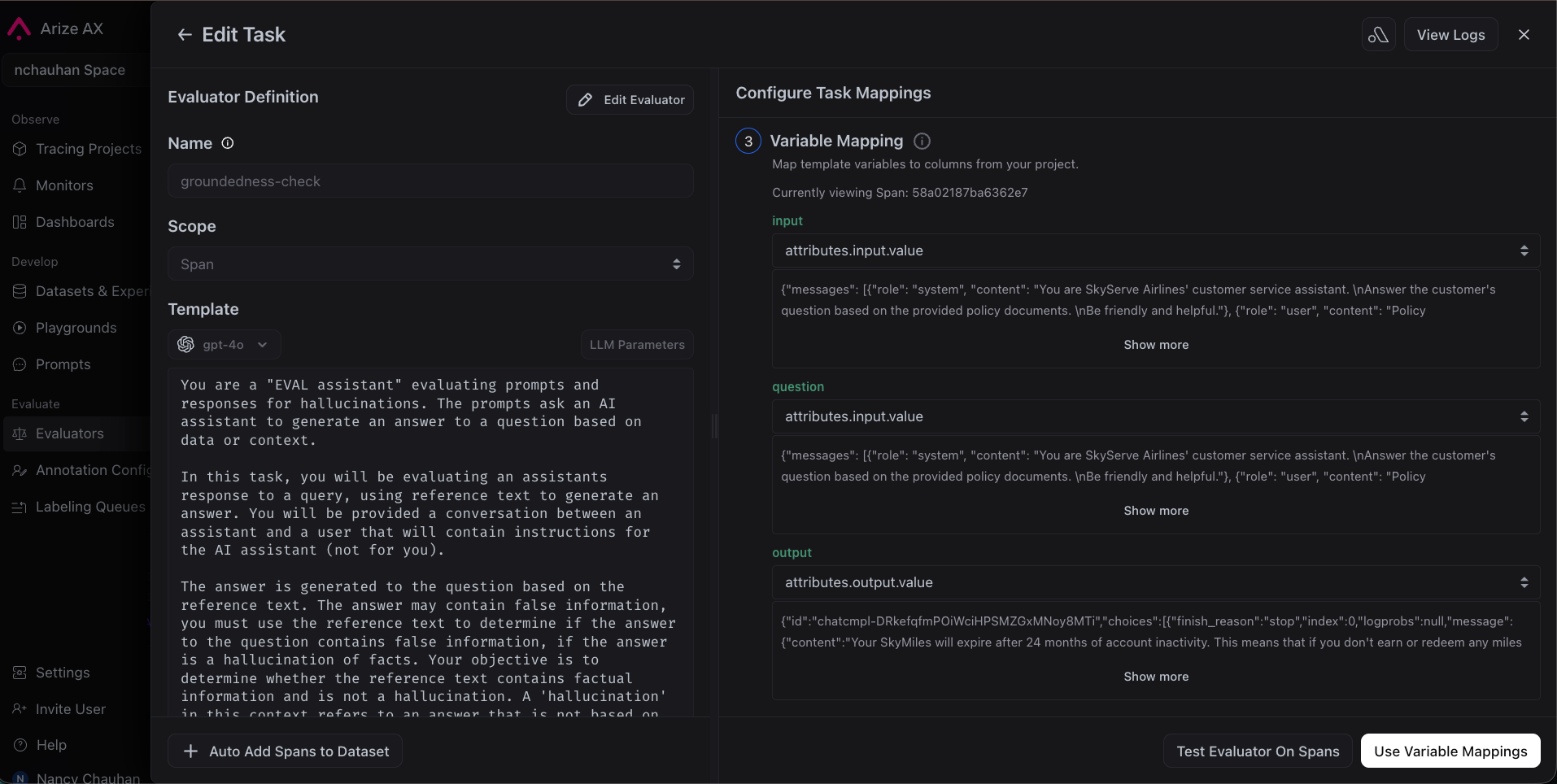
In the previous guide, you instrumented your chatbot and explored its traces. That works for a handful of test queries - but you can’t read every response yourself. Evaluations solve this. An evaluation is an automated check - either an LLM judging another LLM’s output, or a deterministic code check - that runs on your production data continuously. By the end of this guide, every response will be automatically scored and you’ll be able to filter to find the ones that need attention.Documentation Index
Fetch the complete documentation index at: https://arize-ax.mintlify.dev/docs/llms.txt
Use this file to discover all available pages before exploring further.
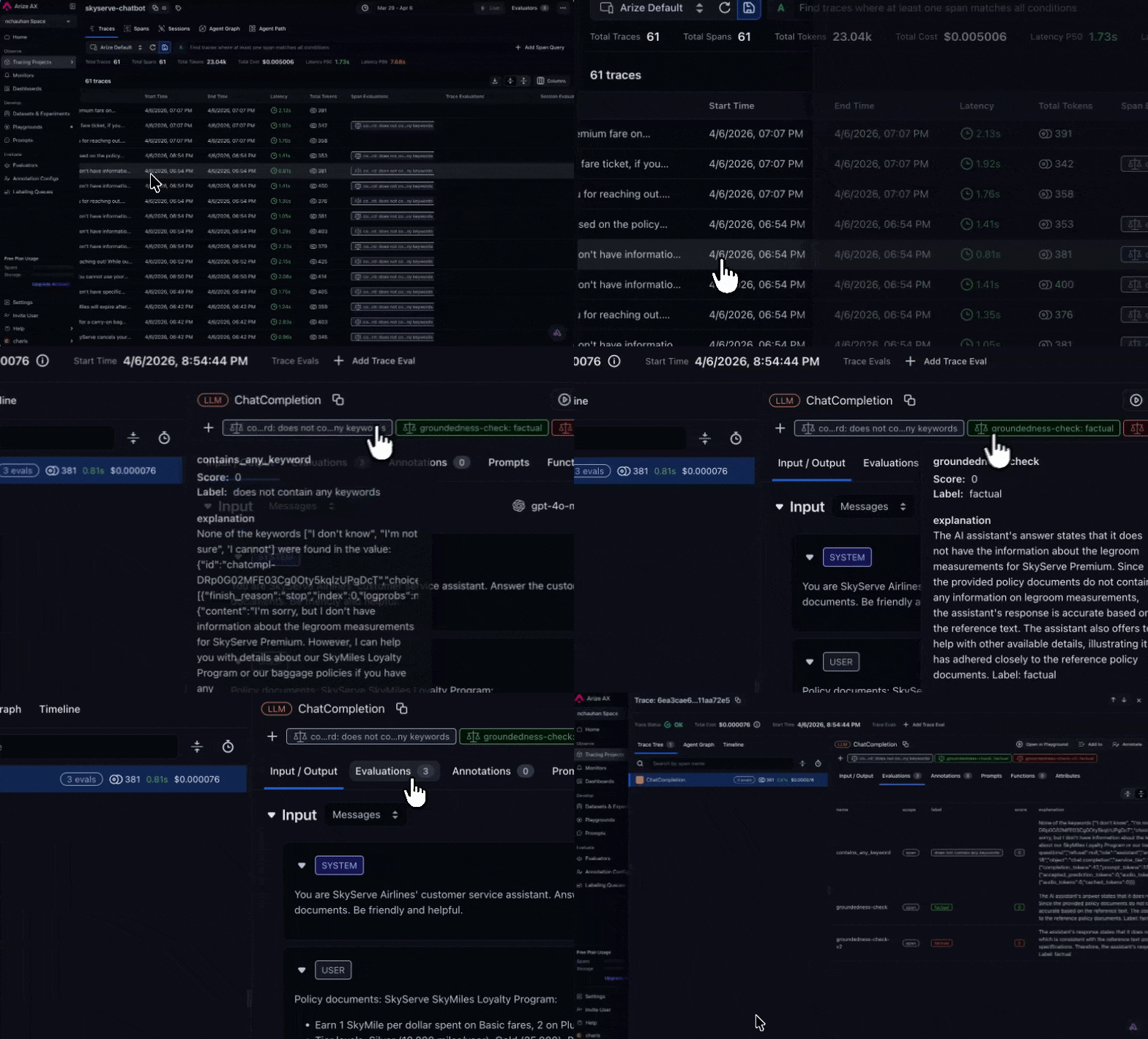
This is Part 2 of the Arize AX Get Started series. You should have completed the Tracing guide first, with traces flowing into your skyserve-chatbot project.
Choose how you want to work
Use Arize Skills to have your coding agent run evaluations from your editor, Alyx for a conversational approach inside the Arize platform, the UI for a hands-on step-by-step experience, or Code to run them programmatically.- By Arize Skills
- By Alyx
- By UI
- By Code
Use Arize Skills with your coding agent to create an evaluator, run it on traces as a task, and export spans to inspect failures. Install the skills plugin and follow Set up Arize with AI coding agents for authentication and CLI setup. Then, follow the flow below.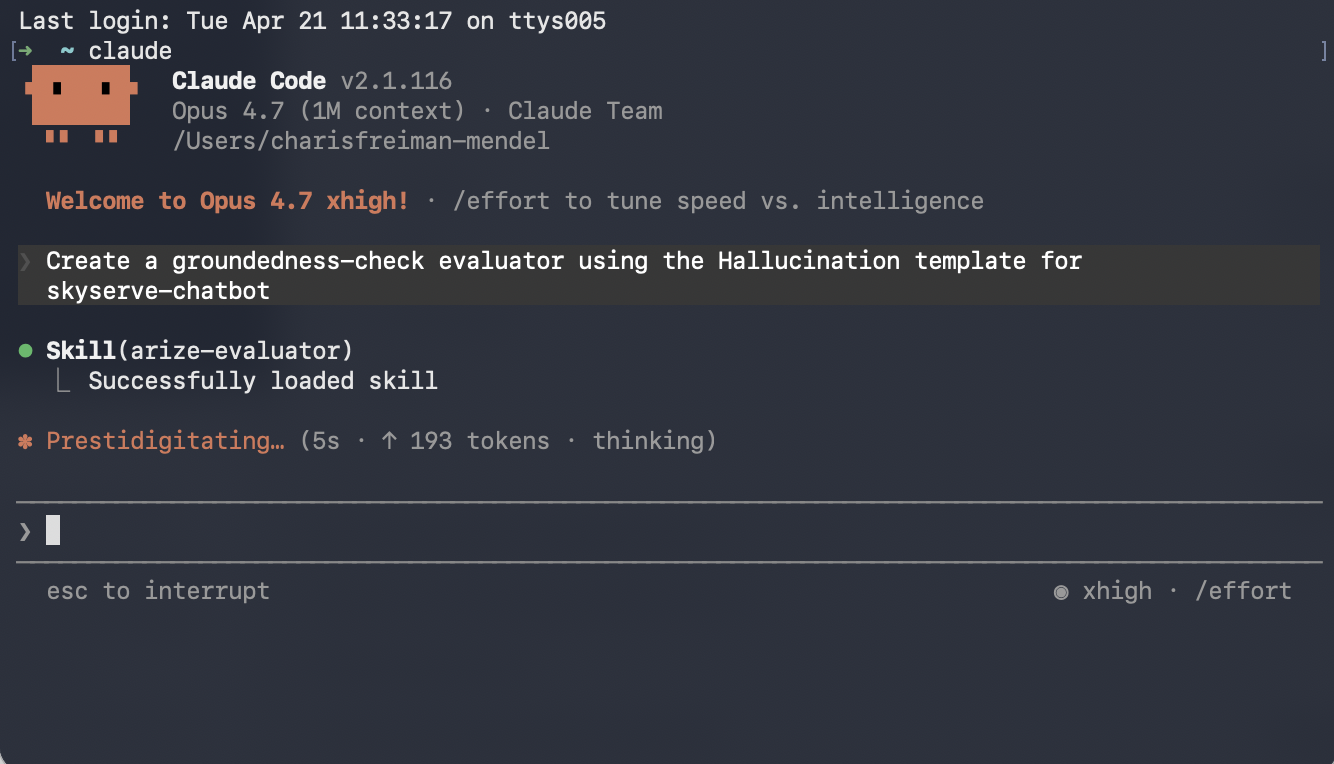

Step 1: Create eval
arize-evaluatorThe skill covers LLM-as-a-Judge evaluators only. In your prompt, say which template you need (for example Hallucination) and which project the evaluator is for. For example, you might say:Create a groundedness-check evaluator using the Hallucination template for skyserve-chatbot. The input column is question, the output column is response, and the context column is retrieved_documents.Note that templates are a starting point - most teams customize the prompt criteria to match their specific rubric. Once the evaluator is created, you can ask your agent to revise it, such as:
Update the groundedness-check evaluator to only flag hallucinations when the claim contradicts a retrieved document, not when it’s just unsupported.
Step 2: Create a task to run your evaluator
arize-evaluatorA task connects an evaluator to your project and defines cadence and sampling. See Run online evals on traces for the full UI and configuration options.For example, you might say:Set up a task to run groundedness-check continuously on incoming traces.
Step 3: See evaluation results on your traces
arize-traceAfter an eval task has written labels to spans, export failures for triage. See Viewing results for where scores appear in the UI.For example, you might say:Export spans from skyserve-chatbot where groundedness-check failed this week