
Skip to content
Free Excel Tutorials
  • Home
  • Excel For Beginners
  • Excel Intermediate
  • Advanced Excel For Experts

Data Analysis

  • Conditional Formatting Data bars Examples in Excel
  • Use Data Form to input, edit and delete records in Excel
  • How to Create Area Chart in Excel
  • How to create running total in an Excel Table
  • Conflicting Multiple Conditional Formatting Rules in Excel

References

  • How to use Excel LOOKUP Function
  • Count rows with at least n matching values
  • Two-way lookup with VLOOKUP in Excel
  • How to get last row in text data in Excel
  • LOOKUP function: Description, Usage, Syntax, Examples and Explanation

Data Validations

  • Excel Data validation date in specific year
  • Excel Data validation no punctuation
  • Excel Data validation unique values only
  • Excel Data validation must begin with
  • Excel Data validation don’t exceed total

Excel Data validation don’t exceed total

by

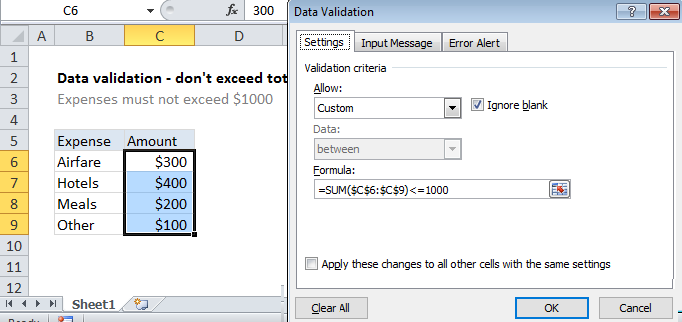
Using the example below, this tutorial shows how to create Data validation don’t exceed total in Excel.

Formula

=SUM(range)<=1000
Explanation

To allow only values that don’t exceed a set sum, you can use data validation with a custom formula based on the SUM function. In the example shown, the data validation applied to B5:B9 is:

=SUM($C$6:$C$9)<=1000

How this formula works

Data validation rules are triggered when a user adds or changes a cell value.

In this case, we need a formula that returns FALSE as long as entries in C6:C9 sum to a total equal to or below 1000. We use the SUM function to sum a fixed range and then simply compare the result to 1000 using less than or equal to. Note the range C6:C9 is entered as an absolute reference to prevent the reference from changing automatically for each cell that data validation is applied to.

Each time a number is entered, the validation is triggered. As long as the sum remains less than 1000, validation succeeds. If any entry causes the sum C6:C9 to exceed 1000, validation fails.

Note: Cell references in data validation formulas are relative to the upper left cell in the range selected when the validation rule is defined, in this case B5.

Post navigation

Previous Post:

COSH function: Description, Usage, Syntax, Examples and Explanation

Next Post:

Excel Data validation require unique number

Leave a Reply Cancel reply

Learn Basic Excel

Ribbon
Workbook
Worksheets
Format Cells
Find & Select
Sort & Filter
Templates
Print
Share
Protect
Keyboard Shortcuts

Categories

  • Charts
  • Data Analysis
  • Data Validation
  • Excel Functions
    • Cube Functions
    • Database Functions
    • Date and Time Functions
    • Engineering Functions
    • Financial Functions
    • Information Functions
    • Logical Functions
    • Lookup and Reference Functions
    • Math and Trig Functions
    • Statistical Functions
    • Text Functions
    • Web Functions
  • Excel VBA
  • Excel Video Tutorials
  • Formatting
  • Grouping
  • Others

Logical Functions

  • SWITCH function: Description, Usage, Syntax, Examples and Explanation
  • TRUE function: Description, Usage, Syntax, Examples and Explanation
  • How to use Excel TRUE Function
  • How to return blank in place of #DIV/0! error in Excel
  • IF function: Description, Usage, Syntax, Examples and Explanation

Date Time

  • Add months to date in Excel
  • How to get workdays between dates in Excel
  • How to calculate workdays per month in Excel
  • How to get year from date in Excel
  • TIMEVALUE function: Description, Usage, Syntax, Examples and Explanation

Grouping

  • How to randomly assign people to groups in Excel
  • Calculate conditional mode with criteria in Excel
  • Group numbers with VLOOKUP in Excel
  • Group numbers at uneven intervals in Excel
  • Map text to numbers in Excel

General

  • How to password protect excel sheet?
  • Cell References: Relative, Absolute and Mixed Referencing Examples
  • AutoFit Column Width, AutoFit Row Height in Excel
  • Share Excel data with Word documents
  • Common Errors in Excel
© 2025 xlsoffice . All Right Reserved. | Teal Smiles | Abbreviations And Their Meaning