

Skip to content
Free Excel Tutorials
  • Home
  • Excel For Beginners
  • Excel Intermediate
  • Advanced Excel For Experts

Data Analysis

  • Subtotal function in Excel
  • Chart Axes in Excel
  • How to calculate correlation coefficient Correlation in Excel
  • How to Create Thermometer Chart in Excel
  • What-If Analysis: Scenarios and Goal Seek in Excel

References

  • How to get last column number in range in Excel
  • How to get last row in text data in Excel
  • How to get relative row numbers in a range in Excel
  • Multi-criteria lookup and transpose in Excel
  • How to use Excel ROWS Function

Data Validations

  • Excel Data validation don’t exceed total
  • Excel Data validation whole percentage only
  • Excel Data validation with conditional list
  • Excel Data validation number multiple 100
  • Excel Data validation must contain specific text

How to combine 2 or more chart types in a single chart in Excel

by

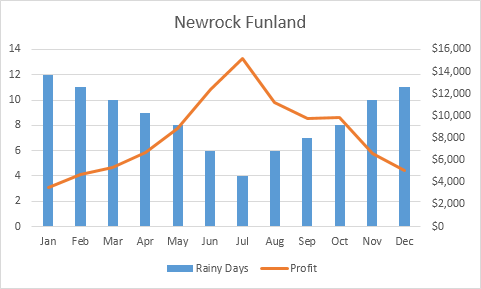
Combination Chart: A combination chart is a chart that combines two or more chart types in a single chart.

To create a combination chart, execute the following steps.

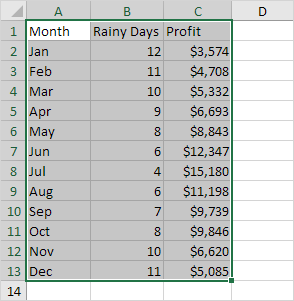
1. Select the range A1:C13.
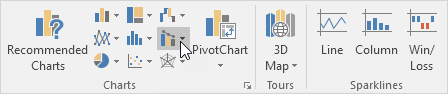
2. On the Insert tab, in the Charts group, click the Combo symbol.
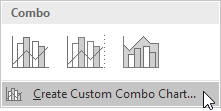
3. Click Create Custom Combo Chart.
The Insert Chart dialog box appears.

4. For the Rainy Days series, choose Clustered Column as the chart type.

5. For the Profit series, choose Line as the chart type.

6. Plot the Profit series on the secondary axis.
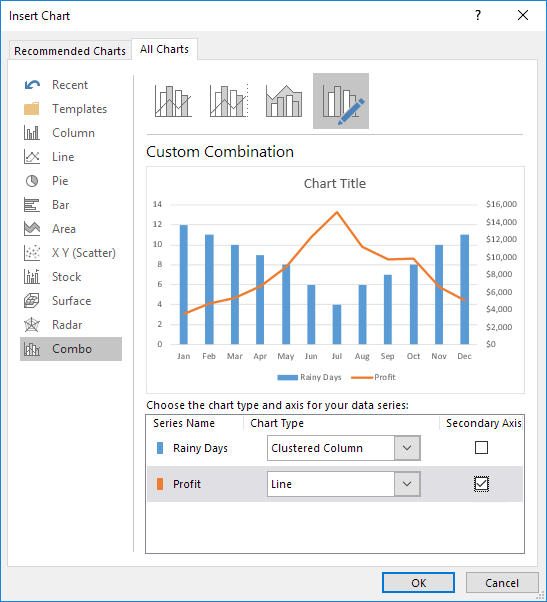
7. Click OK.

Result:
Post navigation

Previous Post:

VLOOKUP without #N/A error in Excel

Next Post:

Manipulating text strings using Left, Mid, Right, Len, Substitute in Excel

Leave a Reply Cancel reply

Learn Basic Excel

Ribbon
Workbook
Worksheets
Format Cells
Find & Select
Sort & Filter
Templates
Print
Share
Protect
Keyboard Shortcuts

Categories

  • Charts
  • Data Analysis
  • Data Validation
  • Excel Functions
    • Cube Functions
    • Database Functions
    • Date and Time Functions
    • Engineering Functions
    • Financial Functions
    • Information Functions
    • Logical Functions
    • Lookup and Reference Functions
    • Math and Trig Functions
    • Statistical Functions
    • Text Functions
    • Web Functions
  • Excel VBA
  • Excel Video Tutorials
  • Formatting
  • Grouping
  • Others

Logical Functions

  • XOR function: Description, Usage, Syntax, Examples and Explanation
  • IFS function: Description, Usage, Syntax, Examples and Explanation
  • Not Equal To ‘<>‘ operator in Excel
  • Return blank if in Excel
  • How to use Excel NOT Function

Date Time

  • Calculate number of hours between two times in Excel
  • How to calculate Day of the Year in Excel
  • Convert text timestamp into time in Excel
  • Convert Unix time stamp to Excel date
  • How to calculate months between dates in Excel

Grouping

  • How to randomly assign data to groups in Excel
  • Group times into 3 hour buckets in Excel
  • Group times into unequal buckets in Excel
  • Group numbers with VLOOKUP in Excel
  • Group numbers at uneven intervals in Excel

General

  • How to get random value from list or table in Excel
  • How to set or clear a print area in Excel Worksheet
  • How to generate random number between two numbers in Excel
  • Automatically fill series of cells in Excel using AutoFill
  • Flash Fill in Excel
© 2025 xlsoffice . All Right Reserved. | Teal Smiles | Abbreviations And Their Meaning