
Nmap (Network Mapper) is an open-source tool used for network discovery, scanning and security auditing. It helps identify hosts, open ports, running services, operating systems and potential vulnerabilities, making it widely used in penetration testing and network troubleshooting.
- Discovers hosts, services and network structure
- Identifies open ports and service versions
- Supports operating system detection and network mapping
- Includes scripting via the Nmap Scripting Engine (NSE)
- Commonly used in penetration testing and vulnerability assessment
Features of Nmap
Nmap offers a wide range of features to its users, including:
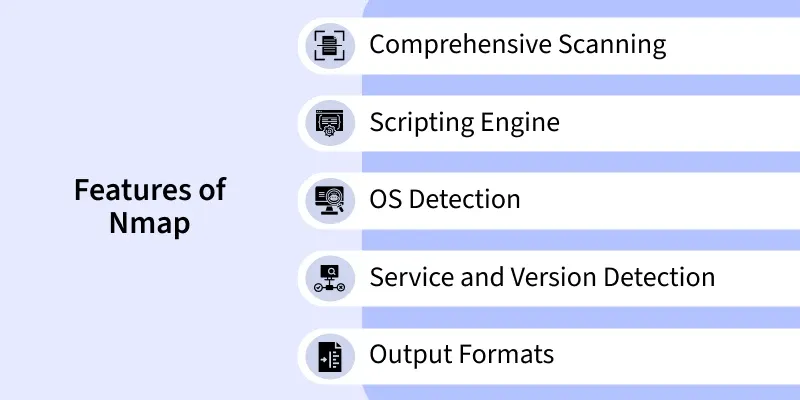
- Comprehensive Scanning: Nmap can scan a variety of protocols and perform different types of scans.
- Scripting Engine: Nmap Scripting Engine(NSE) allows users to write and run their custom scripts to automate various tasks of Nmap such as Network auditing and vulnerability scanning.
- OS Detection: Nmap can used to identify the operating system of the target hosts based on their responses to the network probes.
- Service and Version Detection: Nmap can accurately identify the services and versions that are running on the open ports of the target hosts.
- Output Formats: Nmap supports multiple output formats for the scan results like plain text, XML and greppable output.
Importance of Nmap
There are a few points that reflect the work of Nmap and provide many reasons to have Nmap on your network.
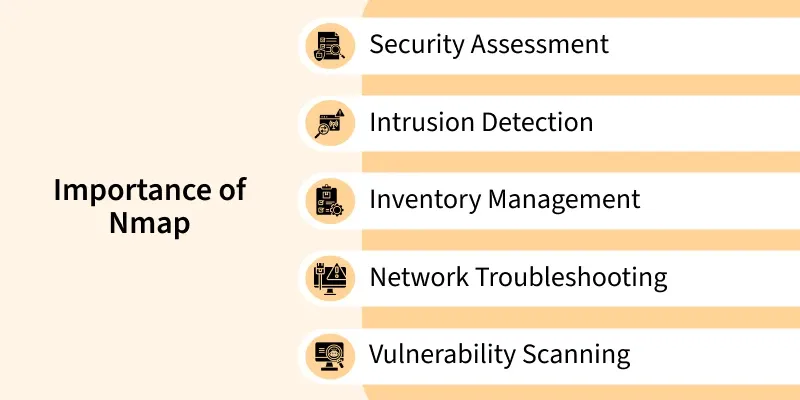
- Security Assessment: One of the main reasons to have Nmap is to assess the security of your network. you can do this by scanning open ports and services and can further identify potential entry points for attackers.
- Intrusion Detection: Nmap can be used to detect unauthorized or unexpected changes in your network environment. Regular scans can help you identify new or rogue devices that shouldn't be on your network.
- Inventory Management: Nmap provides an efficient way to create an inventory of all devices on your network. This is crucial for keeping track of your network's assets and ensuring you have control over what's connected.
- Network Troubleshooting: Whenever there is a network issue, Nmap can help you identify the root cause of the issue by pinpointing the status of the network services and devices. which can further help you resolve the issue in a better manner.
- Vulnerability Scanning: Nmap can be used in conjunction with vulnerability databases and scripts (such as NSE scripts) to scan for known vulnerabilities on devices. This aids in proactive security measures to patch or mitigate vulnerabilities before they are exploited.Update the package list
Installing Nmap on Kali Linux
Kali Linux usually comes with Nmap pre-installed, since it is one of the most commonly used penetration testing tools. However, if it is not installed or you want to update it to the latest version, you can do so with the following commands:
1. Refresh the package index:
sudo apt update2. Install Nmap:
sudo apt install nmap -y3. Confirm the Installation:
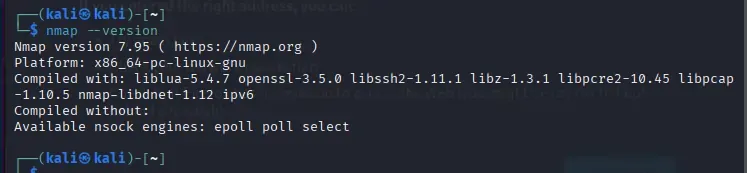
nmap --version- If installed successfully, you’ll see output similar to:
Nmap Examples
Here's a simple example of how to use Nmap for basic network scanning. We'll perform a basic host discovery and a port scan.
1. Scan a Single IP
Command:
nmap 45.81.17.27- This scans one specific host (IP address) to find open ports and services. It’s the simplest and most common Nmap usage.
2. Scan a Subnet (CIDR Notation)
Command:
nmap <TARGET IP>/24- This scans all hosts in a subnet range (e.g., 192.168.1.0–192.168.1.255). It is useful for discovering active devices within a local network.
3. Scan Targets from a File
Command:
nmap -iL targets.txt- Instead of scanning individual IPs manually, Nmap reads a list of targets from a text file (e.g., targets.txt) and scans them automatically.
4. Exclude Specific Hosts
Command:
nmap 192.168.1.0/24 --exclude 192.168.1.1- When scanning a large subnet, you can skip specific hosts using --exclude. For example, here the .1 address won’t be scanned.
5. TCP SYN Scan (Stealth Scan)
Command:
sudo nmap <TARGET IP> -sS- A fast and stealthy scan that does not complete the full TCP handshake. It is the default scan when run with root privileges.
6. TCP Connect Scan
Command:
nmap <TARGET IP> -sT- Performs a full TCP handshake. It is used when root privileges are not available.
7. UDP Port Scan
Command:
sudo nmap <TARGET IP> -sU- Scans for services running on UDP ports (e.g., DNS, SNMP). This scan is slower but important for complete network visibility.
8. Host Discovery Only (Ping Scan)
Command:
nmap <TARGET IP>/24 -sn- Checks which hosts are alive in a network without scanning their ports. Great for quick network mapping.
9. Skip Host Discovery (Force Port Scan)
Command:
nmap <TARGET IP> -Pn- If ping is blocked (firewall), Nmap may think the host is down. -Pn forces a port scan without host discovery.
10. Disable DNS Resolution
Command:
nmap 192.168.1.1 -n- By default, Nmap tries to resolve IPs into hostnames, which slows scans. -n skips DNS lookups for faster results.