This page contains instructions on how to build your Unity application for Android as well as considerations to be aware of when you do. For information on the build process for Android and the tools Unity uses, see How Unity builds Android applications.
Instead of building your application, you can also export the Unity project as a Gradle project and import that into Android Studio. This is useful if you want more control over the build pipeline, want to see or modify the Android App Manifest that Unity generates for your application, or integrate Unity-powered features into another Android application. For more information, see Exporting an Android project.
Some digital distribution services that host Android applications have particular requirements that can change the build process. For example, Google Play requires your application to be an Android App Bundle (AAB) and not an APK. If you are targeting a specific digital distribution service with your build, see the documentation for that Digital distribution service first to check if the requirements differ.
Before you create a build, configure your project’s settings so that Unity builds the application with the runtime settings and build system properties you want. There are two sets of settings that configure a Unity build:
Unity can build Android applications in the following publishing formats:
By default, Unity builds Android applications in the APK publishing format. To make Unity build the Android application as an AAB:
To build your Unity application for Android:
If you selected Build and Run, when Unity creates the build:
Tip: After you specify the output path the first time, you can use Ctrl+B (macOS: Cmd+B) keyboard shortcut to build and run the application.
Some digital distribution services have a limit on the initial install size of your application. Unity includes the following methods to help you to optimize the install size:
If your output application uses APK format, the Split APKs by target architecture Player Setting optimizes the application download and installation size. Instead of producing one APK that contains binaries for every target CPU architecture selected in the Target Architectures Player Setting, Unity creates a separate APK for each CPU architecture. You can upload this set of APKs to digital distribution services which serve the APK with the correct target CPU architecture to each device that downloads your application.
This is primarily a Google Play feature and may not work for other digital distribution services. For more information, see Multiple APK support.
Note: Google Play requires new applications to be AABs and not APKs. When you upload an AAB, Google Play automatically generates and serves optimized APKs for each device configuration.
You can split your output application to make the initial install size smaller. The device can install a lighter version of your application and then download assets separately. If your output application uses APK format, Unity can split the application into a main APK and an expansion file (OBB). For more information see APK expansion files. If your output application uses AAB format, Unity can split the application into a base module and asset packs. For more information, see Play Asset Delivery.
To split the application binary:

You can change the method Unity uses to compress resource files for the application. This can reduce the size of the application but can increase loading times if the method means data takes longer to decompress.
For more information, see Compression Method.
You can use ProGuard minification to decrease the size of the application and improve performance.
To enable ProGuard minification:
Note: ProGuard might strip out important code that your application relies on, so check any builds that you minify.
For more control over the minification process, generate a custom proguard.txt file and configure it to specify what not to strip. To generate the file, select Custom Proguard File in the Publishing Settings section. This generates the proguard.txt file in your project’s Assets/Plugins/Android folder. For information on how to configure ProGuard minification, see the ProGuard documentation.

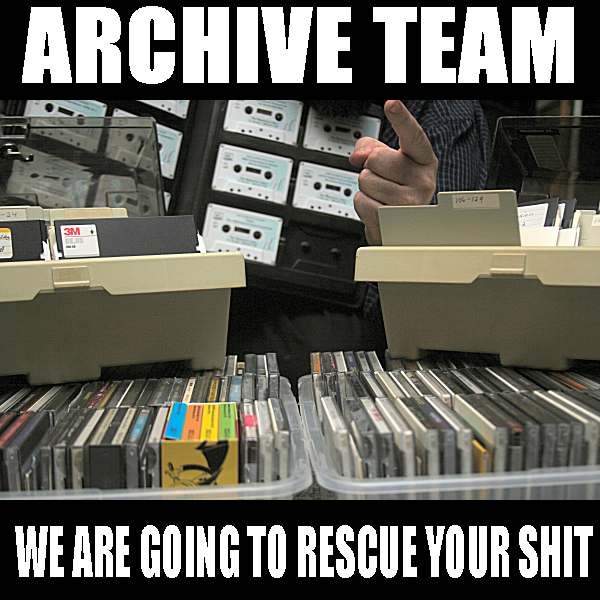 Formed in 2009, the Archive Team (not to be confused with the archive.org Archive-It Team) is a rogue archivist collective dedicated to saving copies of rapidly dying or deleted websites for the sake of history and digital heritage. The group is 100% composed of volunteers and interested parties, and has expanded into a large amount of related projects for saving online and digital history.
