Working with Docker Images from the command line
By Flavio Copes
Learn how to work with Docker images from the command line, listing them with docker images and removing images and dangling ones with docker rmi and prune.
Docker gives you everything you need to manage images from the terminal: docker images to list them, docker rmi to remove them, and docker system prune for bigger cleanups.
An image is the template a container starts from. Every time you pull something from Docker Hub or build a project with docker build, a new image lands on your disk. They add up fast, and each one can take hundreds of megabytes.
How to list your images
You can list all the images you have downloaded or built using:
docker images -a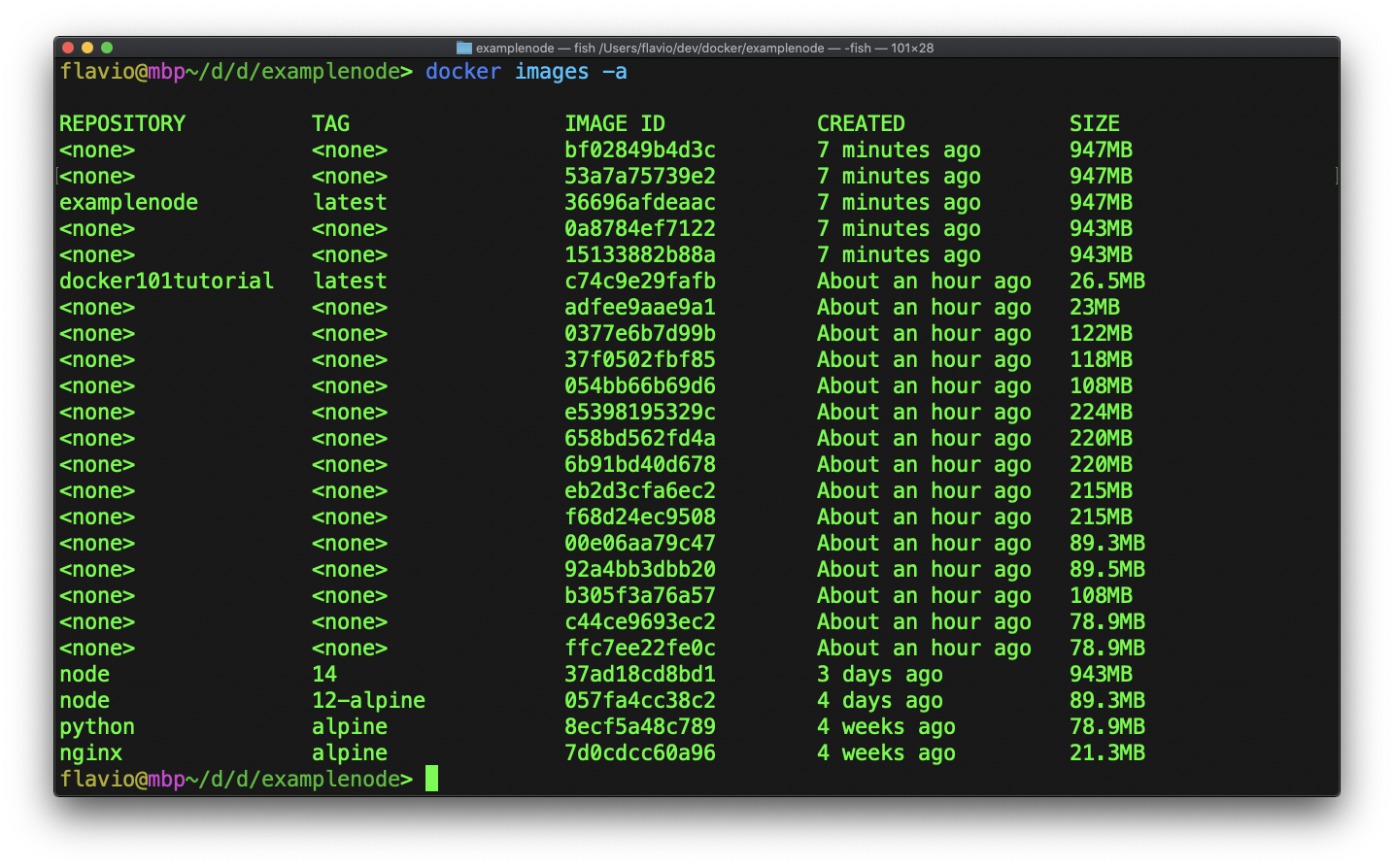
For every image you see the repository name, the tag, the image ID, when it was created and how much disk space it takes. The ID is what you use when an image has no name.
How to remove an image
You can remove an image with the docker rmi command, passing the name (or the ID) of the image you want to remove:
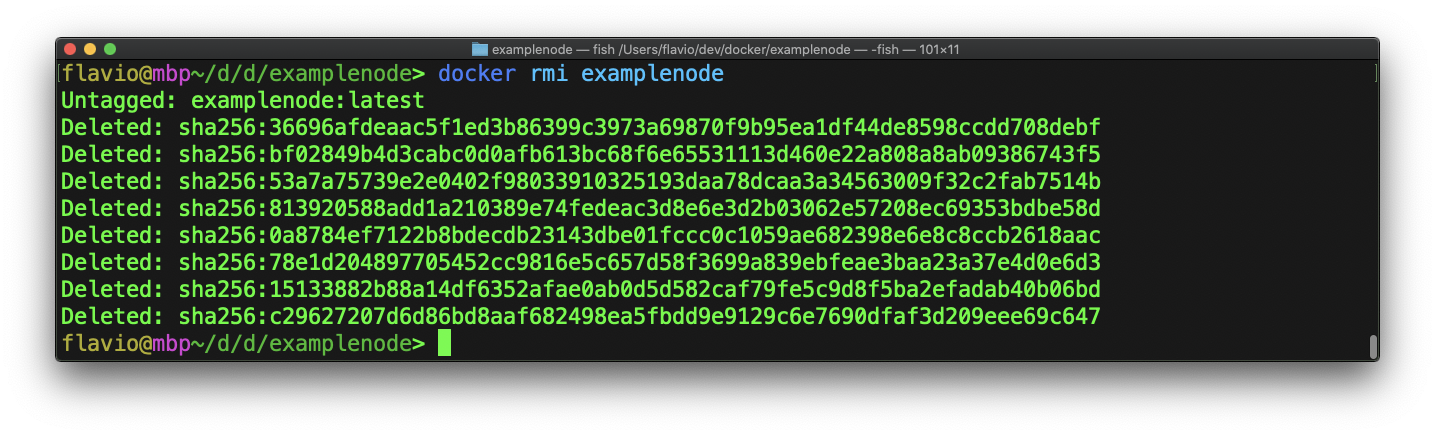
Be careful with one thing: if a container is using the image, Docker refuses to delete it. This happens even if the container is stopped. You get an error like conflict: unable to delete ... image is being used by stopped container.
The fix is to remove that container first with docker rm, then run docker rmi again.
What are dangling images?
Sometimes when testing and developing, some images become dangling, which means untagged images. They show up as <none> in the list.
This happens when you rebuild an image with a tag that already exists. The new build takes the tag, and the previous one is left without a name. Dangling images can always be safely removed to free disk space.
Running docker images -f dangling=true will list them:
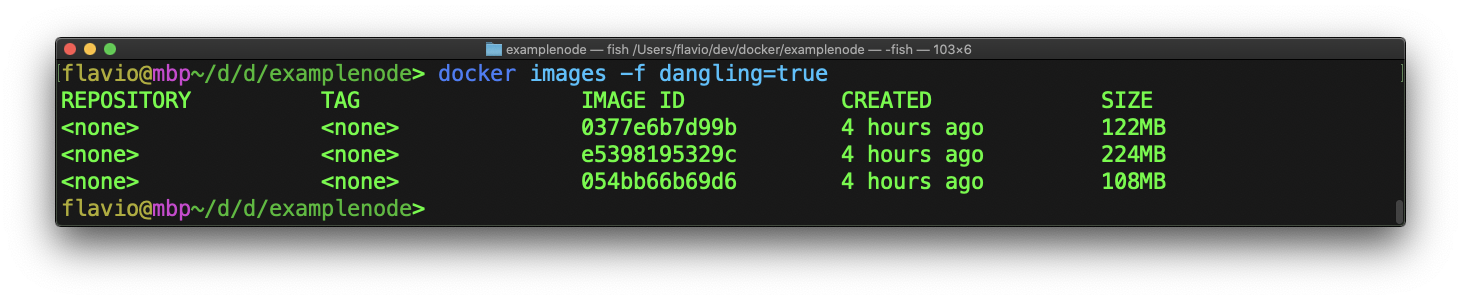
You can clear them all with:
docker rmi $(docker images -f dangling=true -q)The -q flag prints only the image IDs, and we pass that list to docker rmi.
Removing everything at once
docker system prune -a, which is also a commonly used way to remove images, will also remove images not referenced by any container. That might delete images you want to keep, even just to roll back to previous versions of an image. Read what the confirmation prompt says it will remove before answering yes.
You can also remove all images using docker rmi $(docker images -a -q) if you want to clean everything, which might be nice during your first tests and experiments with Docker.
Related posts about docker: