Set up Autofill
Before you can use 1Password to save your logins and sign in, you’ll need to download and set up 1Password on your device. Then follow these steps:
- Open and unlock 1Password.
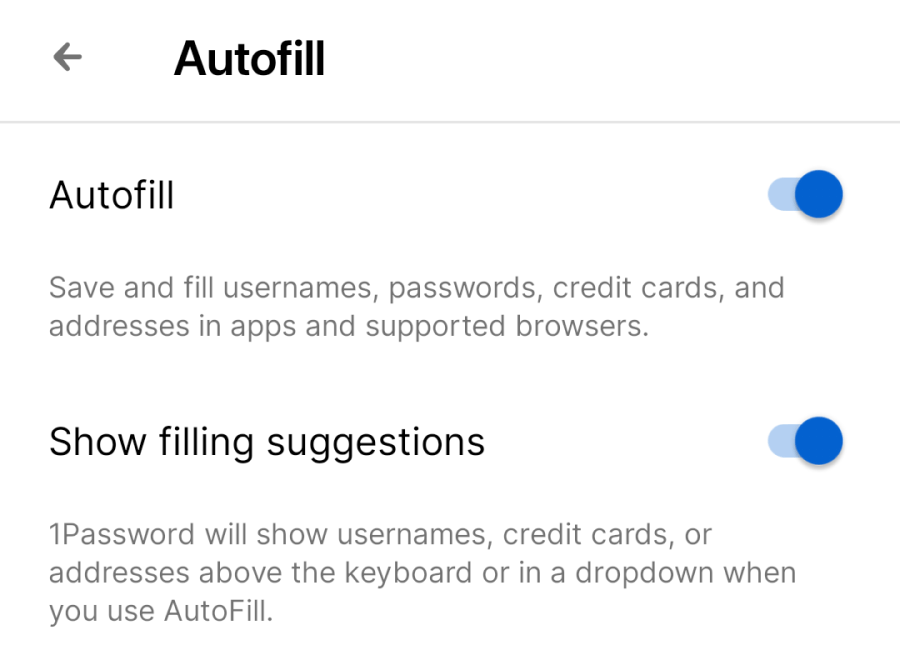
- Select the picture of your account or collection at the top right, then select Settings > Autofill.
If you're using a tablet, select your account or collection at the top of the sidebar.
- Select Open Settings, then select 1Password in the list.
- (Optional) To turn on filling suggestions above the keyboard or in a dropdown, select Show filling suggestions.
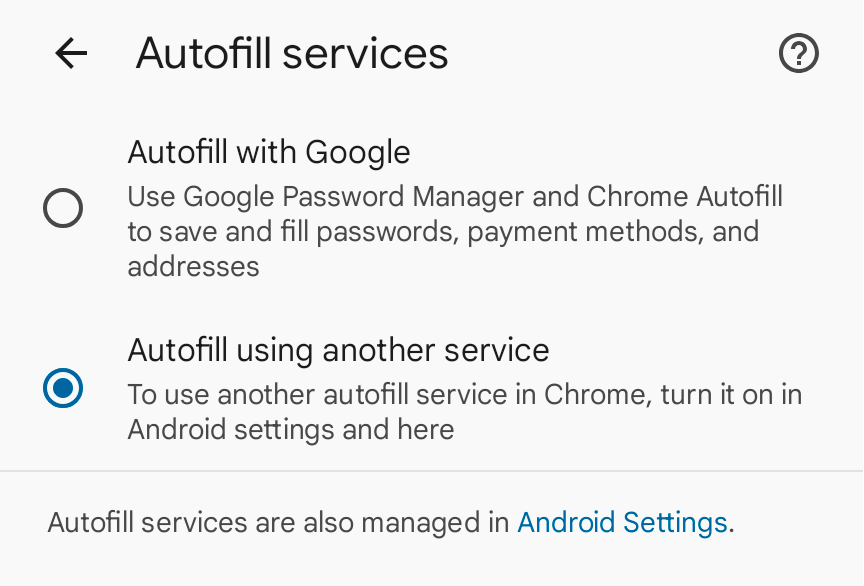
If you use Chrome (141 or later) or Brave (1.83 or later), follow these extra steps:
- Open the Chrome or Brave app.
- Select the ellipsis , then select Settings.
- Scroll down and select Autofill services.
- Select Autofill using another service, then choose Restart Chrome or Restart Brave.
Now, you can save passwords or passkeys and sign in without opening the 1Password app. In Chrome and Brave, you can also fill credit cards and addresses.
Save, create, and fill passwords
To fill, save, or create a password, open an app or visit a website you want to sign in to, then follow these steps.
Save a password or create a new login
To save a password or create a new login:
- Select the username or password field, then select Open 1Password.
If you don't see Open 1Password, select
 .
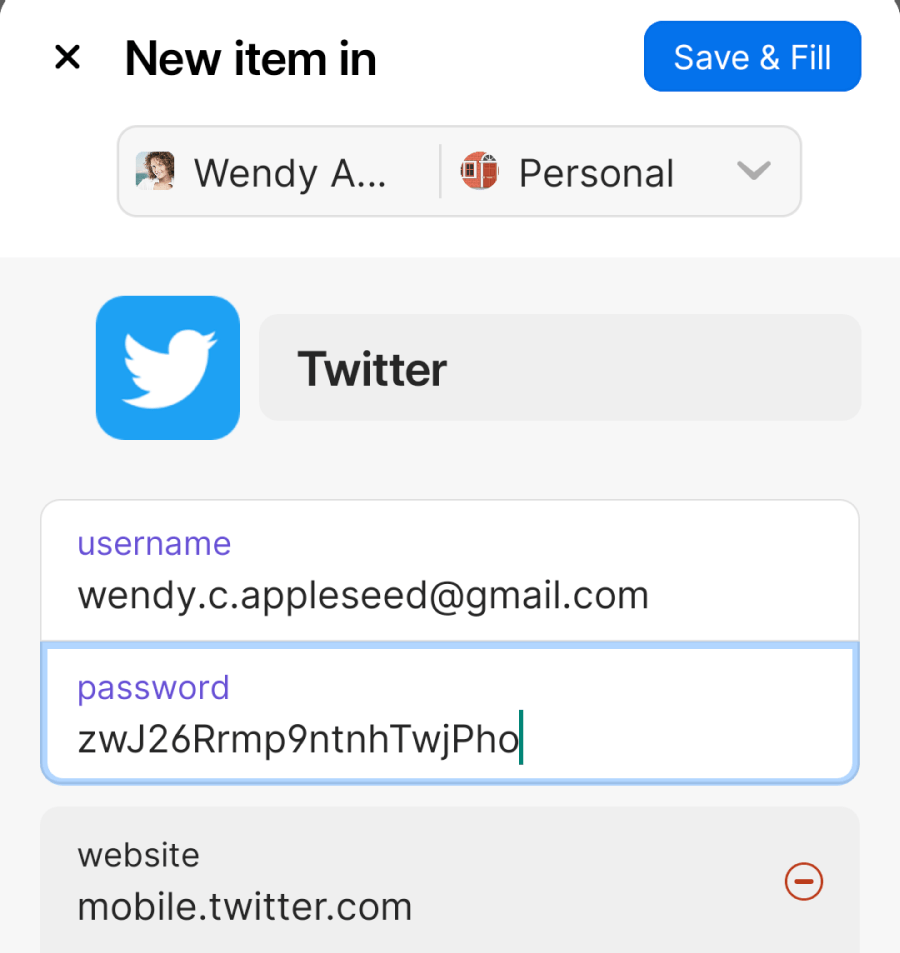
. - Select New Login, then enter a username.
- Select the password field and enter your password.
To generate a password, select Create a New Password and adjust the settings, then select Use.
- Select Save & Fill when you’re finished.
To change where a Login item is saved, select the down arrow beside the name of your account and vault, then choose a different vault from the dropdown menu.
If you forget to create a new login, 1Password may automatically offer to save your username and password after you sign in to a website or app. Select Save in the pop-up, choose to create a new item or update an existing item, then select Save to save or update your credentials.
You can create new Login items in apps and browsers. Supported browsers include Chrome and Firefox (including Beta, Nightly, and Preview), Edge, Brave, DuckDuckGo, Opera Touch, and Vivaldi.
Fill a login
To fill a login:
- Select a username or password field.
- Select the Login item suggested near the top of the keyboard or in the dropdown menu.
If there are no matches, select Open 1Password, then search for your login and choose the one you want to fill.
- Sign in to your account.
If there are multiple steps to sign in, choose the Login item again at the second step.
If you have more than one login for the app or website, scroll through the Login items shown near the top of the keyboard or in the dropdown menu to choose a different one.
If you’re using Android 14 or later, some apps will automatically prompt you to fill from 1Password. Select Continue and you’ll be signed in.
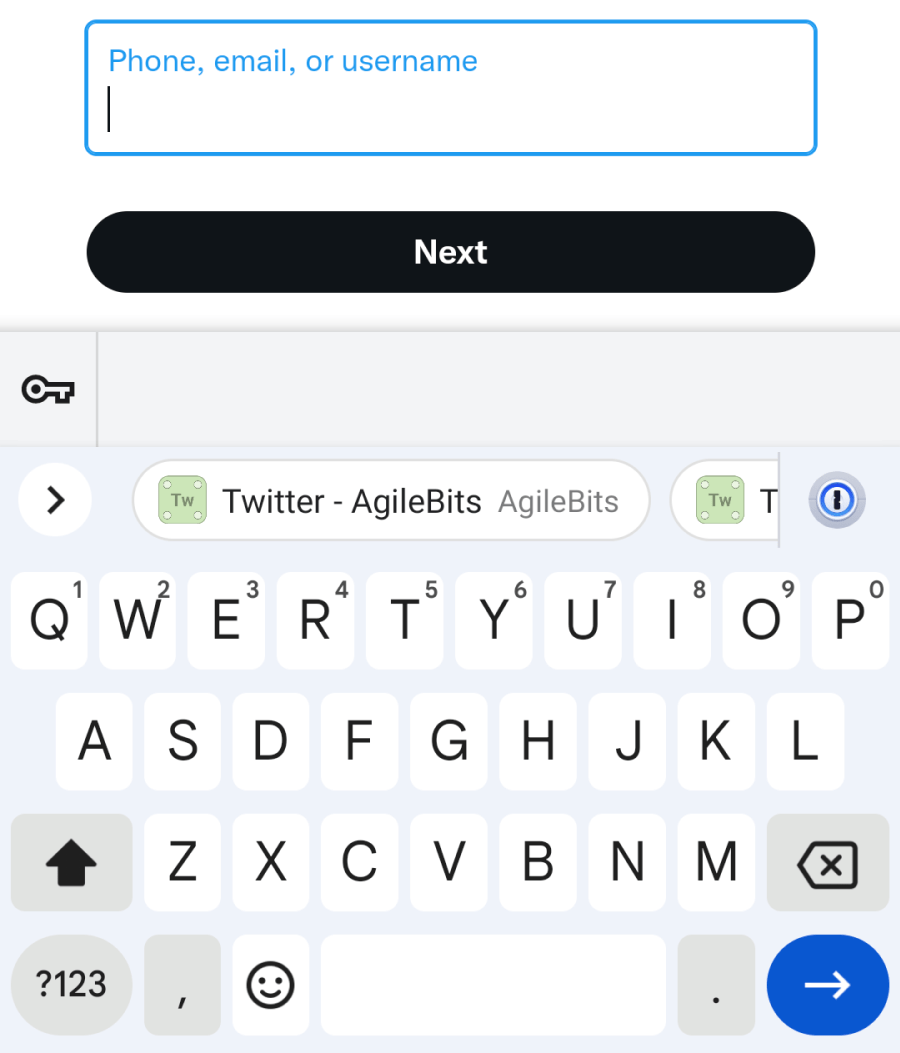
Every Android app has a unique identifier. If a Login item doesn't contain an identifier that matches the app you're trying to fill in, 1Password will warn you and offer to update the item with the app's identifier. New Login items saved with Autofill automatically include app identifiers.
Save and sign in with passkeys
Important
1Password requires Android 14 or later to save and sign in with passkeys. Learn how to check the Android version on your device.
To save or sign in with a passkey, open an app or visit a website you want to sign in to in Chrome, then follow these steps.
Save a passkey
To save a passkey:
- Follow the steps to create an account or add a passkey to an existing account.
You might need to create an account with a username and password before you can create a passkey.
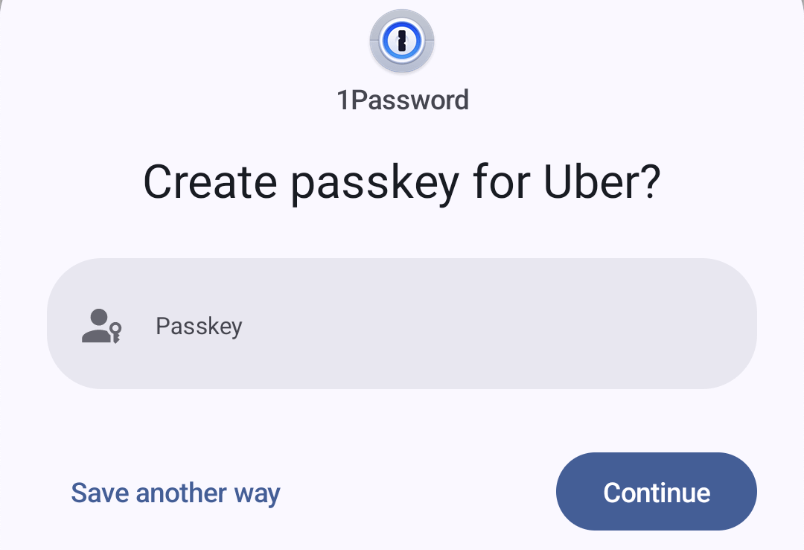
- When you’re asked to create a passkey, select Continue.
Get help if you aren’t able to save the passkey in 1Password.
- Choose whether you want to create a new Login item or update an existing item.
- Select Save.
To change where a new Login item is saved, select the down arrow beside the name of your account and vault, then choose a different vault from the dropdown menu.
Sign in with a passkey
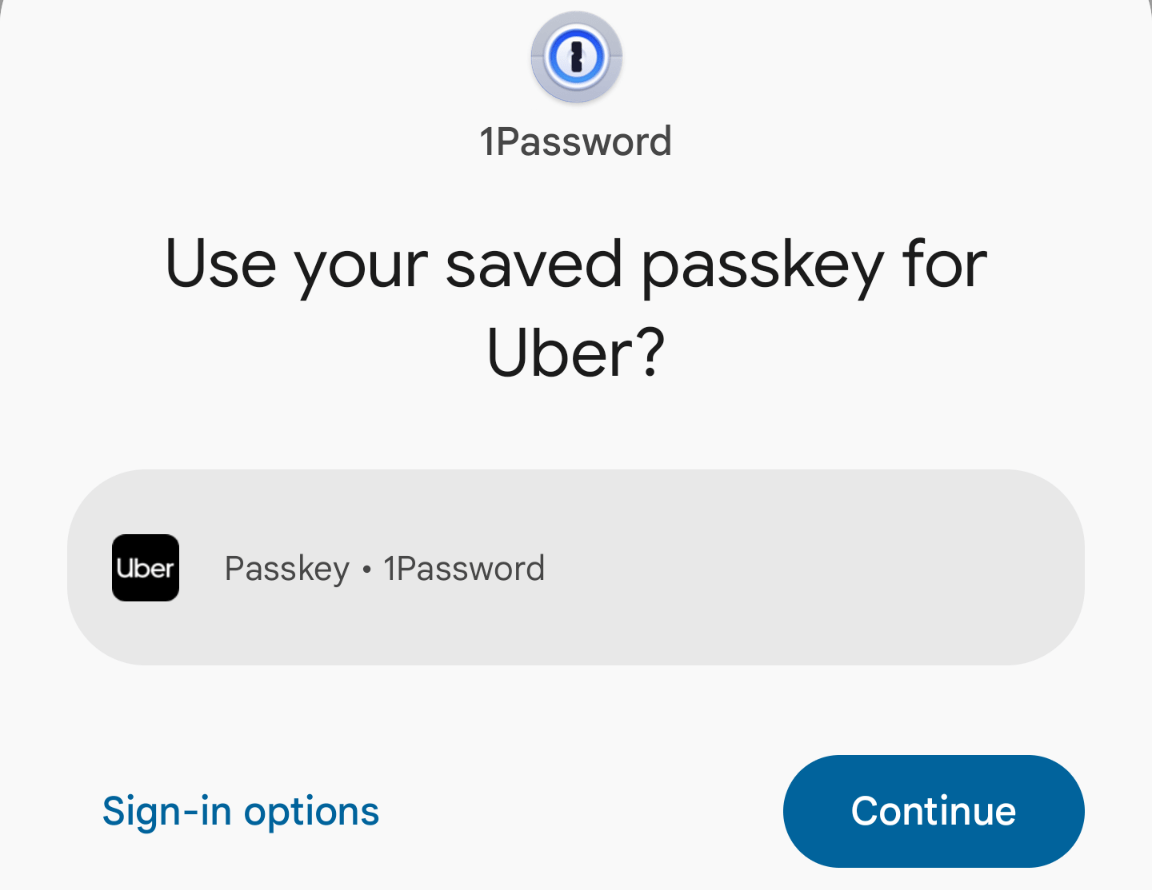
1Password offers to use your passkey to sign in when you choose the option to sign in with a passkey.
You can fill your username first by selecting the username field and choosing the Login item suggested near the top of the keyboard or in the dropdown menu.
Get help if you can't sign in with a passkey saved in 1Password.
Sign in on another device
You can also use your passkey to sign in on another device where you don’t have 1Password. Make sure you’ve set up Autofill, then follow these steps:
- Choose the passkey option to sign in, then choose to use another device.
- On the device where 1Password is installed, scan the QR code with the camera app.
- Choose 1Password, then follow the steps to sign in.
Manage your settings
To change the account or collection Autofill uses to suggest logins in apps and browsers:
- Open and unlock 1Password.
- Select the icon for your account or collection at the top right and choose Settings.
If you're using a tablet, select your account or collection at the top of the sidebar.
- Select Autofill, then select Show filling suggestions from.
- Choose the account or collection you want.
If you want suggestions for logins in all of your accounts, choose All Accounts.
Get help
If you have a login in 1Password that doesn’t appear when you try to sign in, select Open 1Password above the keyboard, then search for your login and choose the one you want to use. When 1Password asks what you want to do, select one of the following:
- Allow Once: 1Password will fill your details in the app or browser one time.
- Always Allow: 1Password will fill your login in the app or browser and update your Login item to link it to the app or site. You can then autofill your details every time you log in to the same app or website.
- Cancel: 1Password won’t fill your login or update your Login item.
If your browser prevents you from using 1Password to autofill logins, you might need to turn off the built-in password manager in your browser.
If filling suggestions aren’t suggested consistently
If filling suggestions are turned on, but logins aren’t suggested consistently for some apps and websites, you can change how filling suggestions are displayed:
- Open and unlock 1Password.
- Select the picture of your account or collection at the top right and choose Settings > Autofill.
If you’re using a tablet, select your account or collection at the top of the sidebar.
- Select Display Autofill prompts, then select Below the fields they relate to.
If you can’t save or sign in with a passkey
If you can’t save or sign in with a passkey using 1Password, you may need to toggle 1Password off and on in your device’s passkey manager settings:
- Open the Settings app on your Android device.
- Select Passwords & accounts, then select 1Password under Passwords, passkeys and data services.
- Select None, then select OK.
- Select 1Password, then select OK.
If you have apps installed in private space
Apps installed in private space on Android 15 can’t use the system autofill provider, so you won’t be able to use 1Password to fill logins. Instead, you can copy your password from 1Password and paste it into the app.
Next steps
You can also use 1Password:
Learn more
Was this article helpful?
Glad to hear it! If you have anything you'd like to add, feel free to contact us.
Sorry to hear that. Please contact us if you'd like to provide more details.