How To Easily Reset a Forgotten Password On Linux (2 Ways)
Losing a password is never good news, but losing it on Linux, especially if it’s the administrator password, can be a real disaster. Don’t worry, I’ve got it covered. Whatever your situation, I’ll show you how to reset a password quickly on any Linux distribution.
To reset a normal user password on Linux, a root session can be opened to do it from there. To reset the administrator password, the computer must be started in recovery mode to get access to the terminal without the password.
I will show you both methods in this article. The first one is easier, but only works if you know the root password. The second is a bit tricky, but works even if it’s the administrator account that you need to reset.
If you need help with Linux, I’ve got something that can help you right away!
Download my free Linux commands cheat sheet – it’s a quick reference guide with all the essential commands you’ll need to get things done on your system. Click here to get it for free!
Method 1: You Know the root Password
The first solution is to exit the desktop environment and open a session with root from a terminal. Once logged in, you can use the “passwd” command to reset the password of any user on the computer.
With most Linux distributions, opening a new session with the administrator account in the graphic environment is not allowed. So, if you have a desktop environment, the first step is to switch to a terminal.
Grab This Cheat Sheet!
I've compiled the must-know commands in a simple PDF for quick reference.
Download now
You can do this with a combination of keys. In general, it’s something like “CTRL+ALT+F2”.
If it doesn’t work, try another F key (CTRL+ALT+F1, CTRL+ALT+F3, etc.). I tested it on Debian, F1 is the graphic interface, while F2, F3, etc. are available for a terminal session.
You should get to a black screen with a login prompt.
Enter “root” for the login, press “Enter” and type the password followed by “Enter” again to log in. It will look like:
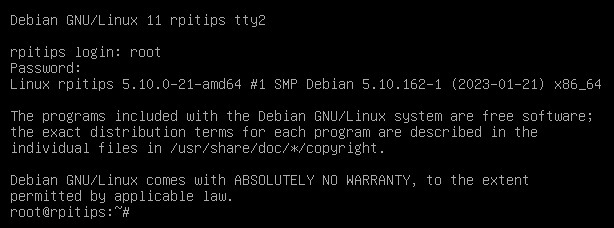
Once logged in, you have full access to your system and can use any command you need.
To reset the password of a user account, you can simply type:passwd <username>
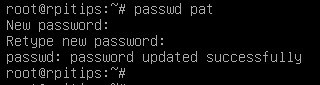
Type the new password twice and you’re done. You can switch back to the graphic interface (CTRL+ALT+F1 on Debian, can be F7 on other distributions), and test to sign in again.
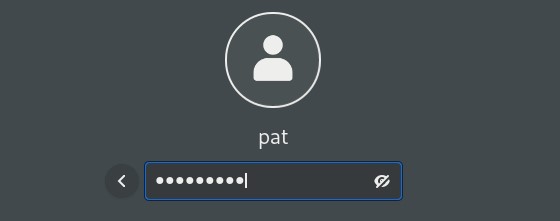
If you can’t figure out how to return to the desktop environment, just restart the computer with the command:reboot
Grab This Cheat Sheet!
I've compiled the must-know commands in a simple PDF for quick reference.
Download now
The interface will start automatically, and you can log in again with the new password.

If you’re new to the Linux command line, this article will give you the most important Linux commands to know, plus a free downloadable cheat sheet to keep handy.
If you enjoy learning about Raspberry Pi, you’ll feel right at home in the RaspberryTips Community. It’s a friendly group of makers helping each other grow. Join us today for $1 and see what it’s like inside.
Method 2: Reset the root Password
If you don’t have the root password, you won’t be able to use the first method. An alternative would be to have access to an account with sudo privileges, so you can follow the first method by switching to root from a standard user session.
But I guess you don’t have this option, so we’ll need something else.
Grab This Cheat Sheet!
I've compiled the must-know commands in a simple PDF for quick reference.
Download now
You might also like: No screen? No problem! Here's how to setup a Pi without one.
It’s possible to start Linux in recovery mode by editing a command in the bootloader (GRUB) and starting the system with only access to bash. From there, we can run a few commands to reset the root password.
Here is the procedure to do this. I’m testing this on Debian, but it should be similar on most distributions (Ubuntu should be identical):
- Restart the computer.
- Wait for the boot menu (GRUB), but don’t let it start automatically.
Pressing the up and down arrow keys will stop the countdown.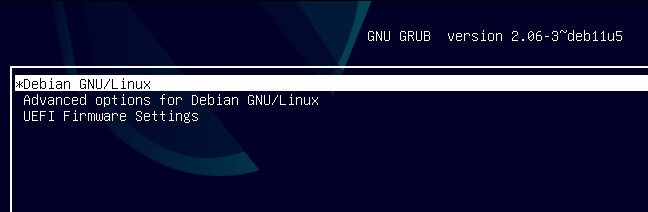
- Select the default option (“Debian GNU/Linux” in my example) and press “e”.
- A text will show up, with the commands used to start the system.
Find a line starting with “linux” and add this at the end:init=/bin/bash - Here’s what it looks like once done:

- Press CTRL+X or F10 to start the computer with this additional parameter.
The boot process will start, but will quickly stop.
You’ll get access to a minimal terminal, already logged in as root:

From there, you get access to the file system, but it’s mounted in read-only mode.
You can change that with the mount command:mount -n -o remount,rw /
You now have access to the full file system, and can even use this command to change the root password:passwd
Grab This Cheat Sheet!
I've compiled the must-know commands in a simple PDF for quick reference.
Download now
Type the new password twice, and then restart the computer with:reboot
Or, you can also press CTRL+ALT+DEL.
On the next boot, the system will start normally (your changes in GRUB are temporary) and you can now use root from the terminal, or reset your main user password following method 1 if needed.
You might also like: Do this to keep a full backup of your Raspberry Pi
From there, whatever method you used, it’s probably a good idea to put some safety nets in place, like creating another user with sudo access or using a password manager, so you don’t forget it again.
Now that you’ve recovered access to your Linux computer, here are a few articles you should read next:
- 17 Security Tips From A Pro To Protect Your Linux Server
- How To Safely Install Bitwarden On Linux (Debian/Ubuntu)
- How To Easily Map A Network Drive On Ubuntu (GUI & commands)
Whenever you're ready, here are other ways I can help you:
Master Linux Commands: Overwhelmed with Linux commands? This book is your essential guide to mastering the terminal. It includes practical tips, real-world examples, and a bonus cheat sheet to keep by your side.
The RaspberryTips Community: Need help with Linux or want to chat with people who actually get it? Join the RaspberryTips Community and get access to private forums, exclusive lessons, and direct support (try it for just $1).
You can also find all my recommendations for tools and hardware on this page.