

The 3 Best Ways to Use Spotify on Your Raspberry Pi
If you like to listen to music at home, you can use your Raspberry Pi as your personal stereo. In this post, I’ll show you the different ways you can play Spotify on your Raspberry Pi.
There are three ways to use Spotify on Raspberry Pi: Volumio, Kodi, or MusicBox. All of these are available as a system image that can be downloaded and flashed onto an SD card. Then Spotify will be available as an additional plugin.
I do want to warn you that a premium account is required to use Spotify on your Raspberry Pi. If you’re interested in learning the installation steps, keep reading!
If you’re new to Raspberry Pi or Linux, I’ve got something that can help you right away!
Download my free Linux commands cheat sheet – it’s a quick reference guide with all the essential commands you’ll need to get things done on your Raspberry Pi. Click here to get it for free!
Play Spotify with Volumio
The best way to play Spotify on a Raspberry Pi is to use the Volumio music player.
What is Volumio?
Volumio is a software dedicated to being a music player.
You can play any file type with good quality and use the web interface to manage it.
It’s the perfect solution for a Raspberry Pi, as you can keep the Raspberry Pi wireless, with a speaker on the jack port (or the HDMI output). Then you can use it as your home stereo, by controlling Volumio from your smartphone.
You might also like: Tired of Raspberry Pi OS? Level up with these top-rated systems.
Install Volumio on Raspberry Pi
The installation is straightforward.
You need to have an SD card available (you can find my benchmarks here if you need to buy one first), then you can follow this procedure:
- Download, install, and launch Raspberry Pi Imager.
It’s a free tool that allows you to flash images onto an SD card for Raspberry Pi.
(You can also use network boot to flash your current SD card directly from your Pi.) - Click CHOOSE OS. Navigate to Media player OS > Volumio and select it.
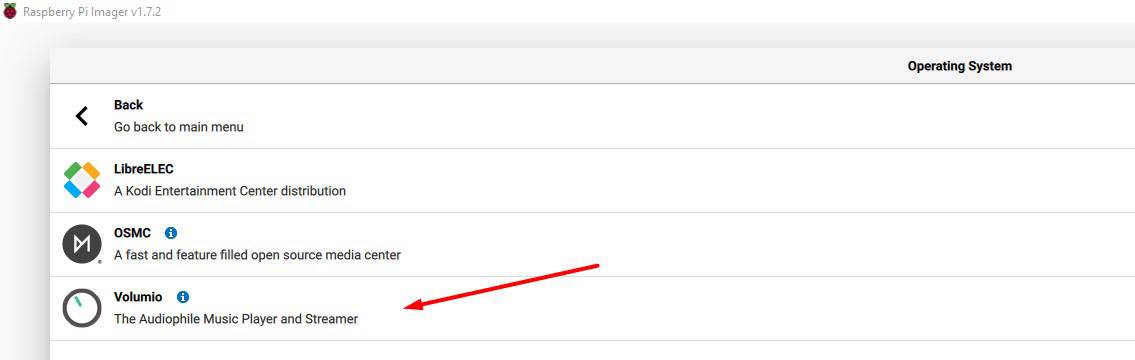
- Click CHOOSE STORAGE, and select your SD card (or USB drive).

- Click NEXT.
When asked to apply “OS customisation settings,” click NO. - The writing process will begin, and after a few minutes, your SD card is ready.
Insert the SD card into your Raspberry Pi and start it.
Access the Web Interface
Everything can be managed from the web interface.
If you have only Wi-Fi available, there’san extra step:
- From your computer, connect to the Volumio Wi-Fi network.
There is no password (on old versions, it’s volumio2 for your information).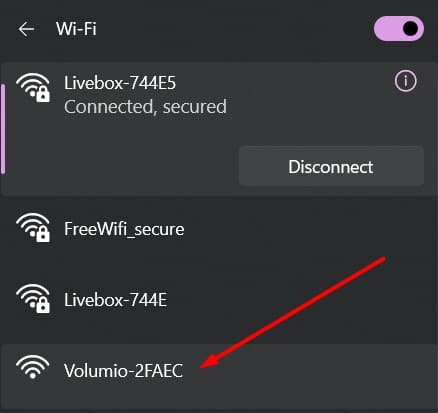
- A web page will open with a configuration wizard.
If it doesn’t open automatically, you may need to click on the link in your network list: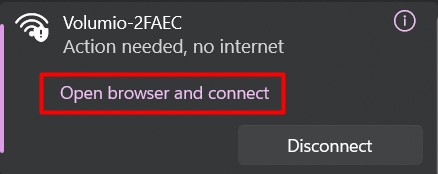
- Follow all the steps and enter your Wi-Fi settings.
You can keep most of the default values. The most important is to pick your SSID and type the password, all the other options can be updated later. - Once finished, Volumio will apply the configuration and restart in normal mode.
You’ll switch back automatically to your usual Internet connection.
You can now access the web interface:
- Find your Raspberry Pi IP address (click on the link if you don’t know how).
Basically, you can scan the network or check your Wi-Fi access point.
If you have a monitor, the IP address is indicated just before the login prompt. - Enter this IP address in your browser: http://A.B.C.D
For example, you might enter http://192.168.1.17 into the address bar.
Make sure to use HTTP and not HTTPS, sometimes web browsers switch automatically to HTTPS. - If you use Ethernet, you’ll first get a welcome wizard to configure the main settings (same things as during the Wi-Fi configuration):
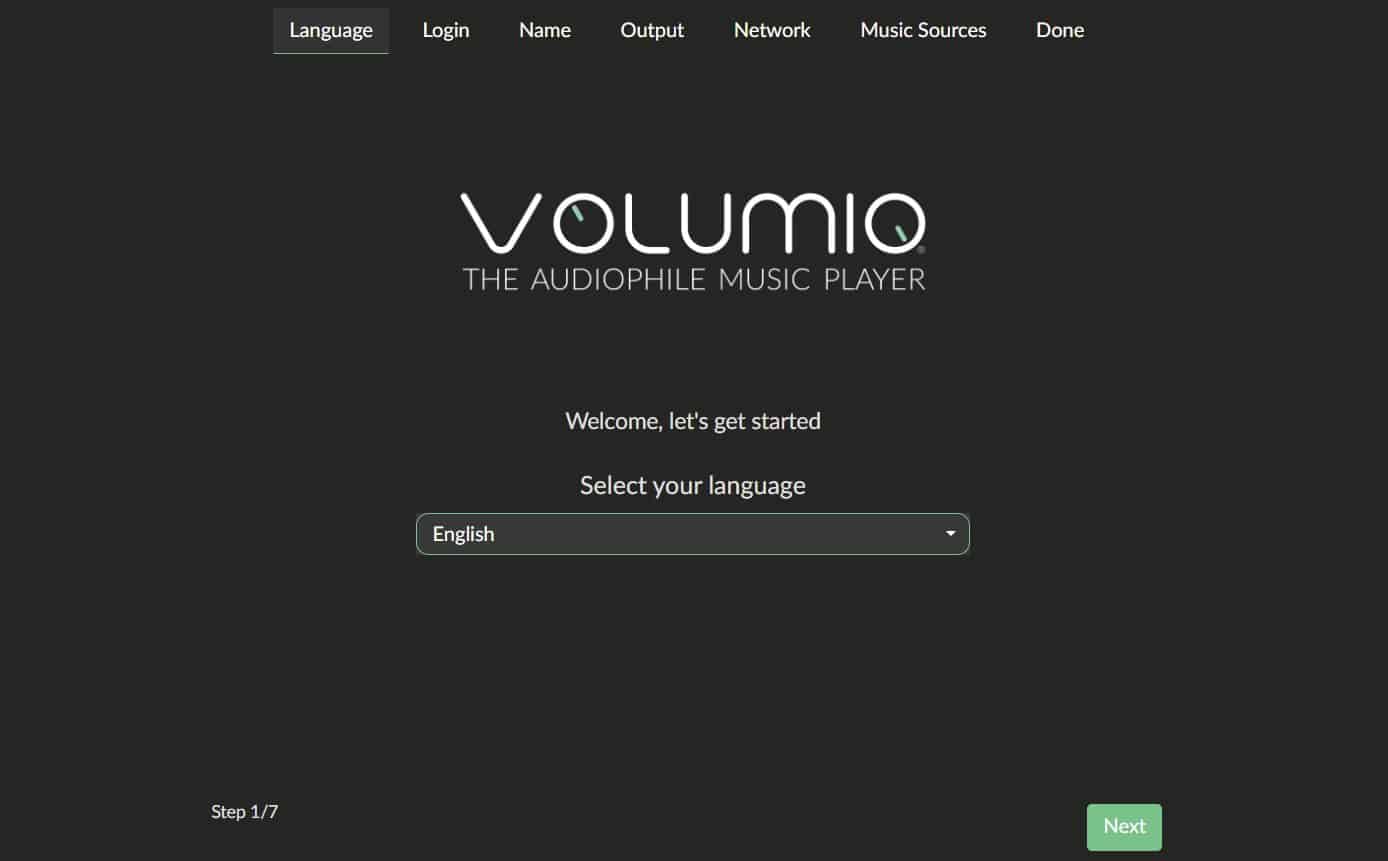
It will ask you several times to create a Volumio account. This is not mandatory to play local music, but you’ll need one to install the Spotify plugin.
So take a few minutes now to create a free Volumio account, as you’ll need it later. - Then you’ll get to the Volumio interface, something like:
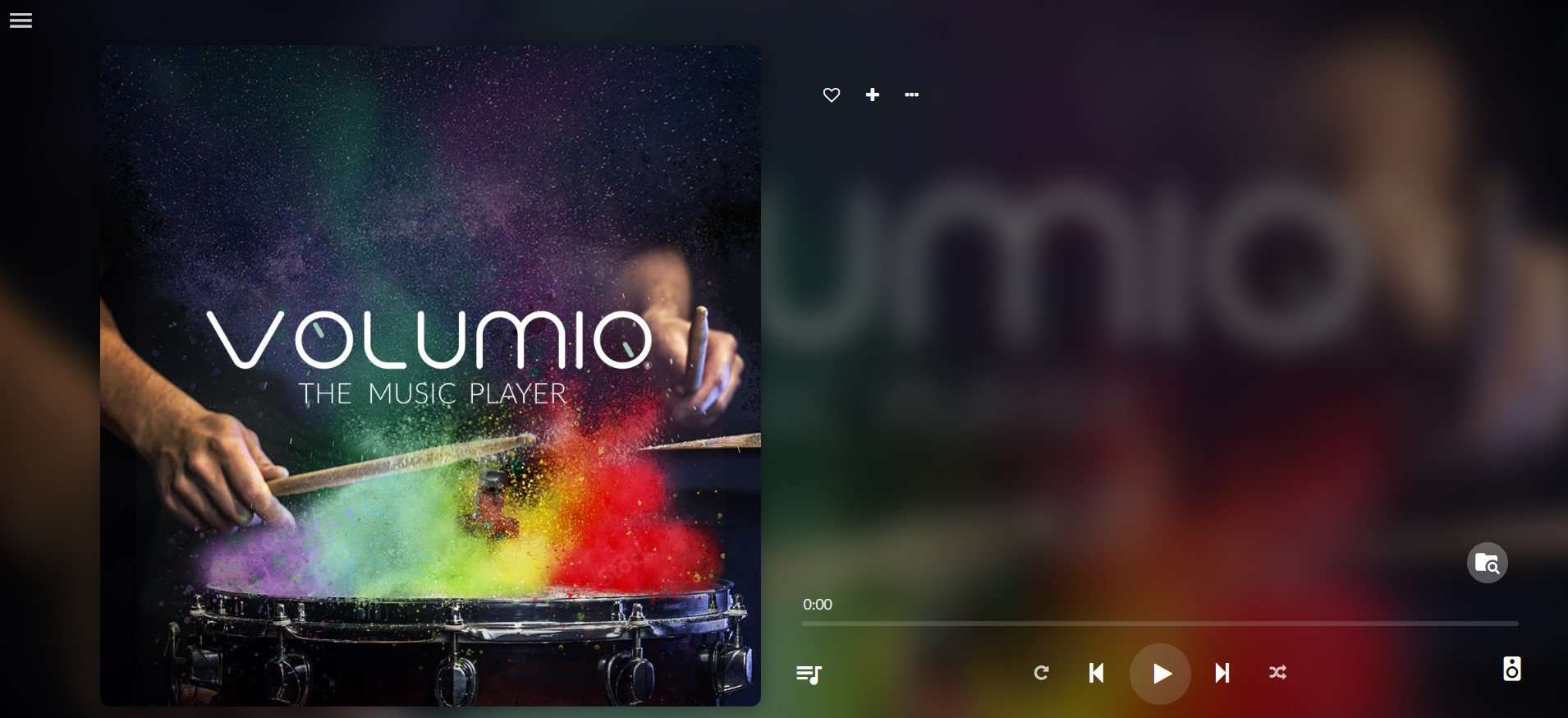
That’s it, you’re ready to move to the next step.
Remember that it’s also accessible from your smartphone if you’re on the same network.
Install & Play Spotify
The last step is to install Volumio’s Spotify plugin.
- Open the menu on the top left (the hamburger icon) and go to Plugins.
- Then find Spotify in the list and click on Install.

- A few seconds later, Spotify is installed.
Then you need to activate and configure the plugin.
Download the free PDF, keep it open, and stop wasting time on Google.
Download now
- Once the installation completed, a pop-up shows up, inviting you to enable it:
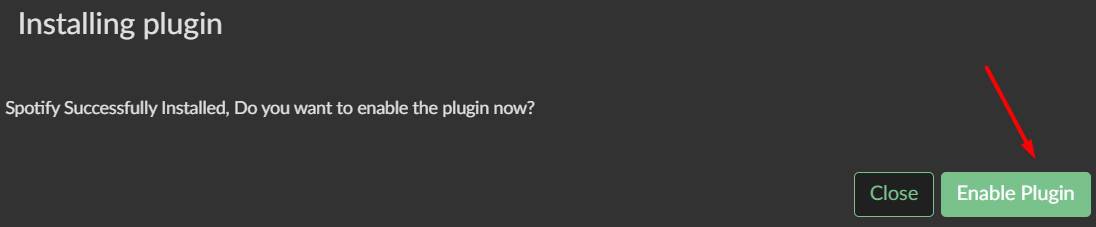
- Click Enable Plugin.
- Then go to the Installed Plugins tab and click on Settings for Spotify.
- Enter your login and password for Spotify, and save the configuration.
(You’ll need a Spotify Premium account for this to work.)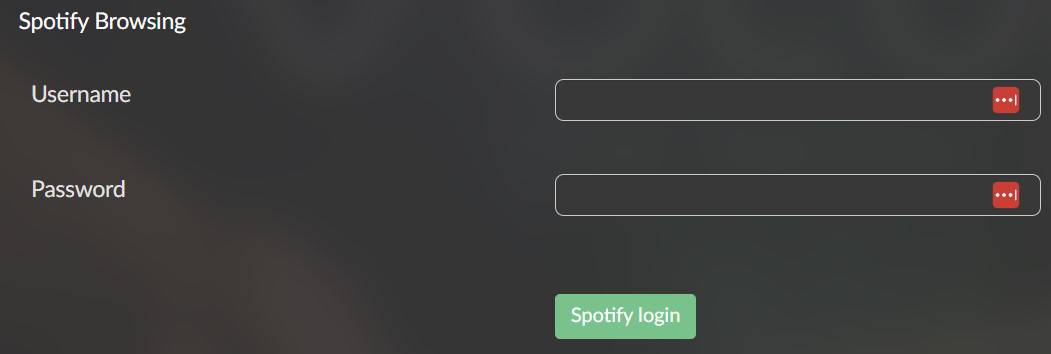
- Spotify is ready to use.
Finally, go back to the Volumio home page.
Click on the “Browse” icon and choose Spotify, or click on “Spotify” in the left menu.
From there, you can use the search engine to play any song available on Spotify:

You can now use Spotify on your Raspberry Pi and control it from your computer or smartphone:

It’s working well, the installation is easy, and the interface is nice.
I think I’ll keep the SD card somewhere :).
Video Guide
If you need a more step-by-step demonstration, watch our video:
You can also subscribe to the RaspberryTips YouTube channel to receive new videos in your feed:
Play Spotify on Kodi
The second way to listen to Spotify on Raspberry Pi is to use Kodi.
What is Kodi?
I have already written a lot about Kodi on this website.
It’s a media center software that runs on top of other systems like OSMC or LibreElec.
Using Kodi, you can play any media.
Today we’ll talk about Spotify, but you can also watch Netflix or YouTube on Kodi.
Install Kodi
I already wrote a guide on how to install Kodi on your Raspberry Pi, so I will not repeat it here.
Take a new SD card, flash OSMC for example, and get started with your new media center solution.
Download the free PDF, keep it open, and stop wasting time on Google.
Download now

After you finish clicking through OSMC’s welcome wizard, move to the next paragraph to install Spotify.
Install the Spotify App
Spotify is not available by default on Kodi, so we’ll be installing it from a GitHub repository.
Note: all of these steps must be taken directly from the interface on your machine and will NOT work via the web interface.
Add the Spotify Repository
You need to add a new repository to do this:
- Go to Settings > System > Add-ons and enable Unknown sources.
- In Settings > File Manager > Add source, click None to add a new source.
- When the prompt appears, type in this url: https://glk1001.github.io
When asked, give your source a name like “spotify_plugin” or whatever you’d like.
The repository is now available to install new software packages from.
Install Spotify Add-on
The next step is to install Spotify from the repository you’ve just added:
- Go to Settings > Add-on browser > Install from zip file, and find the name you gave the plugin earlier. In my case, I go to “spotify_plugin” and hit Enter.
- A list will appear of repository items. Choose a version of Spotify to install.
I chose “plugin.audio.spotify.1.3.13.zip” and hit Enter.
You won’t see a progress bar but OSMC will stutter as it installs. After awhile, a notification will pop up telling you it’s done installing.
Spotify is now installed, but there’s one more step to go.
Activate Spotify
Spotify needs to be authenticated from the official app to work on Kodi:
- Go back to the main menu and go to Music > Music add-ons > Spotify and hit Enter.
- You’ll get an error message telling you to Authenticate the plugin.
- Follow the instructions on the screen.
You’ll need to open the official Spotify app on your mobile or desktop. - On the official Spotify app on your phone/PC, start playing any song.
Tap Connect to device and select Kodi-Spotty. - Back on your Kodi machine, you can now press OK on the dialog box.
If it worked, you should get a sucessfully authenticated message.
That’s it, Spotify is ready.
Listen to Spotify
Finally, to play Spotify, choose “Music” from the Main Menu.
Then in Music Add-ons you’ll find Spotify and can do what you want in it.
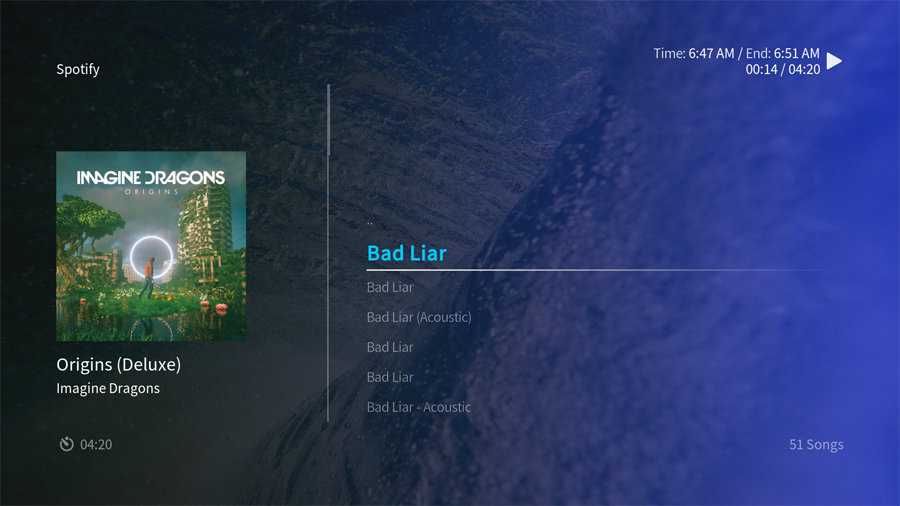
If you like this solution and want to learn more about Kodi on OSMC, I have two blog posts about it, feel free to read them:
Download the free PDF, keep it open, and stop wasting time on Google.
Download now
If not, I have one final solution for you :).
Play Spotify with MoOde
The last way I want to show you is to use a dedicated software: MoOde.
Note: this method only works if you have a Spotify premium account.
What is MoOde?
MoOde is an audio player for Raspberry Pi that has audiophile-grade functionalities. You can read our guide to MoOde for a more comprehensive overview.
What I like about this solution is that you can control it via a web browser, so you can use your phone as a remote control.
Plug a speaker into your Raspberry Pi and you have an always-ready music player.
Flash MoOde onto Raspberry Pi
I’ve already written a separate guide to installing MoOde on Raspberry Pi, so I won’t repeat the detailed steps here.
You might also like: No screen? No problem! Here's how to setup a Pi without one.
In short, use Raspberry Pi Imager to flash the image onto an SD card. Then boot up your Pi.

Access MoOde’s Web Interface
Open MoOde’s web interface from your PC by pointing your web browser to the Raspberry Pi’s IP address.
If you don’t know the Pi’s IP address:
- If you’ve got a screen connected, find the IP under m > Configure > Network.
- Or dig through your internet router’s control panel to get it.
MoOde’s web interface should load without a login and looks like this:

Enable Spotify Connect on MoOde
Now we have to enable Spotify Connect, so that we can cast music to MoOde on our Pi.
- From the main menu, go to m > Configure > Renderers.
- Scroll down to find the Spotify Connect section.
- Click the button next to Service to enable it. Give it a few seconds to work.

- Open the official Spotify app on your phone/desktop and play any song.
- Click connect to device, and your MoOde player should show up.
In my case, it’s listed as “Raspberrytips Spotify.”
If you tap on it, the audio should start playing on MoOde, and the web interface will show the album artwork.
Configure MoOde
You can configure most of the settings from your web browser.
Download the free PDF, keep it open, and stop wasting time on Google.
Download now
If you’re not getting sound, make sure MoOde is set to output correctly to your speakers/headphones.
Read next: 7 Surprising Uses for a Raspberry Pi
MoOde defaults to HDMI audio output.
You can go to m > Configure > Audio to change the Output device.
In my case, I wanted to use headphones connected to the Pi’s audio jack, but it wasn’t showing up as an output device. To make the headphone jack appear, do this:
- Go to m > Configure > System
- Set Integrated audio to Firmware mode (Legacy)
- Restart for changes to take effect: m > Power > Restart.
- Go back to m > Configure > Audio and hit Scan.
- Now you can set Output device to Pi Headphone jack and Volume type to Hardware.
Success, it was playing, but for some reason, I was getting almost zero volume. To fix this, I had to go to the Spotify app on my phone. If you push your phone’s physical volume buttons, it brings up the volume for “connected speakers.” Increasing the level here fixed the volume coming from my Raspberry Pi.
After all of this troubleshooting to get it working, I was actually quite impressed with the audio quality coming from MoOde on my little Raspberry Pi.

You can now listen to Spotify with your Raspberry Pi and control it from your phone.
It’s really nice to use.
Related Questions
Why does Volumio say “Login failed” when connecting to Spotify?
A premium account is required to use the Spotify plugin on Volumio. If you have one, double-check your email address and password.
Is there a way to play Spotify on Raspberry Pi for free?
No, Spotify is a premium service, you need a paid account to use it. There is a free trial for 30 days if you want to try it, but that’s all.
Why didn’t you use the web player instead?
The web player was the easiest way a few years ago, but it doesn’t work anymore, even with a user-agent switcher. Spotify seems to limit the usage of some systems and highly encourages subscribers to use their app.
If you enjoy learning about Raspberry Pi, you’ll feel right at home in the RaspberryTips Community. It’s a friendly group of makers helping each other grow. Join us today for $1 and see what it’s like inside.
Recommended Hardware to Get the Most Out of Spotify on Raspberry Pi
- A Bluetooth Speaker: I have this one for my computer and Raspberry Pi, and I’m a big fan of it. It’s waterproof and unbreakable, you can bring it everywhere (even in the shower or at the pool ^^) and the sound is excellent for the size.
- Raspberry Pi 3B+: You don’t need more, they are all light apps, so keep it simple and affordable. Pick a Raspberry Pi 3 and leave it plugged in 24/24.
- Flirc USB receiver: Allow you to use any universal remote with your Raspberry Pi. It should be more convenient than using your keyboard to zap :).
- Harmony remote: Replace all your remotes with one and it works great with the Flirc receiver. There is also a smartphone app that you will love.
That’s it! You now know 3 ways to install Spotify on Raspberry Pi: Volumio, Kodi, and MusicBox.
The final choice is up to you, but for me, I think Volumio is the best option if you only want to play music (with Spotify or another).
Let me know if you would like to get more details on Volumio or MusicBox, I can make a dedicated post with all the settings, tips, etc. for you.
Whenever you’re ready, here are other ways I can help you:
Test Your Raspberry Pi Level (Free): Not sure why everything takes so long on your Raspberry Pi? Take this free 3-minute assessment and see what’s causing the problems.
The RaspberryTips Community: Need help or want to discuss your Raspberry Pi projects with others who actually get it? Join the RaspberryTips Community and get access to private forums, exclusive lessons, and direct help (try it for just $1).
Master your Raspberry Pi in 30 days: If you are looking for the best tips to become an expert on Raspberry Pi, this book is for you. Learn useful Linux skills and practice multiple projects with step-by-step guides.
Master Python on Raspberry Pi: Create, understand, and improve any Python script for your Raspberry Pi. Learn the essentials step-by-step without losing time understanding useless concepts.
You can also find all my recommendations for tools and hardware on this page.





In section “Play Spotify with Kodi” and in the last step of the section “Spotify is in the Music Add-ons category – Click on it and then Install” Kodi says:
Spotify – Installation failed
Versions:
Kodi 18.5 Git:leia_pi4_18.5-Leia
repository.marcelveldt-1.0.1
I had to update within the Spotify plugin to 1.0.2
Now it shows 1.1.58
Spotify now works on Kodi, but Spotify Connect is not complete.
Spotify Connect is necessary to control the device when it is setup as a blind music player (in my case). You can currently only start/stop or navigate previous/next song. It not possible to start another song or playlist. A workaround is to play on your local device (e.g. iPad), select the playlist you want, then connect to the Kodi device.
Will have a look at another way, like Volumio offers…
And a fourth !
https://dtcooper.github.io/raspotify/
Thanks!
Very useful post!!! I will have a try. Besides, you could also download Spotify music using Tunelf Spotify Music Converter then you can listen to Spotify music on Raspberry Pi.
Hi Bella,
Thanks for the tip!
Hey, I found another tool called AudKit Spotify Audio Converter. It looks similar to the one in you mentioned. Are they from the same company or something? Do you know which one is better?
Hi John,
Sorry, never tried it
Let me know if you test and recommend it
spotify on osmc freeze every time, then start play again minutes after, does not work well
any suggestions ?
thanks
Thanks for the sharing! But for me, to use Spotify on Raspberry Pi, I use the third-party tool DRmare Spotify Downloader to help me. After using it, I can get the Spotify music as local files and then I can move them to Raspberry Pi or other devices for using with ease.
Hi darry,
Thanks for your comment.
Probably not the most convenient, but could be a solution in some cases 🙂
Can we have a guide to install strawberry/clemantine on the RP4?
My attempts so far have not worked…
Hi Neil,
I never tried these but I will check that 🙂
It would have been nice to know you need a premium Spotify account up front before I wasted my time with all three of these options.
Hi Randy,
Just added the information at the beginning.
Thanks for your comment 🙂
You include touched some nice details here. In whatever way keep way up wrinting.
spotify no longer works with volumio
Thanks for your feedback, I will take a look at this.