State Picker Wheel
Pick a random state from a country
INPUTS
Related Tools: Picker Wheel, Country Picker Wheel, Flag Quiz Picker Wheel, View All Tools
State Picker Wheel - Pick a Random State with Wheel
1. What is State Picker Wheel?
Looking for a fun and easy way to pick a state at random? The State Picker Wheel is an interactive random state generator that lets users spin a virtual wheel to select a state from their chosen country. Whether you're looking for a random American state generator or want to explore states from other countries, this tool makes the process simple and engaging.
This random state generator is a specialized tool of the main Picker Wheel. With display options for state names, flags, or both, you can tailor the experience for educational, travel, or entertainment purposes. The tool provides an unbiased selection while adding an engaging, game-like element to random state selection.
Not sure which country to explore? Use the Country Picker Wheel to pick a random country first, then return here to select one of its states, provinces, or regions.
The State Picker Wheel includes a selection of countries with their states, provinces, or regions. However, not all countries are listed.
2. How to Use The State Randomizer?
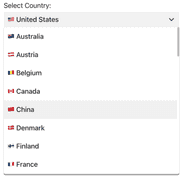
1. Select a country to generate states, provinces, or regions. For example, choosing the United States will create a random U.S. state generator.
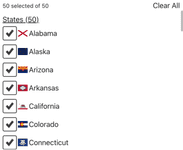
2. Customize your list of state options by including or excluding specific states for your random state generator.
3. Select how to display results on the wheel and upon selection: Flag & Name, Flag only, or Name only.

4. Click the spin button or press "Ctrl + Enter" keys to start spinning the random state wheel.

5. A random state is chosen and displayed in a pop-up window.
6. Decide on an action mode. (Modes are explained below.)
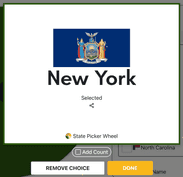
7. The result is also stored in "All Results" section.
8. Continue spinning.
9. Click the Shuffle button to shuffle the inputs. Sort the inputs from A to Z using the More menu.

10. Hide the Inputs section if you want.

3. Enable Mystery
You can enable Mystery Wheel or Mystery Result:
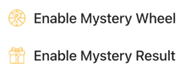
- Mystery Wheel – replaces all inputs on the wheel with “?”
- Mystery Result – hides the result until you press Enter or click to reveal
4. Wheel Customization?
Customize the wheel of states with various settings to suit your preferences.
The configuration options include the following:
- Spin Behavior
- Spinning speed (lvl1 to lv10).
- Spinning duration (1s to 30s).
- Enable manual stop button.
- Spin count
- Random initial angle.
- Initial Spinning
- Confetti & Sound
- Disable/Enable confetti.
- Sound on/off.
- Customize starting, spinning, and ending sounds.
- Tool Colors - Change the wheel colors with several themes provided.
- Background Color - Change the background color of the whole section.
- Background Image - Add a background image at the wheel section. (Premium Users)
- Spin Button - Customize your own spin button. (Premium Users)
- Banner | Logo - Adding your own logo or banner. (Premium Users)
*Customize wheel with your own wheel sounds, colors and background color. (Premium Users)
5. Type of Modes
5.1. Normal Mode
In this mode, the state choices remain unchanged from your previous spin.
5.2. Elimination Mode
In Elimination mode, the selected state is removed from the list for the next spin. The 'All Results' section will show the eliminated states.
6. Enable Title Section
Your visitors will understand the purpose of your state randomizer if you have the title e.g. "Guess the State Flag".
Clicking the Title Button in the Inputs section will open or close the title section.

And write down the messages.
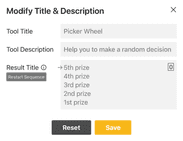
The result title supports multiple titles. The arrow points to the title that will be displayed on the next spin, cycling in order — for example, Spin 1 shows Title 1, Spin 2 shows Title 2, and after the last title, it loops back to Title 1. Click Restart Sequence to reset the arrow to Title 1.
The tool title and description will appear in the upper left corner, while the result title will appear after the result is announced, as shown below.


7. View All Results
To view all of the states you've previously generated, click the "Show All Results" button.

It will show all of the random states generated by the wheel since the first spin of your current visit.
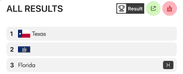
You can click the toggle button to switch between viewing results or scores (the accumulated count of results).

You can click the "Results Link" button to open the results page where you can share it with other people.

You can clear all the records by clicking the "Clear Results" button.

8. Share Results
There are two kinds of result you can share. One is single result and another one is all results.
-
Single Result. The only way to share your single result is at the moment the result is announced. Click the share icon.

-
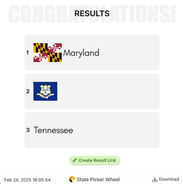
All Results. After you open results page, you can create a result link to share with other people. You can also download the results image at the result page.
9. Full Screen View
You may switch between full-screen and normal view modes by clicking the full-screen button. (Available on a desktop computer and tablet)

The random state wheel gets bigger when full-screen mode is activated, and the "Inputs" section gets hidden.
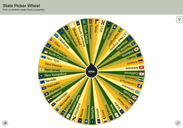
The "Show All Results" button still allows you to view your results.
10. Benefits of Using the State Picker Wheel
Educational Uses
- Great for teachers and students learning about U.S. states or international regions.
- Helps users memorize state names and flags through interactive learning.
- For country-level geography practice, try the Flag Quiz Picker Wheel to test how well you recognize country flags and names.
Travel Inspiration
- Looking for your next adventure? Spin the wheel and randomly select a state to visit.
- Perfect for road trips or spontaneous travel decisions.
Games & Challenges
- Use the wheel in quizzes, geography games, or fun challenges.
- A great way to test knowledge about different states and their flags.
11. Share Wheel & Collect Results?
Click the share button at the top right corner of the website.

Select whether you want to create a normal share link or a collect link to gather participant results.
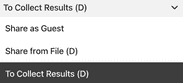
Click “Create Share Link”.
Copy the link address or click the Copy, Facebook, or Twitter buttons to share this Random State Generator with others.
If you find this application useful, kindly share it with your friends and family as well.
12. We Want to Hear Your Feedback
Please let us know if you have any suggestions or find any bugs with our random state name generator. Please don't hesitate to inform us. We value your comments so we can make the state generator better.
13. Want to Use Other Inputs?
Want to use your own names, places, or other choices? Use the main Picker Wheel to add your own inputs and create a custom random wheel.


Flip a coin to make a decision?
Try FlipSimu Coin Flipper->