If your SaaS product’s backend is built with Java—or a JVM-compatible language such as Kotlin, Groovy, Scala, or Clojure — and you want to incorporate WorkOS’ MFA functionality, you can do a dry-run of the MFA integration using this example Java app. It makes use of the WorkOS Kotlin SDK.
A free WorkOS account, and each of these installed on your machine:
- Java version 1.8+
- The Java Development Kit (JDK), which includes the Java Runtime Environment (JRE)
- In your CLI, navigate to the directory into which you want to clone the Java example app git repo:
$ cd ~/Desktop- Clone the main Java example app repo:
# HTTPS
$ git clone https://github.com/workos/java-example-applications.git

or

# SSH
$ git clone git@github.com:workos/java-example-applications.git- Navigate to the cloned repo:
$ cd java-example-applications/- Obtain and make note of your WorkOS API key and WorkOS Client ID from the WorkOS Dashboard. The locations of these values are shown in the screenshots below.
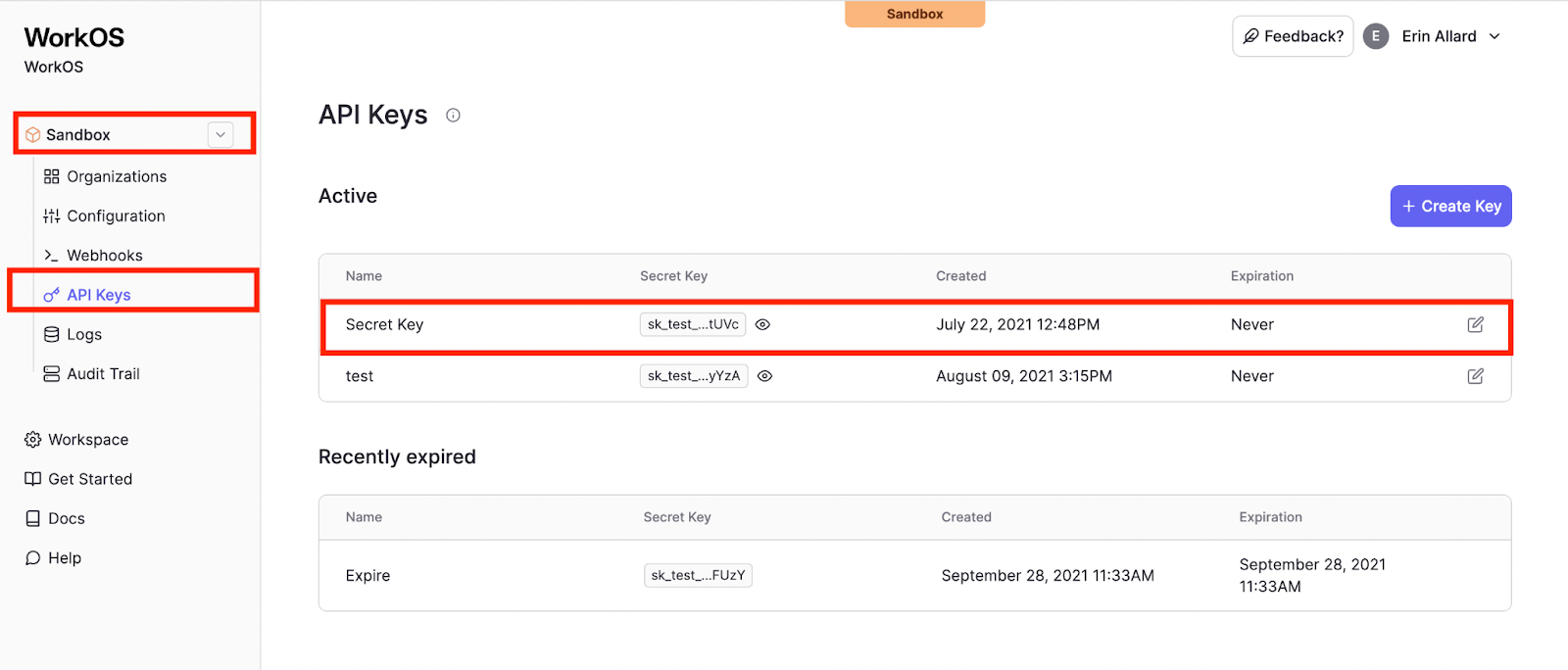
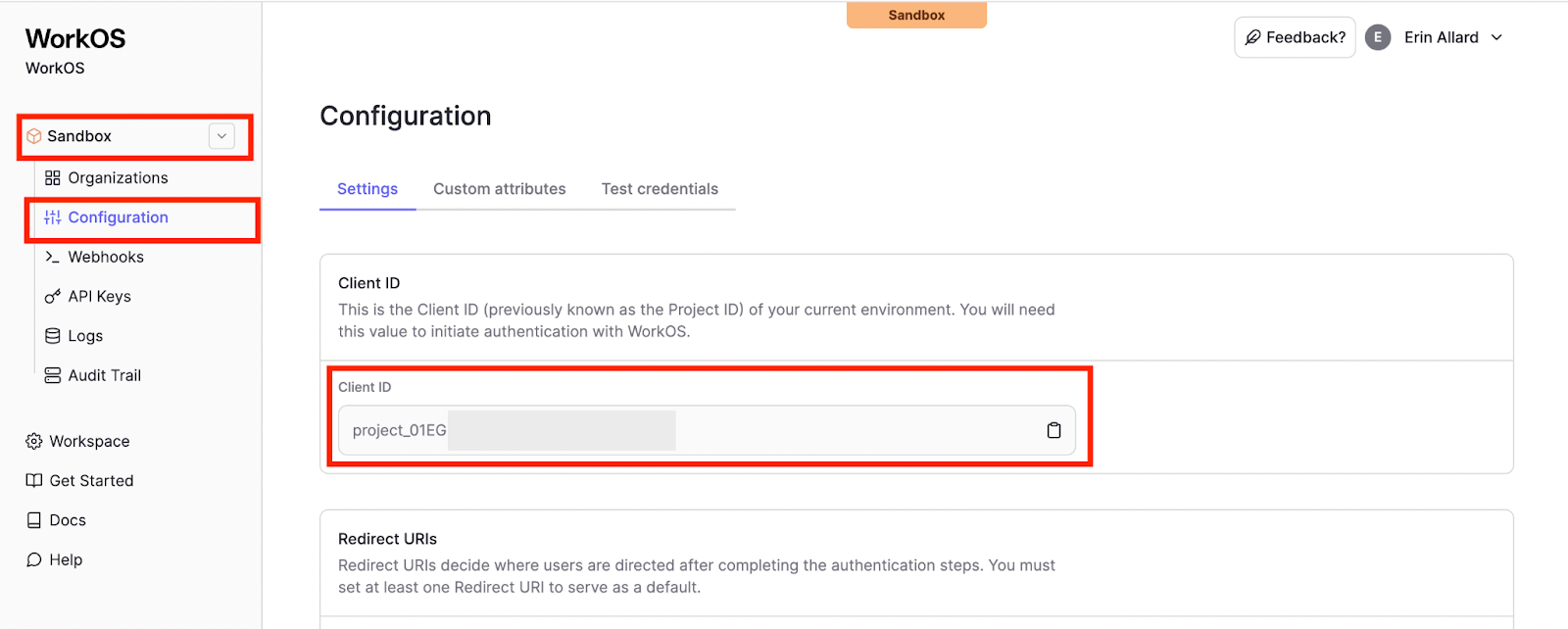
- Create a .env file in the java-example-applications/ directory to store the environment variables:
$ touch .env- Open the new .env file with your preferred text editor and replace the placeholder values for WORKOS_API_KEY and WORKOS_CLIENT_ID.
WORKOS_API_KEY=your_api_key_here
WORKOS_CLIENT_ID=your_project_id_here
The .env file is listed in this repo's .gitignore file, so your sensitive information will not be checked into version control. This is an important consideration for keeping sensitive information such as API keys private. The WorkOS Kotlin SDK will read your API key and Client ID from the .env file.
- Start the server by running this command in the CLI while you’re in the java-example-applications/ directory:
$ ./gradlew :java-mfa-example:run-
Navigate to http://localhost:7001. Click the “Enroll Factor” button. You’ll be prompted to enroll either an "sms" or "totp" type factor.
-
If you enrolling an "sms" factor, be sure to include the literal string "{{code}}" in the message. This tells the WorkOS API to generate and include a random auth code in sms message.
-
After the factor is created, click on the factor and follow the prompts to challenge and verify the factor.
Nice work! You just set up MFA for your Java app!
If you get stuck while following the steps below and aren't able to resolve the issue by reading our MFA Setup Guide. If you're still having trouble after that please reach out to us at support@workos.com!