Configuring agentic search
Introduced 3.3
This is an experimental UI feature. For updates on the progress of the feature or if you want to leave feedback, join the discussion on the OpenSearch forum.
Agentic search allows you to ask questions in natural language and have OpenSearch agents plan and execute retrieval automatically. This feature combines large language models (LLMs) with OpenSearch’s search capabilities to provide intelligent, context-aware search experiences.
OpenSearch Dashboards provides an intuitive interface for configuring agents, equipping agents with different tools, executing agentic searches, and integrating agentic search into your applications.
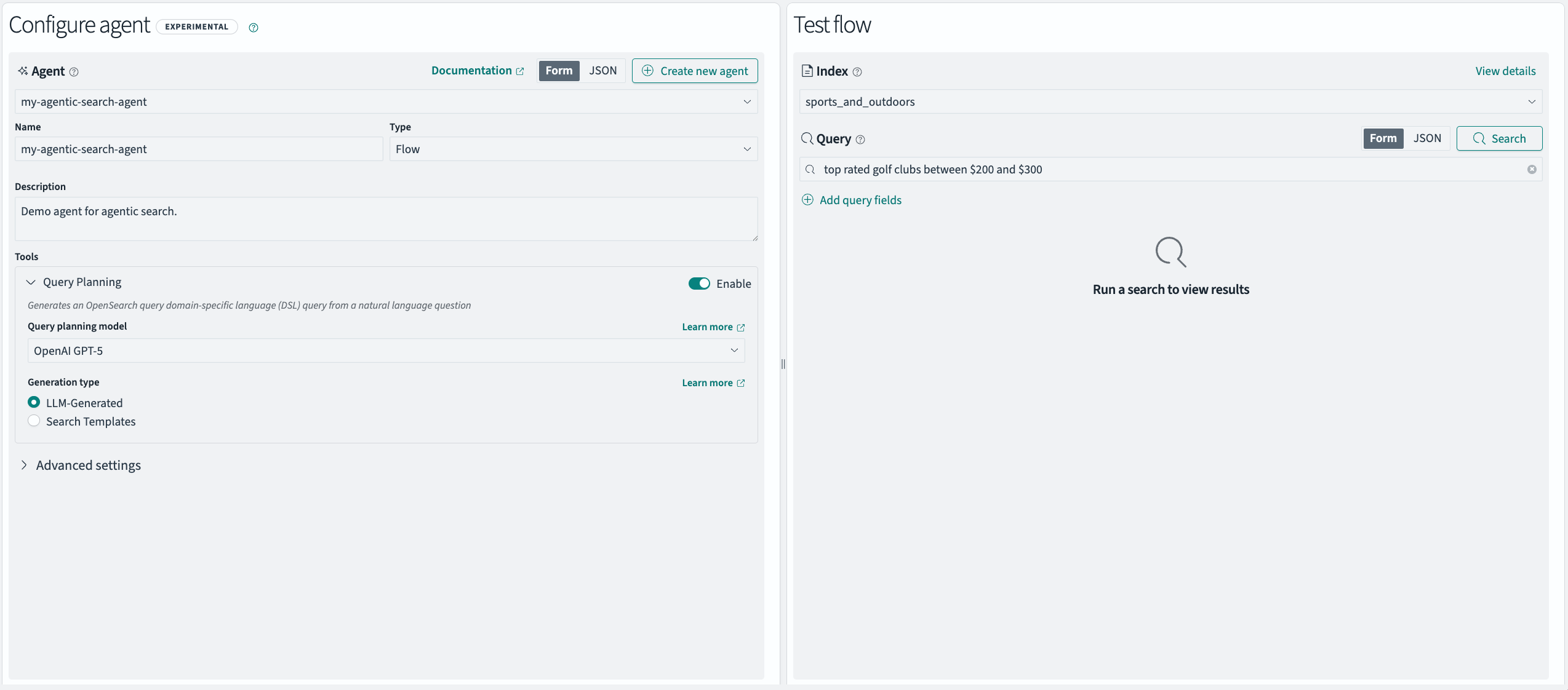
The following image shows the agentic search workflow interface with agent configuration options on the left and search execution capabilities on the right.
Prerequisites
Before configuring agentic search, ensure that you fulfill the following prerequisites.
Provision ML resources
To configure new agents, first provision appropriate models. For working examples, see Model configuration.
Ingest data
Ensure that you have a sufficient number of documents in your cluster to reasonably evaluate your agentic searches.
Accessing the plugin
To access the plugin, go to OpenSearch Dashboards and select OpenSearch Plugins > AI Search Flows from the top menu.
Configuring agents
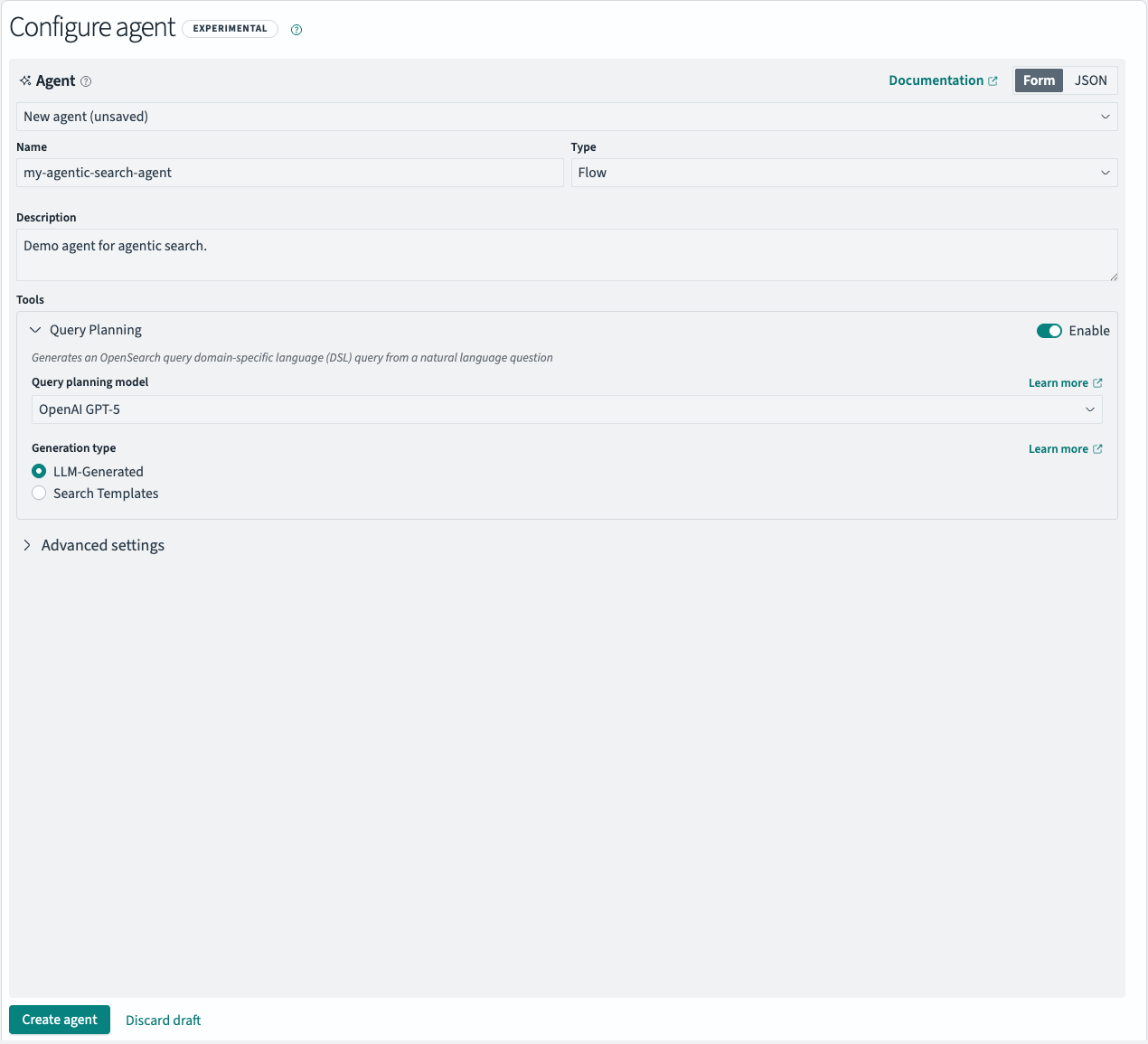
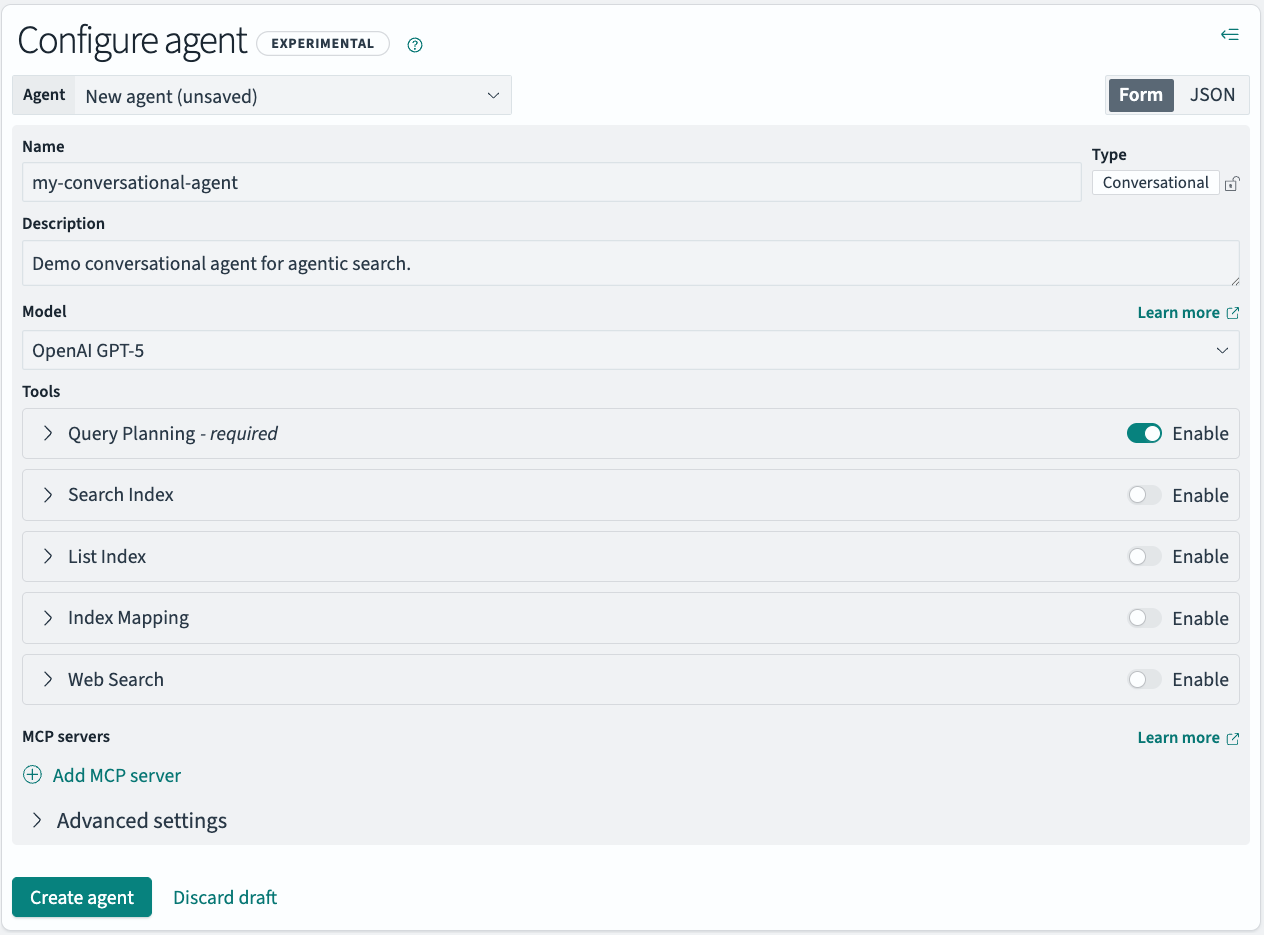
Agents are highly customizable and can be configured in multiple ways depending on your use case. The following image shows a fully configured conversational agent.
Agent types
Flow agents are optimized for speed and simplicity in query generation. Conversational agents can be configured with more tools and functionality for deeper reasoning. Agent types can only be configured once during agent creation.
When configuring flow agents, some models require you to manually add a suitable response_filter in the Query Planning tool. For more information, see Register a flow agent. Supported providers are OpenAI and Amazon Bedrock Converse.
Models
In conversational agents, models are responsible for intelligent reasoning, including tool orchestration, connecting to external sources, and generating appropriate query domain-specific language (DSL) queries. In flow agents, tools run sequentially, and models in the Query Planning tool are used only for query generation. Different models are optimized for different scenarios: cost-efficient, fast inference versus resource-intensive, deep-reasoning approaches.
For a list of suggested models compatible with agentic search, see Model configuration.
Tools
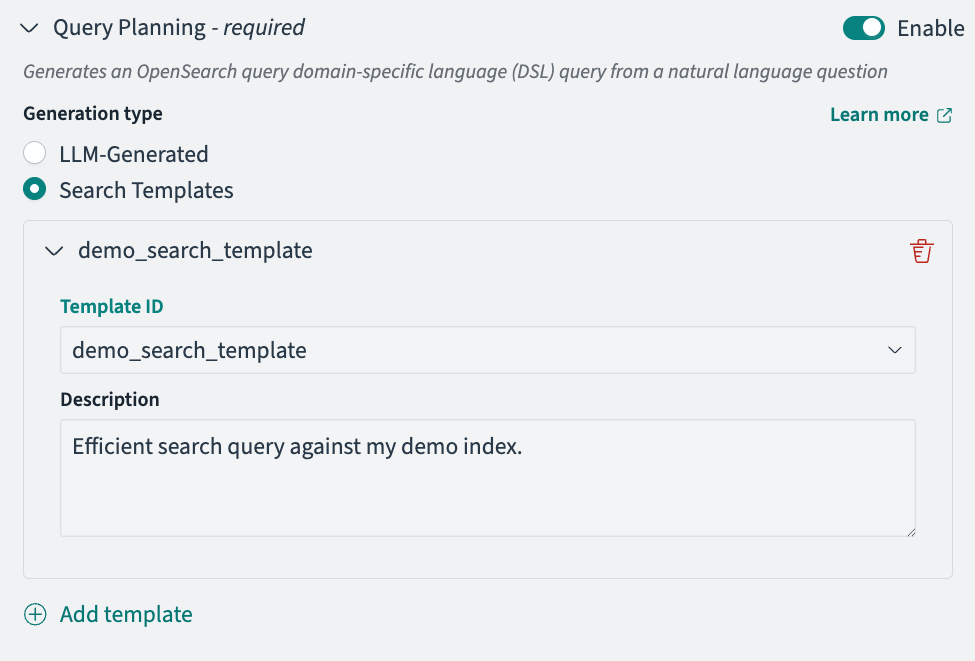
All agents require the Query Planning tool to execute agentic searches. Query generation can be entirely LLM-generated (default) or guided by predefined search templates. Search templates help maintain control over generated queries by directing the model to use known, tested, and performant query patterns.
The following image shows the search templates configuration interface within the Query Planning tool.
Other prebuilt tools are available for conversational agents, including Search Index, List Index, Index Mapping, and Web Search. Enable these to extend your agent’s capabilities. While these represent the most commonly used tools in agentic search, several additional OpenSearch tools are available and can be configured manually in the JSON view.
MCP servers
To allow conversational agents to access more external tools, integrate them with Model Context Protocol (MCP) servers. To limit the tools that the agents can access, configure filters for each server under Tool filters. For more information, see Using external MCP servers.
Running agentic searches
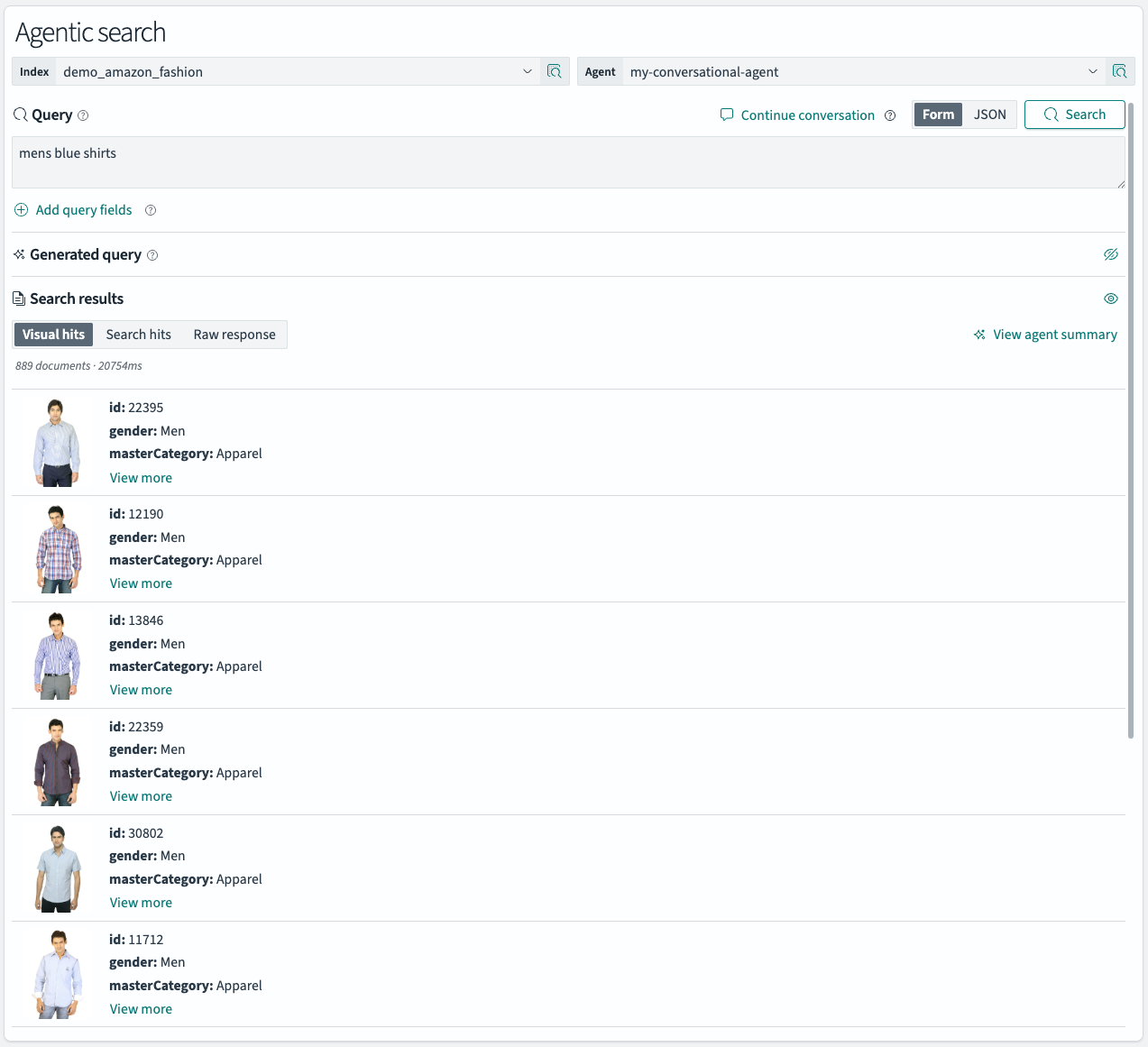
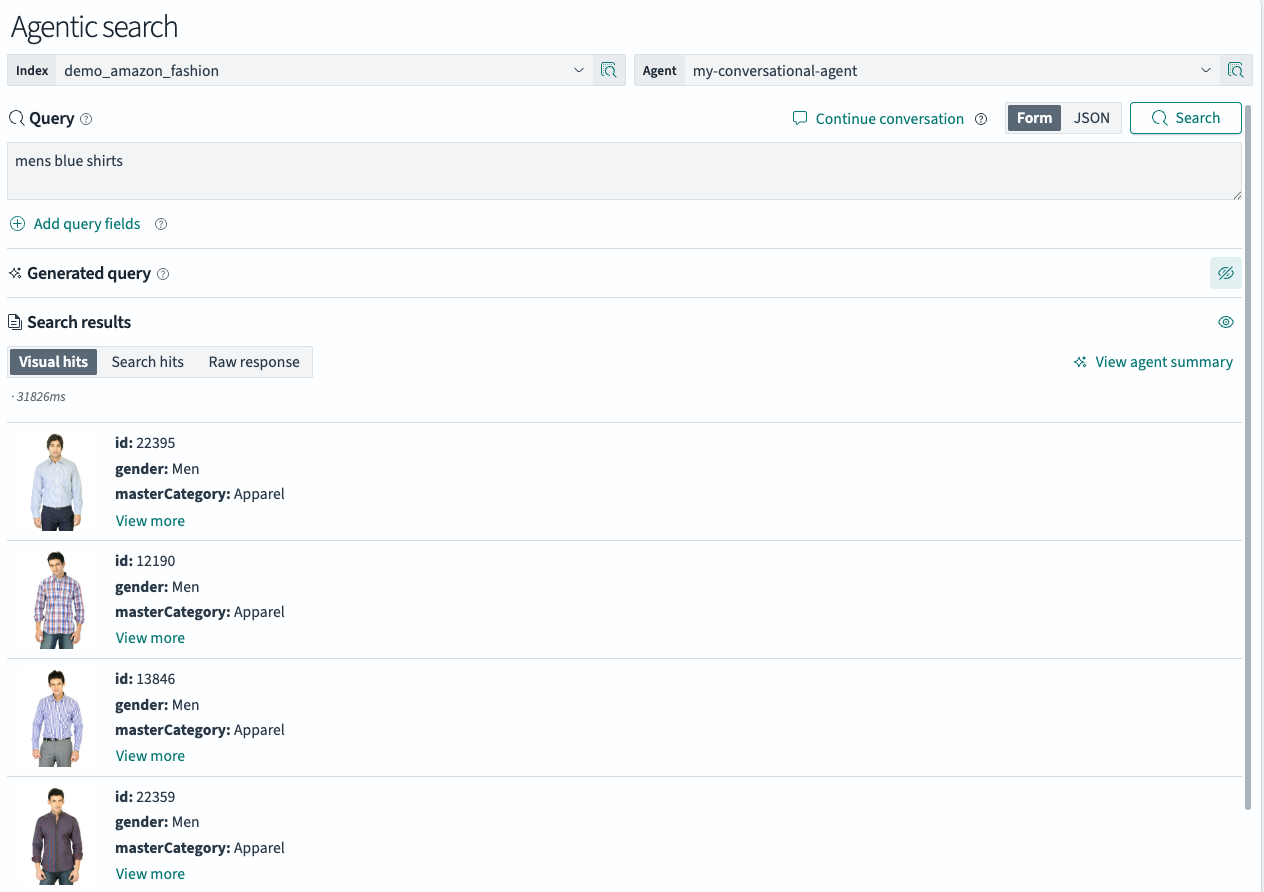
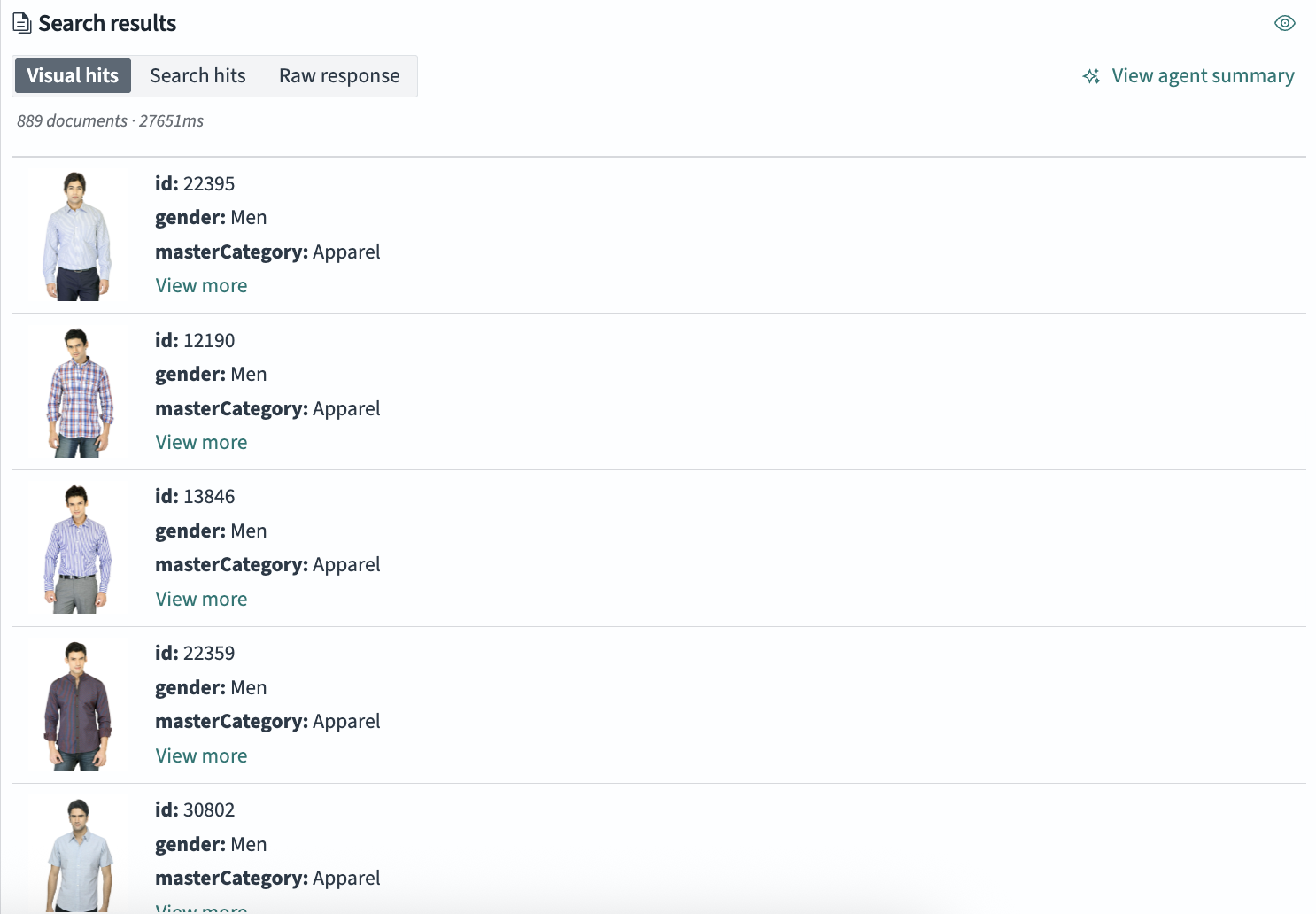
Test how agents perform with different indexes and search queries. Collapse the Configure agent panel to focus on executing searches and analyzing results. The following image shows a search for mens blue shirts against the demo_amazon_fashion index, including relevant result images.
Index
Try different indexes in your cluster. To view index details, select the Inspect button. For conversational agents, you can select All indexes and let the agent choose the appropriate index.
Agent
Try different agents you’ve created. To view agent details, select the Inspect button.
Query
Test different natural language queries. To specify fields for the agent to focus on in your selected index, select Add query fields. To edit the full agentic search query directly, toggle to the JSON view. For conversational agents, select Continue conversation after a search to maintain context for future searches. To discard conversational history and start again, select Clear conversation.
Running searches
To run an agentic search, select Search. The process may take several seconds while the agent reasons about the query, analyzes index mappings, and performs tool orchestration. If the search takes too long or you want to try a different search, select Stop.
After the search completes, view the results in the following sections:
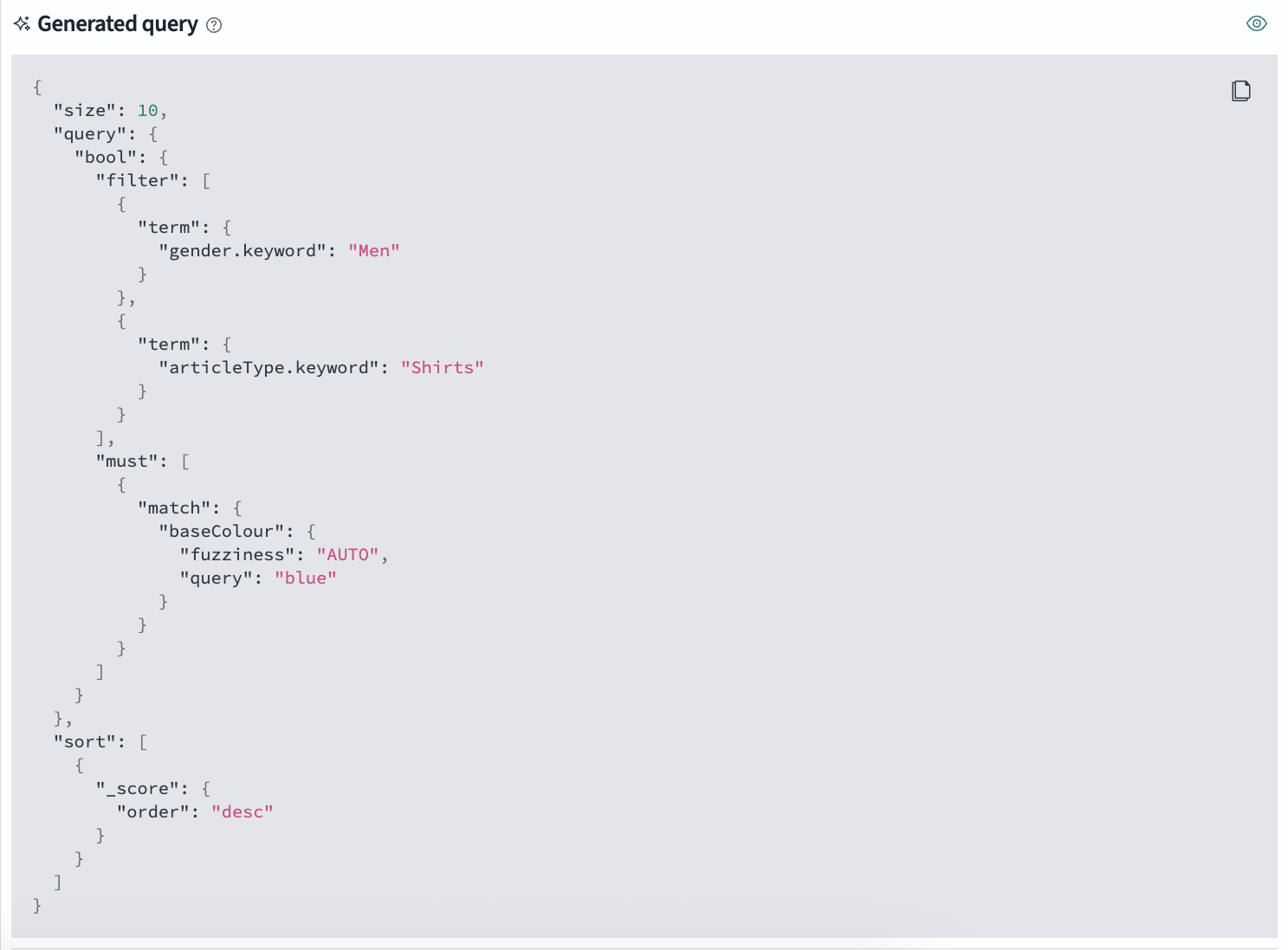
- Generated query: The query DSL that the agent generated and executed against your cluster
- Search results: The search response with available tabs based on the results:
- Aggregations: Displayed when the response contains aggregations
- Visual hits: Displayed when document hits contain images
- Hits: Displayed when the response contains any hits
- Raw response: Always available for detailed inspection
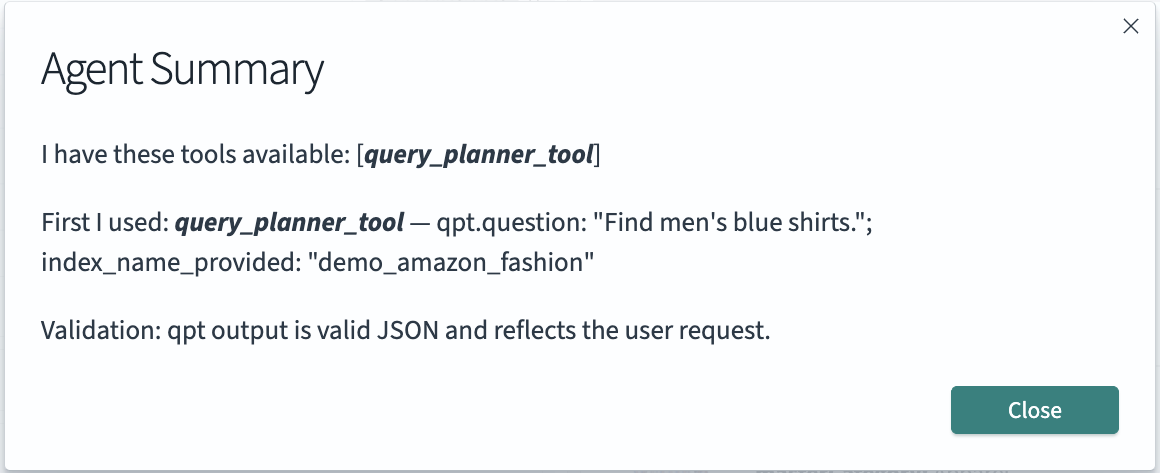
For conversational agents, select View agent summary to see a step-by-step breakdown of the agent’s actions, including the sequence of tools used and the reasoning behind each step.
The following image shows the search results interface with different viewing tabs and the agent summary option.
Using agentic search in your application
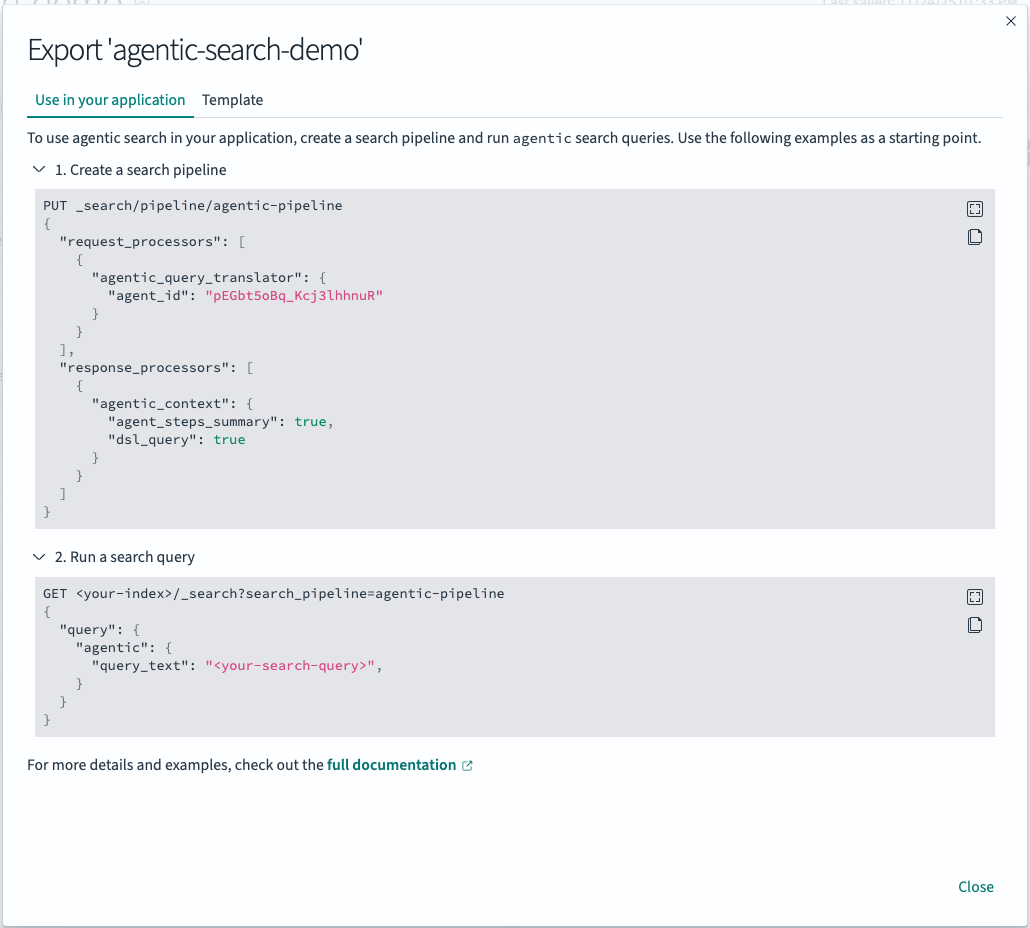
Select Export to view all of the underlying resources needed for using agentic search in your downstream application, including the agent and search pipeline details.
The following image shows the export dialog with code examples for integrating agentic search into your applications.
Example: Product search with GPT-5
This example uses a deployed OpenAI GPT-5 model and an index generated from the fashion product images dataset.
-
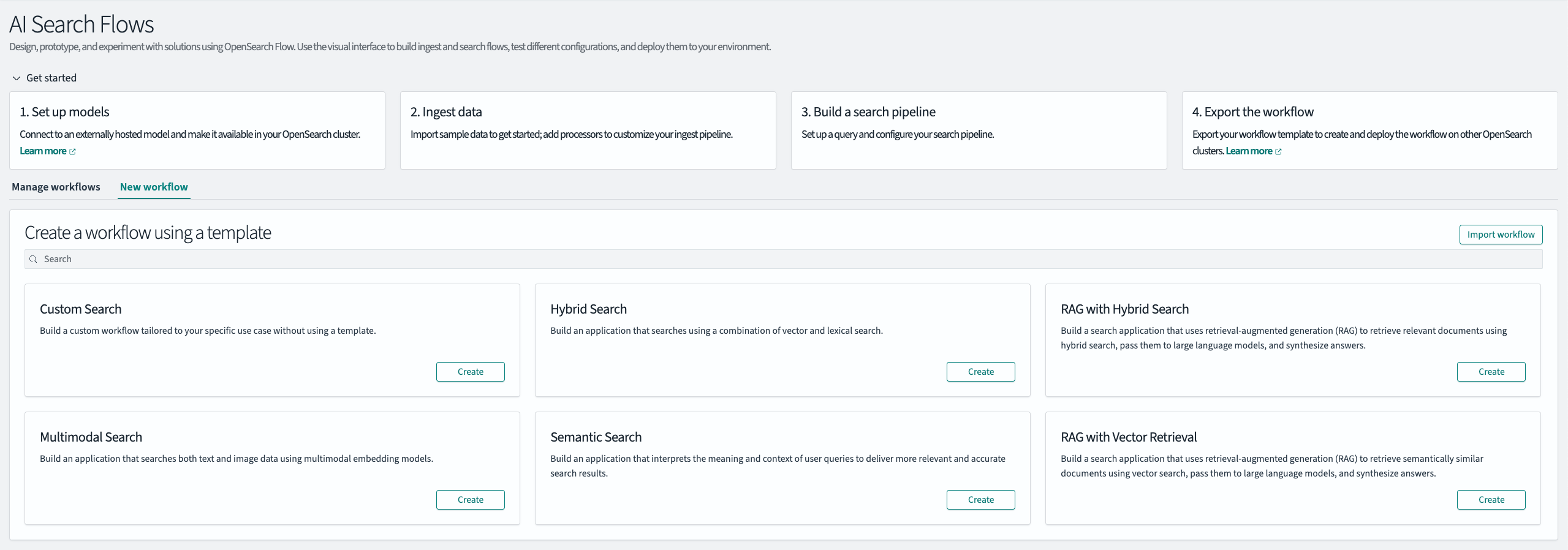
Navigate to the AI Search Flows plugin. On the Workflows page, select the New workflow tab, as shown in the following image. In the Agentic Search template, select Create.
-
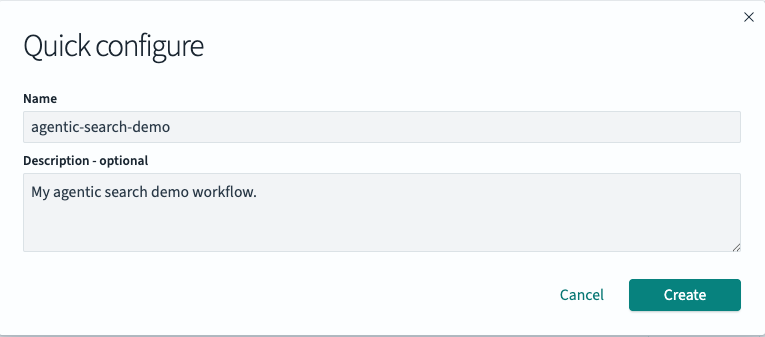
Provide a unique workflow Name and an optional Description, as shown in the following image. Then select Create to create your workflow. You are automatically directed to the workflow editor, where you can begin configuring the agent.
-
Under Configure agent, select Create new agent. Enter a unique Name, optionally provide a Description, and under Model, select the deployed OpenAI GPT-5 model. Finally, select Create agent at the bottom.
- Under Agentic search, select the index you’d like to search against, or leave the default as All indices and let the agent decide. The agent will already be selected.
-
Under Query, enter a natural language query about your data, as shown in the following image. Select Search to run an agentic search.

-
View the agent’s generated query, the search hits, and agent summary.
The following image shows the generated query DSL that the agent created for the search.
The following image shows the search results with product images and details.
The following image shows the agent’s step-by-step reasoning and tool usage summary.
- Optionally, tune your agent by trying different tools, models, and MCP server integrations to see how the agent performs on different queries against your data.
Next steps
- Try agentic search on the ML Playground.
- Learn more about agentic search.
- Read this blog post on agentic search.
- Explore OpenSearch agents.
- Join the discussion on the OpenSearch forum.
- Report issues on GitHub.