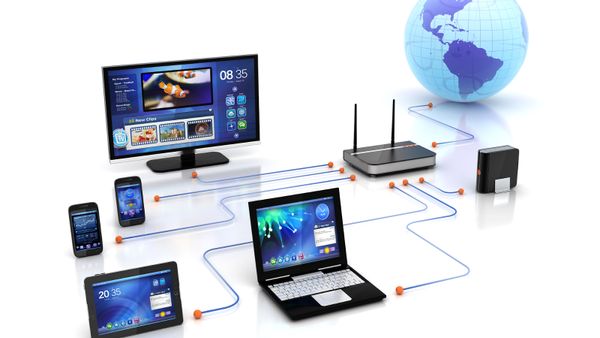
Wondering how to set up WiFi in your home or office? You can connect your PC or laptop to the internet through a Wi-Fi connection if you have a wireless router connected to broadband internet and an operating system that fully supports wireless networking.
How to Set a Home Wi-Fi Network
If your wireless router was professionally installed by an internet service provider, chances are it's already been set up with an SSID and password encryption. In such a case, you can most likely skip straight to the final step. If you're installing it yourself, you can proceed with the guide as normal. Here's what to do:
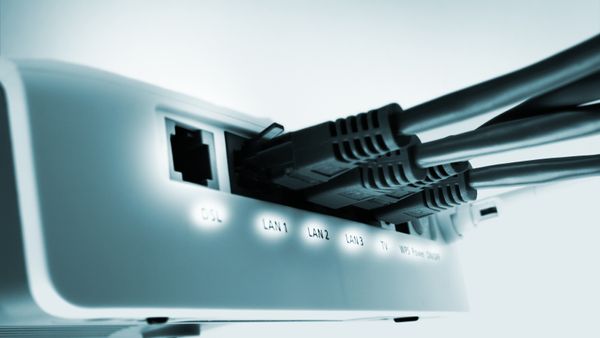
- Power up the wireless router and use an ethernet cable to connect to one of the network ports on your internet service provider's modem.
- Open the network setup wizard [source: Microsoft]. (Your router's manufacturer may have their own software or web client to assist the setup process. Consult your owner's manual for more details.) Depending on the version of your OS, this process varies:
- In Windows 7 or Windows 8.1, select Start, start typing Network and Sharing Center, and then choose it in the list.
- In Windows 10, select Start, then select Settings/Network & Internet/Status/Network and Sharing Center.
- In Windows 11, select Start, type Control Panel, then select Control Panel/Network and Internet/ Network and Sharing Center.
- In MacOS: Click the Wi Fi icon on the top right of the screen [source: Apple]. A dropdown menu will appear with the list of available networks. Select your network and click "Join."
Once the wizard is accessed:
- Select: Set up a new connection or network/Set up a network/Next.
- Enter your username and password when prompted. Many routers use the term admin as a default for both. Again, check your router's manual if you don't know the default username and password.
- Pick a network name, also called an SSID, for your network, once you access your router's configuration page. Try to think of an original name that will distinguish your Wi Fi from your neighbor's Wi-Fi.
- Choose the type of security you want. WPA2 and WPA3 are more secure than WEP, but not all devices support WPA3 [source: Ghimiray]. Create a unique password for your network. There will be hints on your router configuration page to tell you how to set up a password. Make sure to keep a hard copy of your password hidden somewhere in case you forget it.
- Locate and click on the network icon for Windows 8, 10 or 11 in the notification area to the right of the taskbar. The icon will resemble a signal meter, like you would see on a cell phone. Choose the wireless network you just set up and enter your password.
Troubleshooting Connectivity Issues
If you've followed all of the steps above and still can't establish a connection on your wireless enabled devices, try the following:
- Ensure you're within range of the Wi Fi router.
- Ensure that the router is placed in a central location.
- Restart your router and computer.
- Forget the network from your Wi Fi settings and reconnect as if it were a new Wi FI network.
- Check for hardware issues if the problem persists, especially if you're using an external adapter.
Happy Surfing!
Once connected, you can browse the internet, stream videos, download files, and more. Remember, the strength and speed of your Wi Fi connection depend on the distance from the router, obstacles in between, and the bandwidth provided by local internet service providers.
Setting up wireless networks, and connecting your PC, laptop, or Mac is usually a simple task. By following tese steps, you should be able to connect to the internet via WiFi in just a few minutes. If you encounter any problems, consult troubleshooting tips or contact your ISP for further assistance.