Data labels in Blazor Maps Component
4 Nov 20259 minutes to read
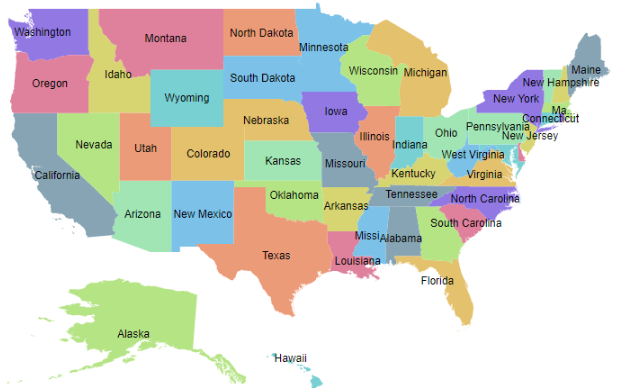
Data labels display text for shapes in the Maps component. Enable them by setting the Visible property of MapsDataLabelSettings to true.
Adding data labels
Use the LabelPath property of MapsDataLabelSettings to specify the field used for label text. The value can come from a field in the shape data or from the layer’s data source. In the following example, the LabelPath property value is taken from the shape data of the Maps layer.
@using Syncfusion.Blazor.Maps

<SfMaps>
    <MapsLayers>
        <MapsLayer ShapeData='new {dataOptions= "https://cdn.syncfusion.com/maps/map-data/usa.json"}' TValue="string">
            @* To add data labels *@
            <MapsDataLabelSettings Visible="true" LabelPath="name"></MapsDataLabelSettings>
            <MapsShapeSettings Autofill="true"></MapsShapeSettings>
        </MapsLayer>
    </MapsLayers>
</SfMaps>
In the following example, the LabelPath property value is taken from the field in the layer’s data source.
@using Syncfusion.Blazor.Maps

<SfMaps ID="Maps">
    <MapsLayers>
        <MapsLayer ShapeData='new {dataOptions= "https://cdn.syncfusion.com/maps/map-data/world-map.json"}' TValue="PopulationDetail"
                   DataSource="PopulationDetails" ShapeDataPath="@ShapeDataPath" ShapePropertyPath="@ShapePropertyPath">
            @* To add data labels *@
            <MapsDataLabelSettings Visible="true" LabelPath="Continent"></MapsDataLabelSettings>
            <MapsShapeSettings Autofill="true"></MapsShapeSettings>
        </MapsLayer>
    </MapsLayers>
</SfMaps>

@code {
    public string[] ShapePropertyPath = { "name" };
    public string ShapeDataPath = "Name";

    public class PopulationDetail
    {
        public string Code { get; set; }
        public double Value { get; set; }
        public string Name { get; set; }
        public double Population { get; set; }
        public double Density { get; set; }
        public string Color { get; set; }
        public string Continent { get; set; }
    };

    public List<PopulationDetail> PopulationDetails = new List<PopulationDetail> {
        new PopulationDetail {
            Code = "AF", Value = 53, Name = "Afghanistan", Population = 29863010, Density = 119, Color = "Red", Continent = "Asia"
        },
        new PopulationDetail {
            Code = "AL", Value = 117, Name = "Albania", Population = 3195000, Density = 111, Color = "Blue", Continent = "Europe"
        },
        new PopulationDetail {
            Code = "DZ", Value = 15, Name = "Algeria", Population = 34895000, Density = 15, Color = "Green", Continent = "Africa"
        }
    };
}
Customization
The following options in MapsDataLabelSettings customize the appearance of data labels:
- MapsLayerDataLabelBorder: Configures label border color and width.
- Fill: Sets the label background color.
- Opacity: Controls label transparency.
- MapsLayerDataLabelTextStyle: Configures label text style.
@using Syncfusion.Blazor.Maps

<SfMaps>
    <MapsLayers>
        <MapsLayer ShapeData='new {dataOptions= "https://cdn.syncfusion.com/maps/map-data/usa.json"}' TValue="string">
            @* To add data labels *@
            <MapsDataLabelSettings Visible="true" LabelPath="name" Fill="red" Opacity="0.9">
                <MapsLayerDataLabelBorder Color="green" Width="2"></MapsLayerDataLabelBorder>
                <MapsLayerDataLabelTextStyle Color="blue" Size="12px" FontStyle="Sans-serif" FontWeight="normal">
                </MapsLayerDataLabelTextStyle>
            </MapsDataLabelSettings>
            <MapsShapeSettings Autofill="true"></MapsShapeSettings>
        </MapsLayer>
    </MapsLayers>
</SfMaps>
Label animation
Animate data labels on initial render by setting the AnimationDuration property in MapsDataLabelSettings. The duration is specified in milliseconds.
@using Syncfusion.Blazor.Maps

<SfMaps>
    <MapsLayers>
        <MapsLayer ShapeData='new {dataOptions= "https://cdn.syncfusion.com/maps/map-data/usa.json"}' TValue="string">
            @* To add data labels *@
            <MapsDataLabelSettings Visible="true" LabelPath="name" AnimationDuration="5000"></MapsDataLabelSettings>
            <MapsShapeSettings Autofill="true"></MapsShapeSettings>
            <MapsLayerTooltipSettings Visible="true" ValuePath="name"></MapsLayerTooltipSettings>
        </MapsLayer>
    </MapsLayers>
</SfMaps>
Smart labels
Handle labels that intersect shape borders by using the SmartLabelMode property. Available options:
- None
- Hide
- Trim
@using Syncfusion.Blazor.Maps

<SfMaps>
    <MapsLayers>
        <MapsLayer ShapeData='new {dataOptions= "https://cdn.syncfusion.com/maps/map-data/usa.json"}' TValue="string">
            @* To hide intersect labels with shape border *@
            <MapsDataLabelSettings Visible="true" LabelPath="name" SmartLabelMode="SmartLabelMode.Hide">
            </MapsDataLabelSettings>
            <MapsShapeSettings Autofill="true"></MapsShapeSettings>
        </MapsLayer>
    </MapsLayers>
</SfMaps>
Intersect action
Handle labels that intersect with other labels by using the IntersectionAction property. Available options:
- None
- Hide
- Trim
```cshtml
@using Syncfusion.Blazor.Maps
## Adding data label as a template
Add data labels using a template by setting the [LabelTemplate](https://help.syncfusion.com/cr/blazor/Syncfusion.Blazor.Maps.MapsDataLabelSettings.html#Syncfusion_Blazor_Maps_MapsDataLabelSettings_LabelTemplate) property of [MapsDataLabelSettings](https://help.syncfusion.com/cr/blazor/Syncfusion.Blazor.Maps.MapsDataLabelSettings.html). Any text or HTML element can be used within the template.
N> The data label customization properties [SmartLabelMode](https://help.syncfusion.com/cr/blazor/Syncfusion.Blazor.Maps.MapsDataLabelSettings.html#Syncfusion_Blazor_Maps_MapsDataLabelSettings_SmartLabelMode), [AnimationDuration](https://help.syncfusion.com/cr/blazor/Syncfusion.Blazor.Maps.MapsDataLabelSettings.html#Syncfusion_Blazor_Maps_MapsDataLabelSettings_AnimationDuration), and [IntersectionAction](https://help.syncfusion.com/cr/blazor/Syncfusion.Blazor.Maps.MapsDataLabelSettings.html#Syncfusion_Blazor_Maps_MapsDataLabelSettings_IntersectionAction) do not apply to [LabelTemplate](https://help.syncfusion.com/cr/blazor/Syncfusion.Blazor.Maps.MapsDataLabelSettings.html#Syncfusion_Blazor_Maps_MapsDataLabelSettings_LabelTemplate). Style the template using CSS on the template elements.
```cshtml
@using Syncfusion.Blazor.Maps
<SfMaps>
<MapsLayers>
<MapsLayer ShapeData='new {dataOptions= "https://cdn.syncfusion.com/maps/map-data/world-map.json"}' TValue="PopulationDetail"
DataSource="PopulationDetails" ShapeDataPath="@ShapeDataPath" ShapePropertyPath="@ShapePropertyPath">
<MapsDataLabelSettings Visible="true">
<LabelTemplate>
@{
var Data = context as PopulationDetail;
<div style="width:50px; height:20px;border: 2px solid black; text-align:center;">
<p style="color:red; font-size:12px;">@Data.Continent</p>
</div>
}
</LabelTemplate>
</MapsDataLabelSettings>
</MapsLayer>
</MapsLayers>
</SfMaps>
@code {
public string[] ShapePropertyPath = { "name" };
public string ShapeDataPath = "Name";
public class PopulationDetail
{
public string Code { get; set; }
public double Value { get; set; }
public string Name { get; set; }
public double Population { get; set; }
public double Density { get; set; }
public string Color { get; set; }
public string Continent { get; set; }
};
public List<PopulationDetail> PopulationDetails = new List<PopulationDetail> {
new PopulationDetail { Code = "AF", Value = 53, Name = "Afghanistan", Population = 29863010, Density = 119, Color = "Red", Continent = "Asia" },
new PopulationDetail { Code = "AL", Value = 117, Name = "Albania", Population = 3195000, Density = 111, Color = "Blue", Continent = "Europe" },
new PopulationDetail { Code = "DZ", Value = 15, Name = "Algeria", Population = 34895000, Density = 15, Color = "Green", Continent = "Africa" }
};
}
