• Skip to primary navigation
  • Skip to main content
  • Skip to primary sidebar
  • Skip to footer

AppleToolBox

Tools and Fixes for Mac, iPad, iPhone & iWatch

  • About
  • Contact

CONNECT WITH US

CATEGORIES

  • iPhone
  • iPad
  • iPod
  • Apple Watch
  • Mac/MacBook
  • AirPods
  • Apple TV
  • News
  • Apple Services
  • HomePod
  • Reviews

SITE

  • Home
  • About Us
  • Contact
  • Advertise
You are here: Home / Mac / How to Convert a WEBP File to JPG or PNG on Mac Automatically and Make Them Editable

How to Convert a WEBP File to JPG or PNG on Mac Automatically and Make Them Editable

By Louis Roundtree 0 comments Last updated November 14, 2025

Things to Know
  • WEBP files are useful for quick loading on the internet, but are difficult to use and edit offline.
  • Mac can convert WEBP files to JPG or PNG using Preview and Quick Actions.
  • You can also use Automator to get the job done consistently or go for third-party tools.

You’re downloading an image from the internet, and instead of your standard JPG or PNG format, you get a WEBP file. This particular image format helps sites load faster, but it can be frustrating if you want a file that opens easily in almost any app.

Let’s look at how to convert a WEBP file to JPG or PNG on your Mac.

Contents

  • Where’s the Support?
  • How to Convert a WEBP File to JPG or PNG
    • Converting Individual Files on Mac OS
    • Using Quick Actions
    • Automate the Task
    • Third Party Tools

Where’s the Support?

Why are WEBP files so difficult to use and so disliked? This raster image format was developed by Google and introduced back in 2010 as a way to load images faster on sites, replacing the slower JPG and PNG formats.

While this is a perfectly serviceable format, as indicated by its widespread use, it’s not a popular format once taken offline.

Why?

While WEBP is widely used online, offline support is limited despite key image editing software like Photoshop and Clip Studio Paint natively supporting it. This file type can’t be uploaded to social media sites, either, which makes WEBP files impractical and irritating to many users, regardless of the ecosystem.

How to Convert a WEBP File to JPG or PNG

The solution to the problem of a downloaded WEBP file is to simply convert it into a different format. Let’s take a look at a few ways to do that.

Converting Individual Files on Mac OS

This is the simplest way to convert a WEBP file to JPG or PNG on Mac. Here’s what to do:

Step 1. Locate your WEBP file in Finder.

Step 2. Press the space bar to open it in Preview. Alternatively, right-click the file and select “Open With” and then “Preview.”

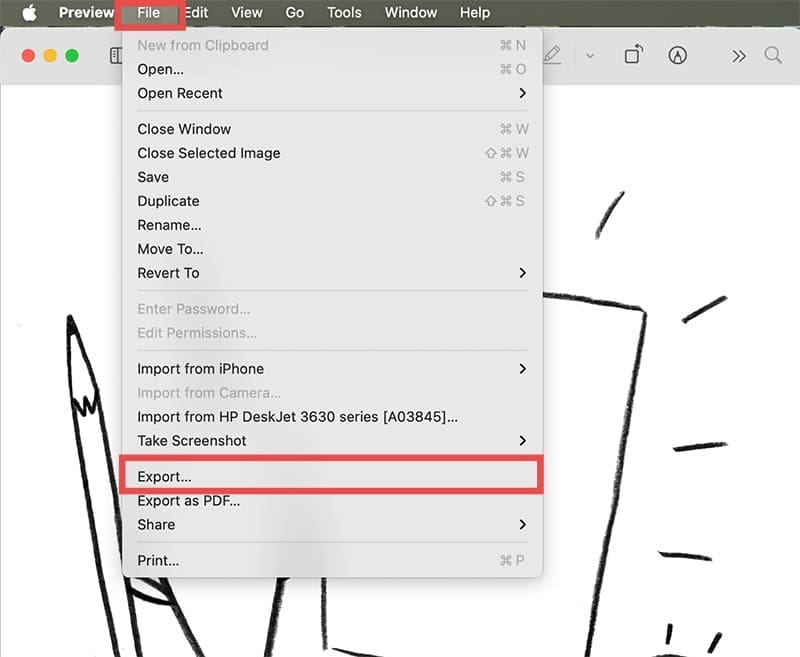
Step 3. Once in the Preview window, click “File” in the Menu Bar and select “Export.”

How to Convert a WEBP File to JPG or PNG on Mac Automatically 1

Step 4. Rename the image if needed, choose the save location, and (most importantly) choose your preferred image type from the dropdown menu.

How to Convert a WEBP File to JPG or PNG on Mac Automatically 2

Step 5. Click the “Save” button to complete the process.

Using Quick Actions

Another quick conversion method is to use Quick Actions. Here’s how:

Step 1. Right-click on the image file you want to convert. You can also select more than one.

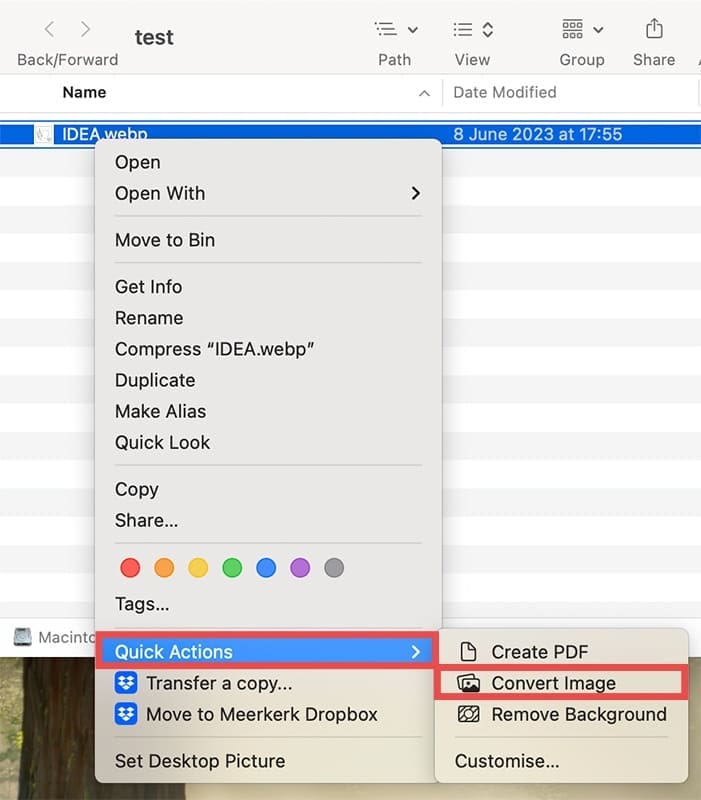
Step 2. In the context menu that pops up, hover over “Quick Actions,” then click “Convert Image.”

How to Convert a WEBP File to JPG or PNG on Mac Automatically 3

Step 3. Choose the file format you want to convert to in the first dropdown, and the image size of your file from the second. Hit the blue “Convert to [file format]” button to finalize.

How to Convert a WEBP File to JPG or PNG on Mac Automatically 4

Automate the Task

What if you have a batch of WEBP files that need conversion? What if you want a permanent way to automate things? Here’s where you can take advantage of Automator to convert WEBP files automatically. This is what to do:

Step 1. Open the Automator app by typing it into the search bar.

How to Convert a WEBP File to JPG or PNG on Mac Automatically 5

Step 2. Click on “File,” then “New” and select “Workflow” from the options.

How to Convert a WEBP File to JPG or PNG on Mac Automatically 6

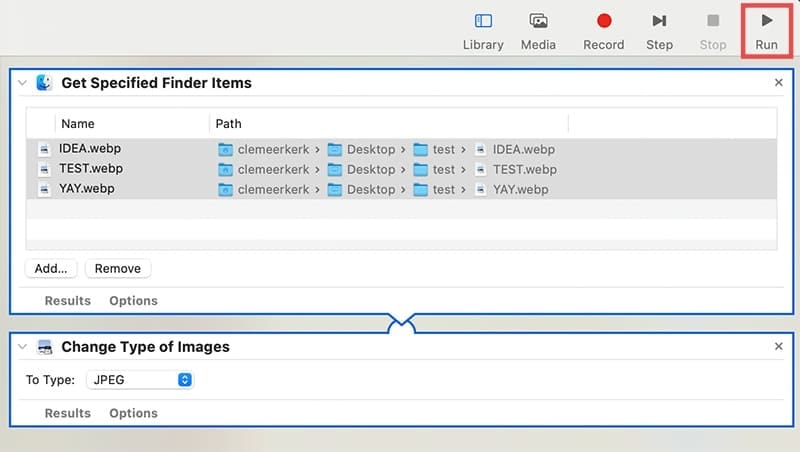
Step 3. In the left sidebar, choose “Get Specified Finder Items.” Drag it into the main window.

How to Convert a WEBP File to JPG or PNG on Mac Automatically 7

Step 4. Click “Add” and select the WEBP files you want to batch convert.

How to Convert a WEBP File to JPG or PNG on Mac Automatically 8

Step 5. Add “Change Type of Images” and add it below “Get Specified Finder Items.”

How to Convert a WEBP File to JPG or PNG on Mac Automatically 9

Step 6. Click “Change Type of Images” and choose “JPEG” or “PNG” from the dropdown list.

How to Convert a WEBP File to JPG or PNG on Mac Automatically 10

Step 7. Finally, click the “Run” button to automate the process.

How to Convert a WEBP File to JPG or PNG on Mac Automatically 11

Third Party Tools

If you want even more control over the editing process, you can download a third-party conversion app to fix WEBP files on Mac. Tools like GraphicConverter, GIMP, and Retrobatch are popular options that can help you get the job done efficiently.

Related Posts:

  • iPhone 13 Pro Max – 21
    How To Convert PNG to JPG on iPhone and iPad
  • photo of a macbook with its screen open
    How to Set up and Use Google Drive on Mac
  • How to Use the New Google Home App on iPhone and iPad hero
    How to Use the New Google Home App on iPhone and iPad
  • 2023 Mac Studio lifestyle – 1
    macOS Could Not Be Installed, How-To Fix
  • Windows computer
    How to AirDrop from iPhone to Windows PC
  • iPhone App Store Header
    Best Free iPhone Apps 2023
  • how to convert a pages file into word
    How to Convert a Pages File Into Word File
  • iPhone 15 Pro Max – 4
    Best iPhone Lock Screen Widgets for iOS 17
  • pexels-designecologist-1779487
    The Best iPhone And Mac Shortcuts For Beginners
Louis Roundtree
Louis Roundtree

As an avid gamer, I’ve run into my fair share of error codes and weird faults that have forced me to find fixes to problems I never anticipated. That gave me a passion for sharing those fixes with others so we can all game without feeling like our hardware is rebelling against us.

Reader Interactions

Write a Comment Cancel reply

Primary Sidebar

Recent Posts

  • AI-Powered Coding Across Windows and Mac: Tools Every Developer Needs
  • Top AI Tools to Sync Calendars and Tasks Seamlessly Between Windows and macOS
  • How to Transfer Data From PC to Mac via Cable
  • How to Run a Windows Game on a Mac
  • How to Convert a WEBP File to JPG or PNG on Mac Automatically and Make Them Editable
  • Apple Devices App on Windows Can’t Update iPhone: What to Do

Connect with us

Footer

ABOUT

  • About Us
  • Contact us
  • Advertise
  • Privacy
  • Terms of Use

GUIDES

  • iOS & iPadOS
  • Apple ID
  • iCloud
  • App Store
  • iTunes
  • FaceTime
  • iMessage
  • Siri
  • Books and iBooks
  • Game Center
  • AirPlay

CONNECT

  • Facebook
  • Twitter
  • FeedBurner
  • YouTube

© Copyright 2010-2024 Guiding Tech Media · All Rights Reserved

This site and its content are in no way affiliated or endorsed by Apple, Inc. · Reproduction without explicit permission is prohibited

Last Updated on November 18, 2025 by Louis Roundtree