Apple’s Pages application is, in effect, the Mac equivalent to Microsoft Word. It’s used for creating and editing different types of documents, and it uses the .pages file extension by default when saving. However, you can’t open a .pages file in MS Word. So, if you want to work on a Pages file on a Microsoft platform, you’ll first have to convert it to a suitable format, like .doc or .docx.
Method 1. Convert a Pages File Into Word Document Using Pages
Arguably the easiest way to convert Pages to Word docs is simply through the Pages app itself. This method works on any Apple device, be it a Mac, Macbook, or mobile devices, like iPhones and iPads. Here are the instructions if you’re on a Mac:
Step 1. Open the file you want to convert to a Word document in Pages.
Step 2. Click or tap on “File,” and then hover the cursor over “Export to.”
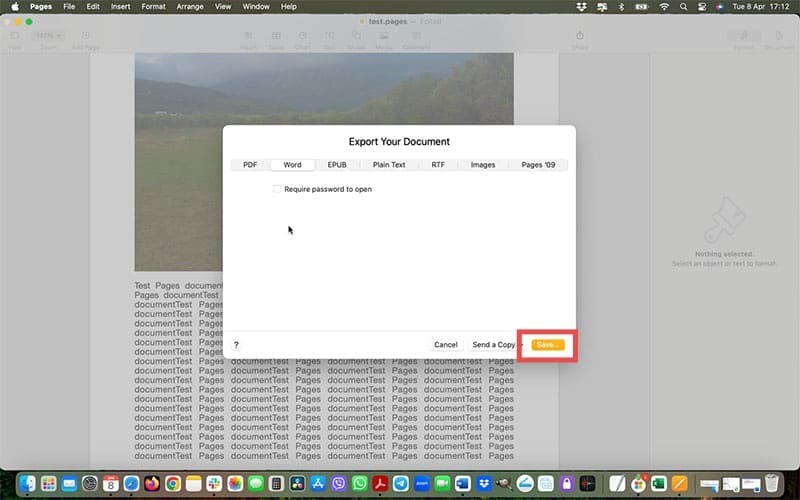
Step 3. Select “Word.”
Step 4. Configure the export options as desired, or just leave the default settings. Then click “Save.”
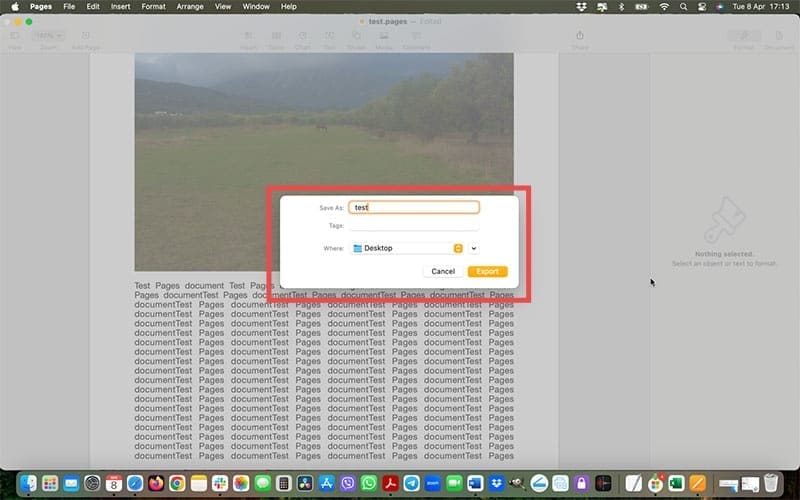
Step 5. Name your file and click “Export” to create a Word-compatible version.
Next, the instructions for those on mobile devices:
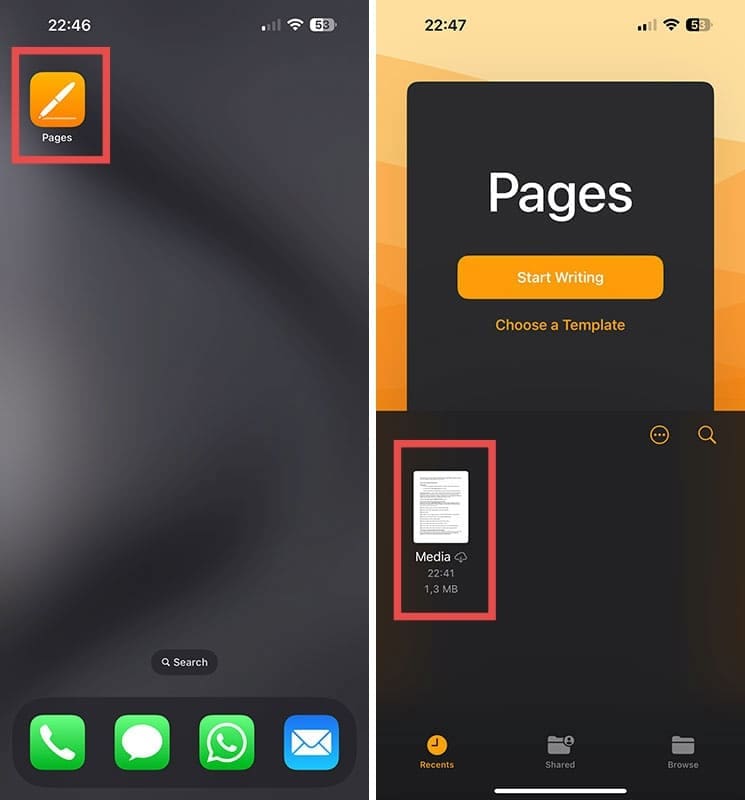
Step 1. Open the Pages app and open the document you wish to convert.
Step 2. Tap the “More” button (dots in a circle icon).
Step 3. Tap on “Export.”
Step 4. Choose “Word” as the format, set the options as desired, and then save your new file.
Method 2. Convert a Pages File Into Word Document via iCloud
It’s also possible to use the iCloud service to convert a Pages file to a Word file. This way, you won’t even have to use the Pages app, at all. Note, however, that the file you want to convert will need to be uploaded to your iCloud account before proceeding with the following steps.
Step 1. Log in to your iCloud account.
Step 2. Click on the Pages app, which has a yellow square and white pencil icon.
Step 3. Find the file you wish to convert from the list. If it’s not there, you can upload it from your computer by clicking the “Upload” button and selecting the file.
Step 4. After selecting your file, click on “More.”
Step 5. Click “Download a copy,” and select “Word” as the format.
Method 3. Convert a Pages File Into Word Document With a Conversion Tool
Lastly, if you don’t have access to either Pages or iCloud (e.g., you’re trying to convert Pages to Word on a Microsoft device) then you can use a third-party converter. Several such conversion tools are available and they’re generally free to use.
Step 1. Access a conversion tool, like Cloud Converter’s Pages to Word tool.
Step 2. Click on “Select File” and upload the file you wish to convert.
Step 3. Add additional files if desired, using the “Add more files” button. Otherwise, click the drop-down arrow next to “Convert to” and select the format you want. You can choose from .doc, .docx, .txt, or .pdf.
Step 4. Click the “Convert” button when you’re ready and wait a moment for the conversion process. The file will automatically download and save to your device when it’s ready.
As an avid gamer, I’ve run into my fair share of error codes and weird faults that have forced me to find fixes to problems I never anticipated. That gave me a passion for sharing those fixes with others so we can all game without feeling like our hardware is rebelling against us.














Write a Comment