Recent Discussions

Copilot Studio Agent resetting when processing PDF drawings (300MB+) via Claude 4.6 Sonnet
Hello everyone, I am building an automated drawing review verification agent inside Copilot Studio using the Claude 4.6 Sonnet model. The goal of the agent is to read a comments package (20-40MB) and verify if those design comments were successfully incorporated into a milestone drawing set (300MB–400MB). When testing this workflow natively within Claude, the model handles the token load perfectly and returns an accurate compliance/incorporation summary within approximately 20 minutes. However, when running the exact same agent setup within Copilot Studio, the conversational canvas repeatedly crashes and resets the session. I suspect I am hitting the 100-second synchronous conversational timeout or overloading the chat runtime payload limits due to the massive file sizes. Because of corporate compliance policies, this agent must live within our Microsoft tenant so it can be scaled across our operations team via Microsoft 365. How can I fix Copilot Studio to have its performance match Claude's, as it is utilizing the same agent model. I am fairly new to working with AI but am willing explore any avenue as if I can figure out a solution this will help save a lot of time for colleagues. Thanks in advance for any insights!37Views0likes0Comments
Cowork Custom Instructions Not Autoloading
When you tell Cowork "remember this for next time" or "always do X," Cowork suggests (or just goes ahead and makes) an update to copilot-instructions file. It tells you the preference has been saved and the file does get written. However, it doesn't automatically load the custom instructions file at the start of new sessions. You have to specifically mention it in a prompt. Once you do, it will load the and use the file to guide its responses for the remainder of the session. I feel like one of two things are happening here: 1. I'm missing something 2. The Cowork dev team missed implementing what I would consider a basic feature, even for a "Frontier" feature. Can anyone else confirm that this is the behavior they experience?30Views0likes0CommentsCopilot studio Agent Dataverse index issues.
We are testing a Copilot Studio agent and would like to test/use Dataverse as a data source. At a very basic level, the Dataverse table has been created with the following columns: Category Question and topic Answer to customer The challenge is that our Copilot Studio agent cannot find any relevant answers or data from our Dataverse table. Under ‘Knowledge’, our Dataverse table shows a status of: ‘Unknown’. It has remained in this state for several days. Removing and re-adding the knowledge source does not help. What are we doing wrong?24Views0likes0Comments
Different Names for Different Products
The naming between Copilot Chat and Microsoft 365 Copilot is confusing. These are fundamentally different products (thinking assistant vs work‑data agent) and should have different names entirely. Premium/Basic labeling is not sufficient. Maybe the 365 product can remain Copilot and the free version be something else, like Midshipman or something.31Views1like0Comments
UX Improvement Proposal: Visual Indicator Showing Which Copilot Environment Is Active
I would like to propose a small but highly impactful UX improvement for Microsoft Copilot. Suggestion: Add a small icon, badge, or color indicator in each Copilot chat session to clearly show which Copilot environment is currently active (Copilot Web, Copilot Pro, Copilot for Microsoft 365, Copilot in Teams, Copilot Studio, Windows Copilot, etc.). Reason: Each Copilot environment has different capabilities, permissions, connectors, and tools. When users switch between environments—or when two people compare results from different Copilots—it becomes confusing to understand why certain features work in one place but not in another. Real example: At my university, a professor could not understand why Copilot “wasn’t doing something it had done before.” The issue was simply that he was using a different Copilot environment without realizing it. This is a common scenario for students, educators, and professionals. Benefit: A simple visual indicator would: Reduce confusion and support requests Improve clarity for non‑technical users Help users understand available capabilities at a glance Provide better context awareness across devices and platforms This is a small UI change with a big impact on usability and learning. Thank you for considering this improvement.21Views0likes0Comments
Cowork Not Delivered Message
We are getting a persistent error message in Cowork after every search that reads "Not delivered. Retry?". All other Frontier agents appear to be working fine except for Cowork. Does anyone have any idea of how to go about troubleshooting and resolving this?102Views1like2CommentsWelcome to the Microsoft 365 Copilot community!
Greetings, IT admins, tech enthusiasts and Microsoft 365 enthusiasts alike! We are thrilled to announce the launch of the Microsoft 365 Copilot community-a hub where admins and users gather to explore the possibilities and harness the power of Microsoft 365 Copilot. Check out our first blog post in the community about how to get ready for Microsoft 365 Copilot. The Copilot community serves as a collaborative space where users can connect, share ideas, and collaborate on all things Microsoft 365 Copilot. Whether you're seeking tips and tricks to enhance productivity, looking to learn more about Microsoft AI, or are curious about Copilot, we’ve created this space for you. Expect digital events, like Ask Microsoft Anything (AMA), engagements with Microsoft experts and engineers, vibrant discussions with fellow Microsoft 365 users, advice from pros, and the latest news on updates and releases for Copilot. In addition to this community, check out this helpful article on Microsoft AI help and learning to get a broader understanding of how Microsoft is approaching AI and get oriented to what’s coming. Together, let's elevate our skills, empower our organizations, and embark on an exciting journey of digital transformation with Microsoft 365 Copilot! Explore. Engage. Empower. Welcome to the Microsoft 365 Copilot Community!39KViews50likes11CommentsHow to Introduce Copilot Agents Without Disrupting Your Organization
Artificial intelligence is no longer an experimental technology sitting on the sidelines of business strategy. With the rise of intelligent assistants and autonomous AI workflows, organizations are increasingly exploring Copilot Agents to automate repetitive tasks, improve employee productivity, and streamline operations. Yet despite the excitement, many companies struggle with one important question: https://dellenny.com/how-to-introduce-copilot-agents-without-disrupting-your-organization/60Views1like2CommentsHow GitHub Copilot Impacts Code Reviews and Collaboration
Software development has always been a team effort. While writing code is important, the real strength of modern engineering teams often comes from how effectively developers collaborate, review changes, and maintain code quality together. The rise of AI-powered coding assistants has added a new layer to this process, and one of the most widely discussed tools is GitHub’s GitHub Copilot. https://dellenny.com/how-github-copilot-impacts-code-reviews-and-collaboration/Copilot Chat vsus. Microsoft 365 Copilot. What's the difference?
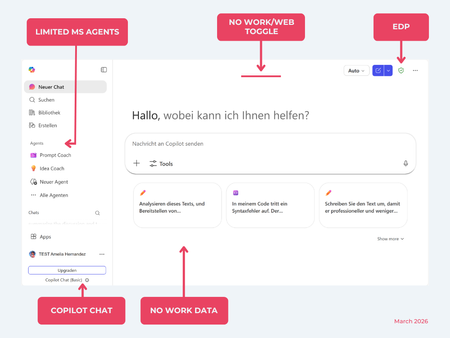
While their names sound similar at first glance, Microsoft 365 Copilot and Microsoft 365 Copilot Chat, they differ in several aspects. And more importantly: one is built on top of the other. What is Copilot Chat (Basic)? First things first. Microsoft 365 Copilot Chat is often simply called Copilot Chat. Copilot Chat (Basic) generates answers based on web content, while Microsoft 365 Copilot (Premium) is also grounded on users' data, like emails, meetings, files, and more. Since early 2025, Microsoft 365 Copilot Chat has been available to all users in organizations, becoming the entry point to AI assistance for many organizations. Copilot Chat (Basic) is the foundational Copilot experience available at no extra cost for everyone with an eligible Microsoft 365 plan, including: Microsoft 365 E3 / E5 Microsoft 365 A3 / A5 Microsoft 365 Business Standard & Business Premium Copilot Chat (Basic) is secured, compliant, and it does not required the full Copilot add-on license. Copilot Chat (Basic) is able to ground responses on: Public web content. Content explicitly shared or work data manually uploaded to the chat by the user. On-screen content or content displayed on-screen in apps like Outlook, Word, Excel, PowerPoint, and OneNote. When it comes to agents, Copilot Chat (Basic) offers these features: You can create your own declarative agents grounded on public web content with Agent Builder. You can use agents built by your org grounded on organizational data with the pay-as-you-go method. There are Microsoft prebuilt agents available like Prompt Coach, however Microsoft premium prebuilt agents like Researcher or Analyst are not included. The screenshot below shows how Copilot Chat looks and highlights its main capabilities. Note the Upgrade button, meaning this is not Microsoft 365 Copilot, but the Copilot Chat (Basic) experience. Note that EDP (Enterprise Data Protection) is available in Copilot Chat (Basic). What is Microsoft 365 Copilot (Premium)? Microsoft 365 Copilot (Premium) is a paid add-on license that builds on top of Copilot Chat and unlocks Copilot's full power. It is available for selected Microsoft 365 plans, including: Microsoft 365 E3 / E5 Microsoft 365 A3 / A5 Microsoft 365 Business Standard & Business Premium With a Microsoft 365 Copilot license, users get everything Copilot Chat (Basic) offers, plus much more: Data grounding: Microsoft 365 Copilot (Premium) includes Copilot Chat grounded on web and/or on user's Microsoft 365 data like emails, meetings, chats, and documents. Office apps: It integrates deeply into Microsoft 365 apps like Outlook, Teams, Word, Excel, and more. The integration includes features like Edit with Copilot allowing Copilot to adjust live your documents or email based on your prompts. Custom agents: It brings the capability to create your own declarative agents grounded in organizational data and/or web data. You can create agent either using Agent Builder or Copilot Studio. MS prebuilt agents: Premium prebuilt agents like Researcher and Analyst are included in Microsoft 365 Copilot (Premium). The screenshot below shows the Copilot chat experience for users who have a Microsoft 365 Copilot license. Note that EDP or Enterprise Data Protection also applies here How can I access Microsoft 365 Copilot Chat? Today, Copilot Chat is accessible via https://m365.cloud.microsoft or https://copilot.cloud.microsoft using your Entra ID (work or school account). One important difference in day-to-day experience: Users with a Microsoft 365 Copilot license typically see Copilot prominently surfaced across Microsoft 365 apps. Users with Copilot Chat only may not see it pinned by default on the Microsoft 365 home page. To improve discoverability, Microsoft 365 Copilot administrators can pin Copilot Chat via the Microsoft 365 admin center, ensuring that users can easily access it without friction. Especially convenient is that if you use the M365 Copilot Chat app on Windows, you can open Copilot using the keyboard shortcut Ctrl + C. What’s the difference? The differences between Copilot Chat and Microsoft 365 Copilot mainly come down to: Licensing Data grounding (web-only vs. personal work data) Integration depth within Microsoft 365 apps I’ve listed the key differences in the comparison below. 👇SolvedMicrosoft Teams Video Recap with Copilot 🤖 | New AI Meeting Highlights Explained
Microsoft Teams just introduced a powerful new Copilot feature: Video Recap 🎥🤖 With AI-powered highlights, automatic key moments, and smart navigation, you can now revisit meetings without rewatching the entire recording. In this video, I’ll show you: ✅ What the new Video Recap experience in Microsoft Teams looks like ✅ How Copilot identifies key moments automatically ✅ Who can access this feature and licensing requirements ✅ Real-world scenarios where this saves hours of time This feature is a game changer for busy professionals, architects, IT admins, and anyone living in Teams meetings.
Copilot Studio + SharePoint: Markdown (.md) Files in Doc Libraries Supported as Knowledge Sources?
Hi all, We’ve been doing some deeper testing with Copilot Studio agents grounded in SharePoint knowledge sources, and I’m hoping to clarify whether what we’re seeing is a known limitation or an undocumented gap. Scenario A Copilot Studio agent uses SharePoint document libraries as a knowledge source The library contains Markdown (.md) files that are intentionally used as canonical design references The same .md files: ✅ Work well when uploaded directly to the agent ❌ Are not retrievable or citable when stored in a SharePoint library and added as a SharePoint knowledge source To help with grounding, we created modern SharePoint index pages that: Explain what the markdown collections are (Patterns, ADRs, Guardrails) Link directly to the canonical folders and files Explicitly state that the .md files are the source of truth The agent can: Discover and summarize the index pages correctly Understand that .md artifacts exist and where they live But it cannot: Read the content of the individual .md files Apply a specific pattern or ADR from those files in a design conversation Cite them as sources, even when permissions and search indexing are confirmed What We’ve Checked Permissions (agent user has access) Folder depth (kept shallow) Search results (markdown files appear in SharePoint search) SharePoint indexing status Work IQ enabled Same content works when attached directly to the agent This behavior also seems consistent with what others have reported here: Markdown works when uploaded directly Markdown retrieval degrades when hosted in SharePoint libraries Questions for the Product Team / Community Are Markdown (.md) files in SharePoint document libraries officially supported as Copilot Studio knowledge sources today? If yes, are there specific constraints (file size, rendering, parsing, indexing) that differ from Word/PDF? If no (or “not yet”), is this a known limitation on the roadmap? Is the recommended pattern to: Convert important markdown files into .aspx pages, or Use thin “index / summary” pages and keep markdown canonical until retrieval improves? We’re happy to adapt our information architecture — just trying to align with the intended platform direction rather than work against it. Thanks in advance for any guidance or clarification. This capability is extremely powerful, and clearer expectations here would help a lot of teams make the right design tradeoffs.253Views4likes2Comments
Copilot in Edge needs direct export integration
While using Copilot in Microsoft Edge, I noticed a key limitation: there is no option to directly save or export text snippets or summaries to OneDrive, Word, or OneNote. Users must copy manually, which breaks the reading flow and reduces productivity. Competitor comparison: Claude → PDF export, integration with Notion and Drive ChatGPT → PDF/DOCX export, integration with Google Drive Gemini → Automatic export, integration with Google Drive Copilot (Edge) → Only copy/paste or browser PDF, no native integration32Views0likes0CommentsUsing AI to prep managers before performance reviews. What are you doing?
We're a 50 person company and review season is coming up. Our managers keep saying they dont have enough context on their direct reports when its time to write reviews. Someone suggested using Copilot to summarize Teams chats and emails but that feels like it would miss the actual performance data like goals and feedback. Whats everyone else doing to help managers prep for reviews? Is there some AI-powered tool that pulls together the actual relevant stuff?31Views0likes0Comments
Using Copilot meeting summaries for performance reviews - how?
Our HR team had this idea to use Copilot meeting recaps as input for performance reviews. Like, if a manager had 20 meetings with a direct report over the quarter, couldnt Copilot help surface key contributions and discussion themes? The problem is theres no way to aggregate multiple meeting summaries into something useful for a review. Each recap is a separate thing in each meeting. Has anyone figured out a workflow or workaround for this?53Views0likes1Comment
Edge and Copilot App - Error code: STATUS_ACCESS_DENIED
I am running Windows 11 Pro - Insider Preview - Version 25H2 (OS Build 26300-8376) My "Copilot app" from the Windows Store started giving me that error code, and Edge stopped working completely, unable to access anything at all, and shows that error on the screen. Windows support won't even look because I am on Insider Preview. Please help?32Views0likes0CommentsThe Daily Stand-Up Agent A Custom Copilot for Summarizing Jira & Azure DevOps Progress
Modern software teams move fast. Between sprint planning, backlog grooming, pull requests, deployments, and stakeholder updates, developers often spend more time discussing work than actually doing it. One of the biggest pain points in Agile workflows is the daily stand-up meeting especially when team members need to manually summarize updates across dozens of tickets in tools like Jira and Azure DevOps. https://dellenny.com/the-daily-stand-up-agent-a-custom-copilot-for-summarizing-jira-azure-devops-progress/47Views0likes0CommentsCopilot in Excel-5 Minutes to Outperform 90% of Excel Users with AI
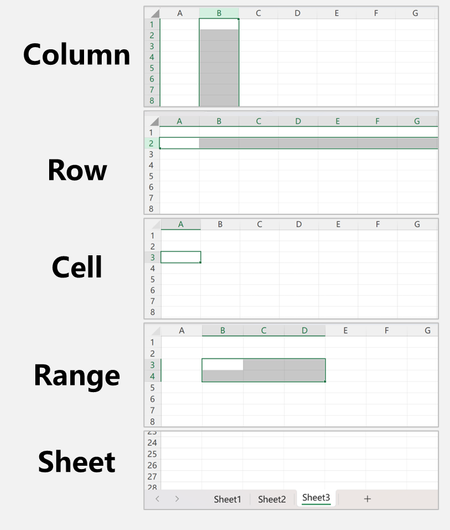
Quick note: I'm a native Chinese speaker. This article was translated with AI assistance — but I've personally tested every step in English before publishing. What you see here works exactly as shown. Prerequisites: This tutorial requires the Copilot feature in Excel (Microsoft 365 subscription). Availability may vary by region and may require additional configuration. Following my previous two articles in the Copilot from a User's Perspective series, this is the first article in a new companion series: AI Tutorials. I'll continue updating the previous series — I just think it's important to break up the rhythm with something immediately actionable from time to time. Why did I dare use this title? I'm sure many of you think I'm exaggerating. In 5 minutes, most people can't even explain what a cross-sheet lookup is — but if you follow this tutorial today, I'm confident you'll agree with the title. If you don't believe me, start your timer now. Step 1: Open Excel and Learn the Terminology Before we start, let's make sure we speak the same language: Column — The vertical axis, labeled with letters (e.g., Column A, Column B). Row — The horizontal axis, labeled with numbers (e.g., Row 1, Row 2). Cell — A single coordinate. For example, A3 means Column A, Row 3. Range — A span from one cell to another. For example, B3:B10 means Column B, Rows 3 through 10. B3:D4 includes six cells: B3, C3, D3, B4, C4, D4. Worksheet — The tabs at the bottom of your Excel file (Sheet1, Sheet2, etc.). Each tab is a separate table. Workbook — The Excel file itself. You might be thinking: "You're starting THIS basic? No way you'll deliver on that title!" But here's the thing — if you understand these terms, you already have everything you need to use Copilot in Excel. Step 2: Create a Practice Dataset Create a new Excel file, open Copilot, and enter this prompt. Make sure to click "Allow Edits" when prompted. Create Sheet2 first with these columns: Name, Gender, Student ID, Score, Height, Class, and Commute Method. Randomly generate 30 rows of data. Make sure the Student IDs are NOT sequential numbers. Then create Sheet1: randomly pick 10 Student IDs from Sheet2 and list them in Column A. For both sheets, format the header row with a light gray fill, increase the font size by 1, and center-align. Most tutorials only teach you concepts — they never give you a dataset to practice with. Here, I just had AI generate a ready-made practice dataset so you can follow along with every step below. Now, let's get to work. Step 3: Use AI to Replace VLOOKUP VLOOKUP is the single most searched Excel function on the internet. Give me 30 seconds, and I'll make it irrelevant. With your tables ready, go to Sheet1. In the Copilot sidebar, type: Based on Column A in Sheet1, pull the values from Column D and Column E in Sheet2. That's it. You just accomplished what VLOOKUP does. Now here's where it gets interesting. VLOOKUP has a well-known limitation — it can only pull data from columns to the right of the lookup column, never to the left. Try this: Based on Column A in Sheet1, pull the values from Column A and Column B in Sheet2. If this works — and it will — you've just gone beyond what traditional VLOOKUP can do. And you never had to understand how VLOOKUP works under the hood. The prompts I used above are deliberately bare-bones. You can be much more specific: Based on Column A in Sheet1, pull the values from Column D and Column E in Sheet2. Insert these two columns before Column A in Sheet1, and fill them with a light gray background. The more Excel terminology you know, the more precise your prompts become — and the fewer errors you'll encounter. Did you notice something? Everything you just typed was nouns + logic. That is the core operating principle of generative AI. Let's keep going. Step 4: Multi-Condition Sorting Switch to Sheet2, where we have the full dataset. Sometimes you need complex sorting — Class in ascending order, Score in descending order within each class, and Student ID in ascending order within each score group. I consider myself an upper-intermediate Excel user, and I still couldn't do this manually — it requires nested sort configurations that most people never learn. But just describe what you want. In the Copilot sidebar, type: Sort the data with the following priority: Class ascending, Score descending, Student ID ascending. All three columns are sorted simultaneously, each with its own direction. If you could do this without AI, you'd already be an advanced Excel user. AI just eliminated that skill gap — and it's faster too. You might have noticed I didn't use column letter references (like "Column F") this time. In fact, I didn't need to in Step 3 either. AI can read the headers, think, and identify the right columns on its own. Step 5: Conditional Formatting Still on Sheet2. Sometimes you need visual differentiation — for example, blue highlighting for male students and pink for female students. In the Copilot sidebar, type: Fill the rows of male students with blue, and the rows of female students with pink. Without AI, I'd filter for males, apply the fill, then filter for females and repeat. That two-step process is surprisingly slow for something so simple. Sometimes you need to spot duplicates. Try: Bold the text in cells where Height values are duplicated. Without AI, this requires setting up conditional formatting rules — a skill that already puts you in intermediate-to-advanced territory. Now the sheet looks a bit messy. Let's reset: In Sheet2, reset all cells except the header row to default formatting. A Note on Prompting Style You'll notice that in Step 5, my prompts were almost entirely natural language — no column letters, no technical references. So why didn't I start the tutorial that way? Because I wanted to give you something you could copy-paste and get working immediately — something reliable and reproducible. I use natural language prompts because I've spent enough time with AI to understand its boundaries and behavior. The terminology-based approach from Step 3 is what I call "The Noun Method" — combine domain-specific nouns with natural-language logic to form complete instructions: Based on (logic) Column A (noun) pull (logic) from Sheet2 (noun) Column B (noun) and (logic) Column C (noun) Once you understand The Noun Method, you can effectively operate any generative AI tool. The key is learning the relevant nouns for each domain — and in Excel's case, there are remarkably few to learn. Closing Thoughts If you followed along with every step, the whole process probably took 10–15 minutes. But I believe that the moment you successfully ran the VLOOKUP prompt in Step 3, you stopped doubting the title. If you'd like more Excel + AI tutorials, follow me and leave a comment. I'll keep them coming. Next up: What You Need to Know About Tokens159Views0likes1CommentThe Architecture of Copilot Agents: Building Intelligent Assistants for the Modern Era
The rapid evolution of artificial intelligence has ushered in a new class of systems often referred to as copilot agents. These agents are not fully autonomous decision-makers, nor are they passive tools they sit in the middle, augmenting human capability by assisting with tasks, providing insights, and automating workflows while keeping humans in the loop. From coding assistants to enterprise productivity tools, copilot agents are becoming foundational to how we interact with software. https://dellenny.com/the-architecture-of-copilot-agents-building-intelligent-assistants-for-the-modern-era/82Views0likes0Comments




Events
Recent Blogs
- The next chapter of enterprise AI isn't about chatting with assistants—it's about agents that actually do the work.May 13, 202619KViews2likes1Comment
- The Workday agent is a blueprint for the future of enterprise software: invisible, intelligent, and indispensable.May 13, 20263.2KViews0likes0Comments